Your plan and billing
Updated 2026-09-01
Where you read which plan you are on, how much of it you have used, and where your invoices are — and why, on most workspaces today, the plan itself is changed by Bottify rather than by you.
What does the Bottify billing screen do?
Subscription & billing is one page. It answers four questions: what plan am I on, how much of it have I used this month, what do I owe, and what have I already paid.
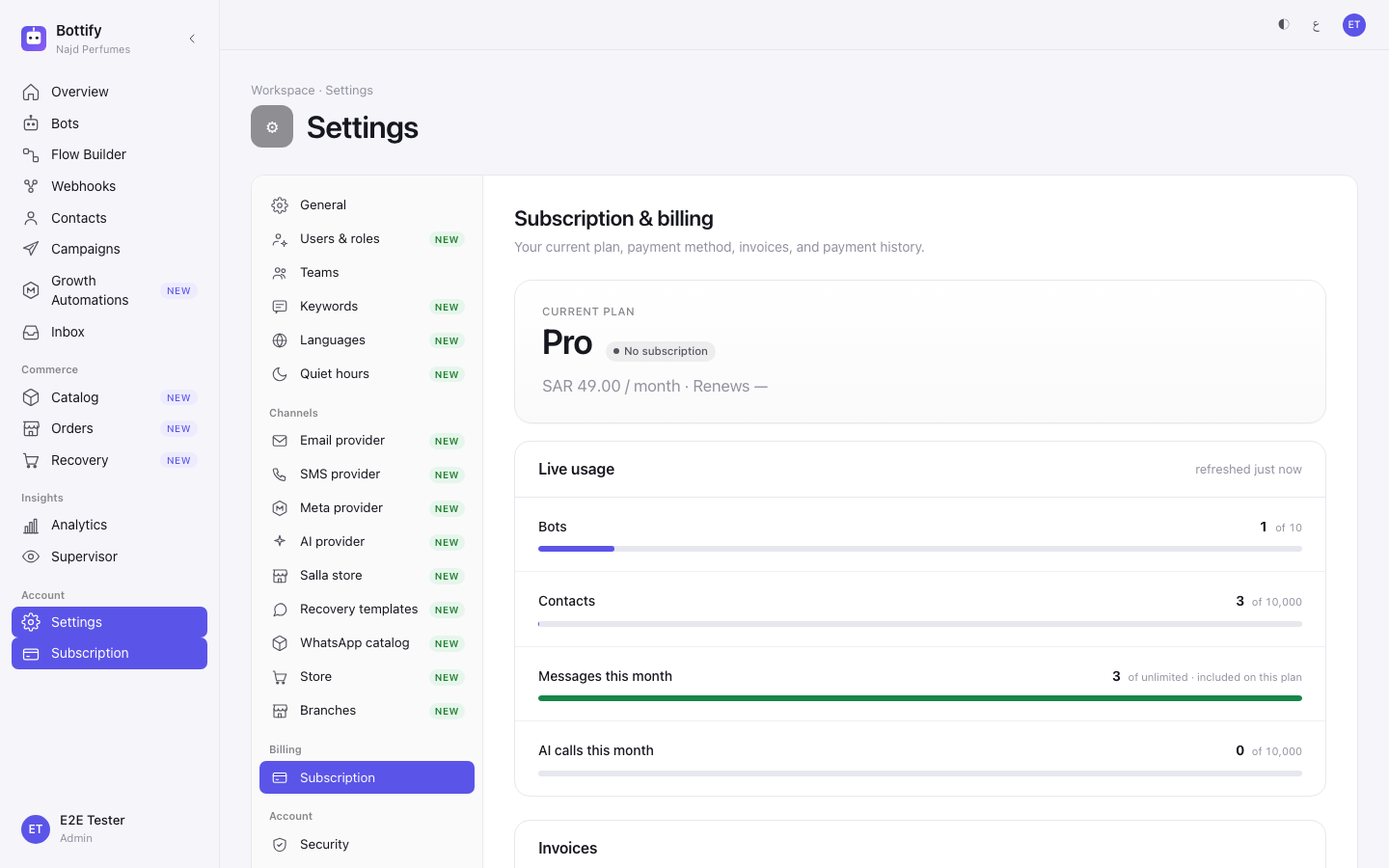
Read this first, because it changes what the page looks like for you. Self-service billing is switched off on a new workspace. When it is off, the page shows your plan, your usage, your invoices and your payment history — and nothing you can press. No plan cards, no saved-card block, no Pay button. At the bottom of the page you get a note instead: "Plan changes are admin-managed" — "To change your plan, contact your administrator. Need help? Email" — followed by support@bottify.app. That is not an error and it is not something you did. It is how the product ships. Everything in this page marked once self-service billing is turned on for your workspace describes the other posture.
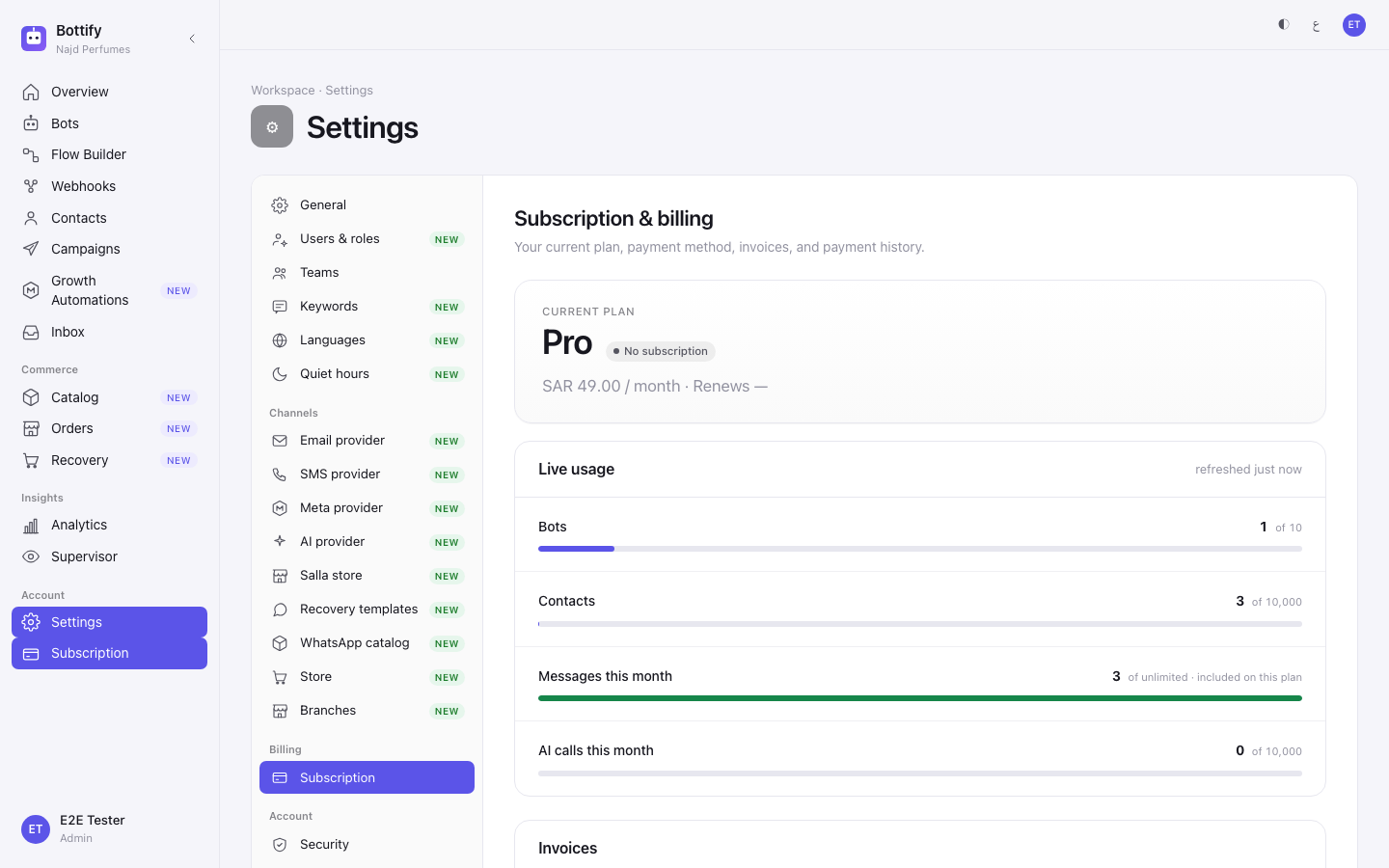
Nourah owns Bayt al-Oud, an oud and perfume shop in Riyadh selling on Salla. She signed up, connected her store, and her catalog synced. Now she wants customers to book an in-store consultation, so she opens the booking screen on her bot — and instead of a calendar she gets a card: "Booking is a Pro feature". The button on it says See plans. That is how most merchants arrive here for the first time: not by browsing settings, but by being stopped.
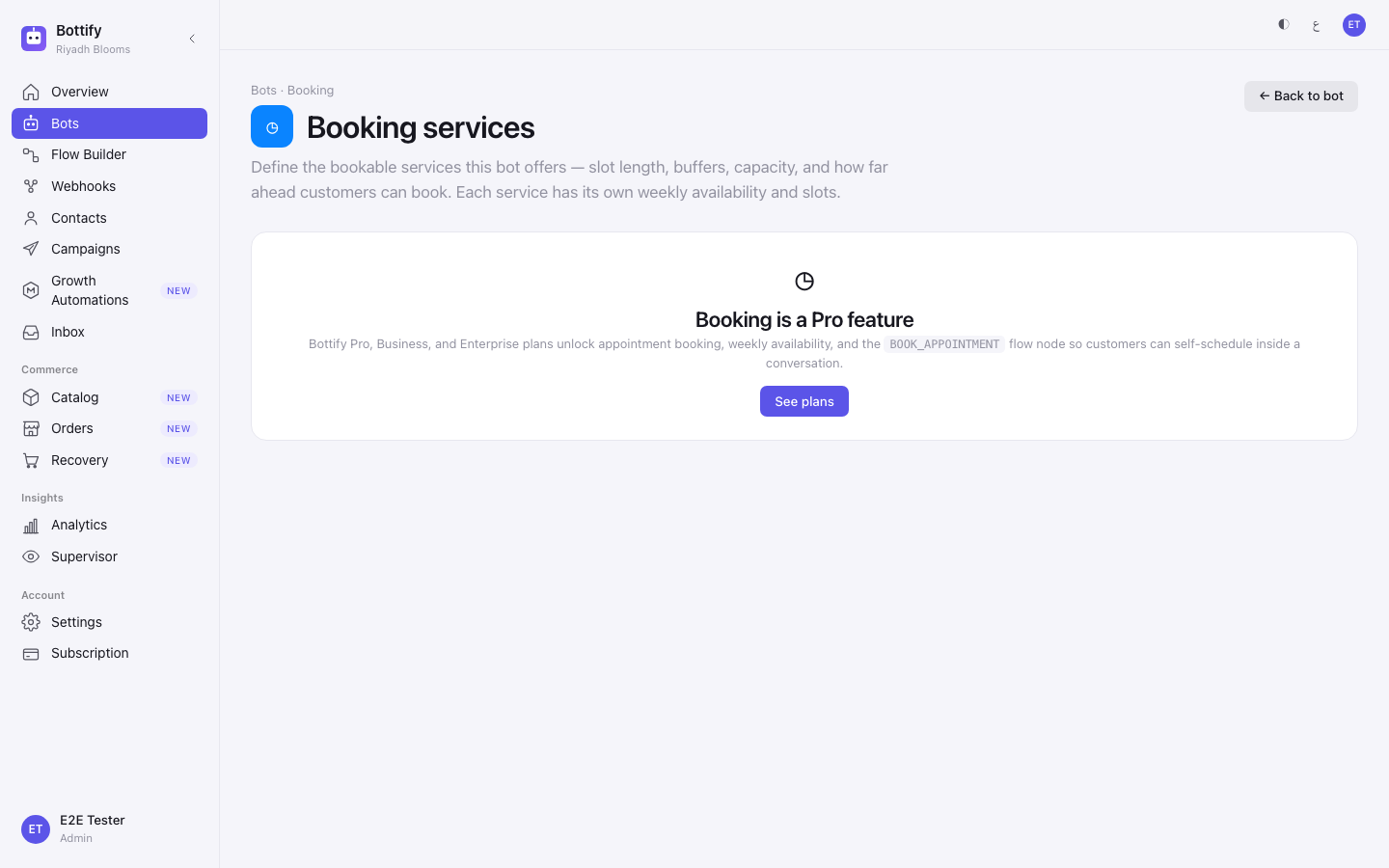
Nourah lands on Subscription & billing, reads her plan, reads the admin-managed note, and emails Bottify. That is the whole journey today, and it is a short one.
Three things a bigger plan does not buy you. Say these out loud before you pay for anything:
- It does not connect WhatsApp, Instagram or Messenger. Meta has not yet approved Bottify, so those channels cannot be connected through Bottify's own path on any plan. Your setup checklist says it plainly: "WhatsApp, Instagram and Messenger — awaiting platform approval". You can still connect by bringing your own Meta app, which is a separate setup and does not depend on your plan at all.
- It does not send your cart-recovery reminders. Abandoned carts and recovery runs in rehearsal on every plan: reminders are planned and counted, never sent. Planned — not sent. No plan changes that.
- It does not tell you what each plan includes. The cards on this page carry a name, a price and a button — no feature list, no limits. Compare plans on Bottify's public pricing page, then come back here to press the button.
What do you need before you can see billing?
| # | What must be true | Why |
|---|---|---|
| 1 | You are an admin. | Subscription is an entry in the Settings rail (Settings is the last row of the sidebar), shown only to admins, and the page opens only for admins. A supervisor or agent who follows a See plans button now reads a card saying "This page is for workspace admins." — before the roles ruling they were quietly put back on their own home screen with nothing said. If that happens to you, you are not an admin. Ask whoever set up the workspace to open it for you. |
| 2 | Nothing else. | You do not need a connected store, a connected channel, or a published bot to read this page. |
| 3 | To press anything on it: self-service billing has to be turned on for your workspace. | This is a Bottify-side switch, not a setting you can find. Until it is on, the page is read-only for everyone, admins included. |
| 4 | To finish a payment: online checkout has to be ready. | Self-service billing can be on while checkout is still being switched on. Then the plan cards appear but their buttons do not work, under the heading "Online checkout coming soon". |
One more thing worth knowing before you read the page: your plan and your subscription are two different things. Registering puts you on a plan straight away. A subscription only exists once one is created and paid for. So a brand-new workspace can honestly show the plan name Free with the badge No subscription beside it. Those two are not contradicting each other.
What are your options for plans and payment?
The page has no settings, no switches and no form. Its options are the buttons on it, and every one of them changes something.
| Option | Where it is | What changes when you use it | What changes if you leave it alone |
|---|---|---|---|
| Subscribe | On a plan card, when you have no subscription yet | Your subscription is created on that plan, its first invoice is opened, and you are taken to the secure payment page. Nothing is charged until you finish there. | You stay on your current plan with no subscription. Your limits do not change. |
| Upgrade | On a plan card that costs more than your current one | Your switch is booked for your next renewal. Nothing changes today — you keep your current plan's limits until the renewal invoice is paid. | Your limits stay where they are, including the one that stopped you. |
| Downgrade | On a plan card that costs less | The same booking, at the same moment: your next renewal. Nothing is deleted when a downgrade lands — you keep what you already have, you just cannot add more of it once the new limits apply. | You keep paying for the larger plan. |
| Cancel switch | On the line under your plan name, only when a switch is booked | The booked switch is dropped and your plan stays as it is. You get the note "Plan switch canceled". | The switch goes ahead at your next renewal. |
| Pay | On an invoice row, only when its status reads open or past due | You are taken to the secure payment page for that one invoice. | The invoice stays unpaid. Read section 6 for what unpaid eventually costs you. |
| Contact us | On a plan card priced Custom | Opens an email to support@bottify.app with that plan in the subject. It is not a purchase button. | Nothing. |
There is no cancel button. No screen in Bottify cancels your subscription. Your only exits are a downgrade, which takes effect at your next renewal, or an email to support@bottify.app.
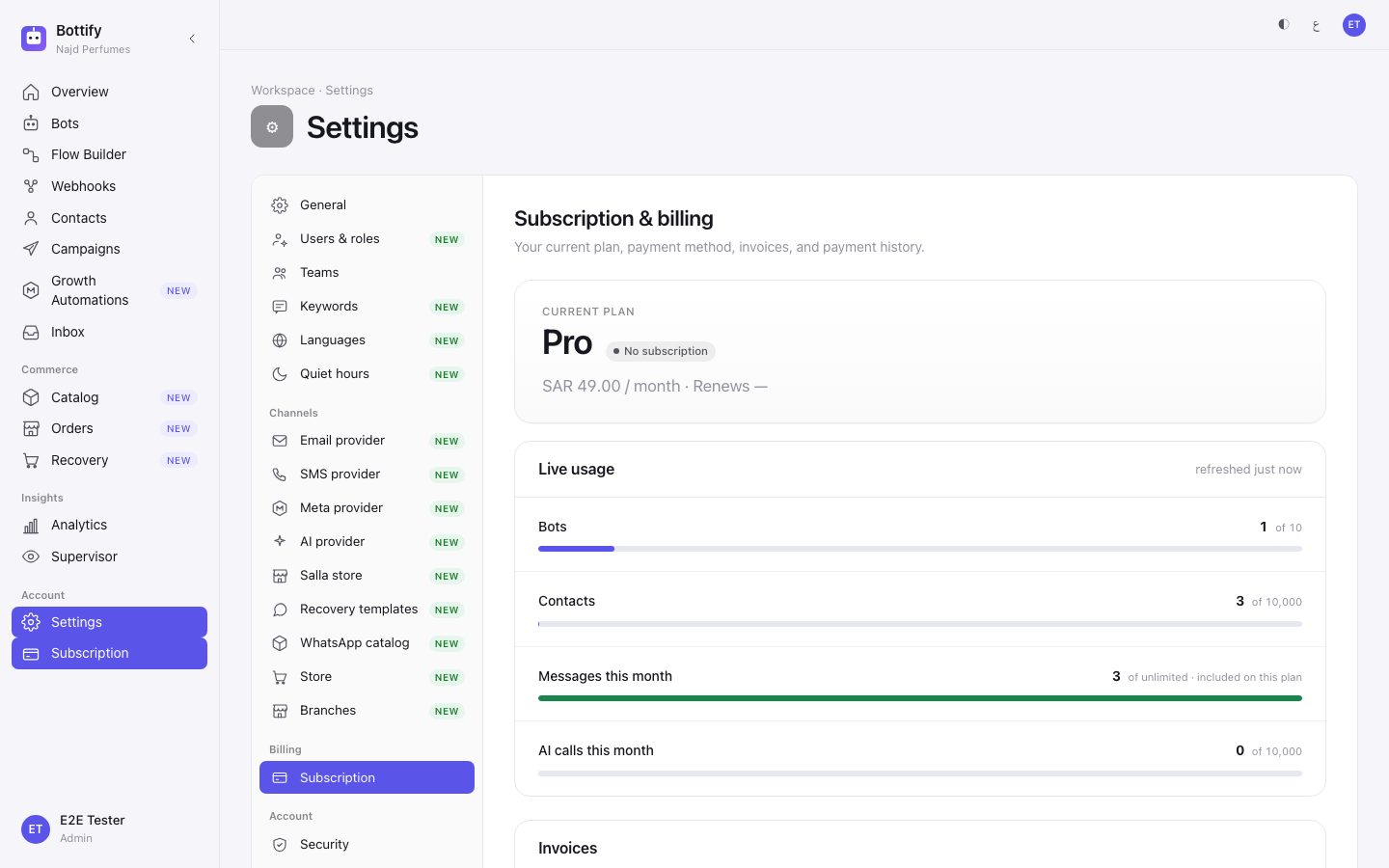
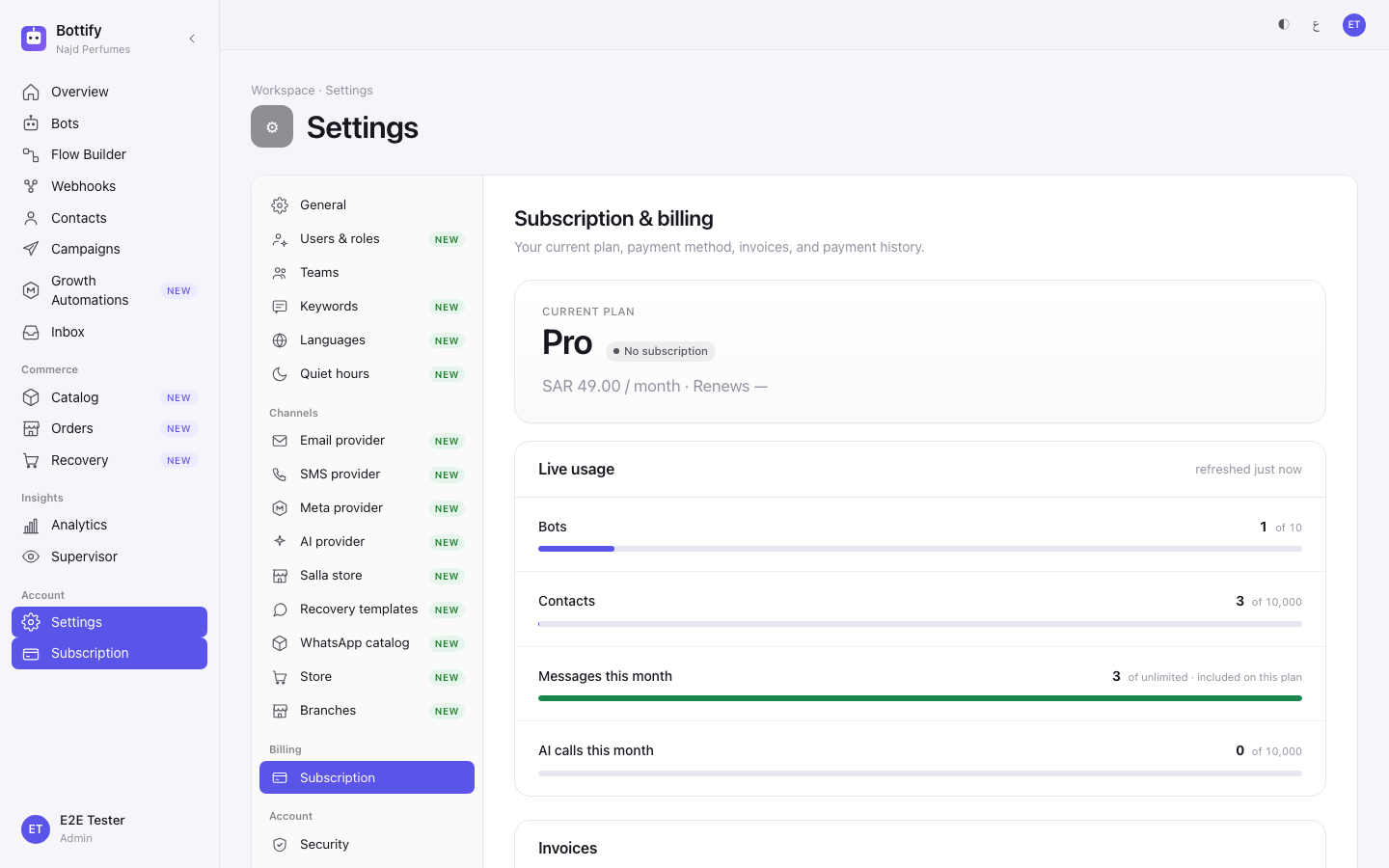
Live usage is the block worth checking monthly. It shows four meters — Bots, Contacts, Messages this month, AI calls this month — each reading a number and then of that meter's ceiling on your plan (on Nourah's Free plan, Contacts reads of 500), with unlimited where your plan has no ceiling. Cross three-quarters of a meter and it captions itself "Approaching the plan limit."; go higher and it turns to "You're close to the limit — consider upgrading." and the bar changes colour.
Offer messages this month. Under the usage, a line reads how many offer messages your plan includes this month, how many you have used, and the day they renew (for example Offer messages this month: 640 of 1,000 · Renews on Dec 1). At 80% a note says so; when none are left, offers stop until that day. A message that isn't delivered doesn't count, and We miss you messages and order updates never count. WhatsApp's own message fees are Meta's, charged to your WhatsApp account, not ours.
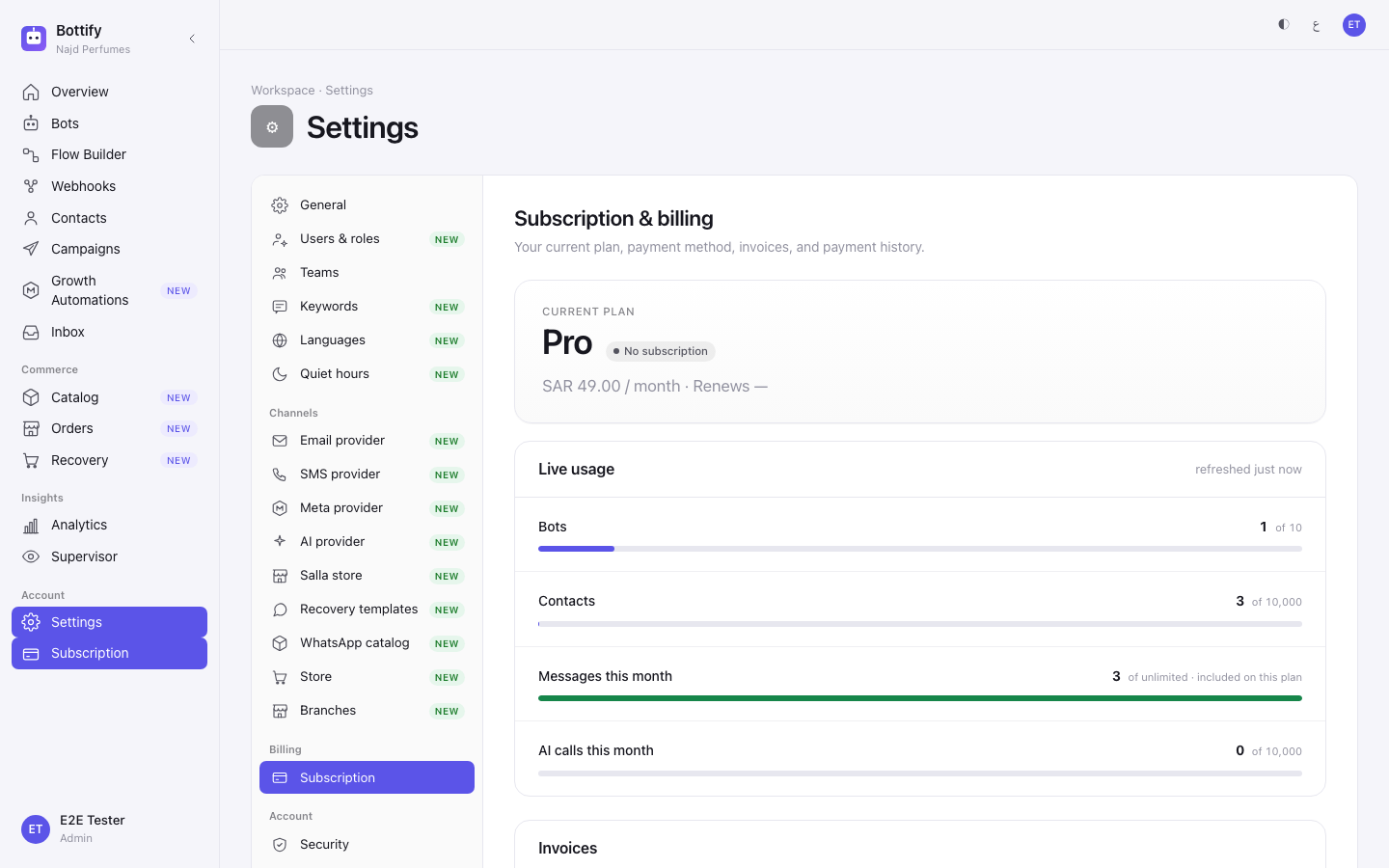
Two honest notes about that block. The caption beside the heading says refreshed just now, but it says that whether the page loaded a second ago or an hour ago — read it as "your usage when this page opened". And the AI calls this month meter is the only place your AI allowance is ever shown to you as a number.
About Salla and your plan: whether Salla is available to you depends on your plan, and the place that tells you the truth about it is your Salla store settings page — not this one. Check there before you change plans.
How do you find your plan and invoices?
Read your plan — works on every workspace
- In the sidebar, open Settings.
- In the settings list, open Subscription.
- Read the Current plan eyebrow at the top and the plan name under it.
- Read the status badge beside the plan name — Active, Trial, Pending payment, Past due, Suspended or Canceled.
- Read the price line below: the amount, then Renews Mar 12, 2026, then the cycle word monthly or yearly.
- Scroll to Live usage and read the four meters.
- Scroll to Invoices and read the Status column.
- Scroll to Payment history and read the Source column, which says Manual or Gateway.
- If the page ends with Plan changes are admin-managed, stop here and email
support@bottify.appto change your plan.
Change your plan — once self-service billing is turned on for your workspace
- On Subscription & billing, scroll to Plans.
- Read the caption under the heading — prices in SAR — so you know which currency every price below is quoted in.
- Find the card carrying the Current plan badge; that one has no button.
- Open Bottify's public pricing page in another tab to compare what the plans include, because these cards do not say.
- Come back and press Upgrade on the card you want — or Downgrade on a smaller one, or Subscribe if you have no subscription yet.
- Wait for that card's button to stop reading Starting….
- Read the message that appears, and check section 5 below against it.
Pay an invoice
- Scroll to Invoices.
- Find the row whose Status reads open or past due.
- Press Pay on that row.
- Complete the payment on the secure payment page that opens. Your card is stored there, by the payment provider, not by Bottify.
- Wait to be returned to Subscription & billing.
How do you know a payment went through?
When you booked a plan switch. A message appears: "Plan switch scheduled" — "It takes effect at your next renewal." That message is the success signal; it is true for upgrades exactly as much as for downgrades. The page then grows a new line under your plan name: Switches to your new plan on Mar 12, 2026, followed by a Cancel switch button. Note the date — it is your current period's end, so it tells you when the change actually lands.
Note what the plan cards do not do: none of them marks the plan you just booked. Only that one line under your plan name tells you a switch is coming.
When you paid. You come back to the page and see "Payment received" — "Updating your subscription…". Treat that as a receipt from the payment page, not as proof. The page then checks itself for about ten seconds. The signals that actually mean paid are three, and they are all further down the page:
- Your status badge reads Active.
- Your invoice row reads paid, with a date filled in under Paid.
- A row in Payment history reads succeeded, with Gateway in the Source column.
If the badge still says something else after that, refresh the page. The payment page can get you back here a few seconds before the payment is confirmed.
When you cancelled a booked switch. A short message: "Plan switch canceled", and the Switches to… line disappears.
When your workspace is read-only. The success is simply that the page loaded with your plan, your usage and your invoices on it, and ended with "Plan changes are admin-managed". There is nothing more to press.
Why can't I change my plan?
"Settle the open invoice first"
You pressed Upgrade or Downgrade and got: "Settle the open invoice first" — "Then you can switch plans."
You have an invoice that has not been paid, and your subscription has slipped to Past due or Suspended because of it. Plan changes are blocked while money is owed. Scroll down to Invoices, find the row reading open or past due, press Pay on it, and try the plan change again afterwards.
What being unpaid actually costs you, since no screen says it. When the grace period runs out, your bots stop answering customers. You can still sign in, read your dashboard, work in your inbox and pay the invoice — only the automatic replies stop. Paying puts them back. Your plan line will warn you first: a Past due badge with Grace period ends Mar 15, 2026 beneath it, and if you were on a trial, Trial ends Feb 26, 2026 before that.
"Payment declined"
You came back from the payment page and got: "Payment declined" — "You can retry from the invoice below."
Your card was refused. Nothing was taken and nothing broke — your invoice is still there and still payable. The message tells you exactly where to go: scroll to Invoices, find the row still reading open, and press Pay again, with a different card if your bank refused this one twice.
"Checkout canceled"
You closed the payment page, or pressed back on it, and landed here with: "Checkout canceled" — "Nothing was charged."
That is not an error, and the second sentence is the one to read. No money moved. If you were subscribing, your invoice is waiting under Invoices with a Pay button on it whenever you are ready.
One more you may meet: nothing happens at all
If pressing a plan button gives you "Couldn't start checkout" — "Please try again in a moment.", or pressing Pay gives you "Couldn't start the payment" — "Please try again in a moment.", try once more in a minute. If it repeats, it is not your card and not your browser — checkout is not ready on your workspace. Email support@bottify.app.