Templates
Updated 2026-09-01
The word "template" names two different things in Bottify — a ready-made bot you adopt, and a pre-written WhatsApp message Meta has to approve — and this page tells you which one you are on, how to use each, and where each one stops.
What does a template mean in Bottify?
There are two screens called Templates, and they do opposite things. Read this table once and the rest of the page will make sense.
| What you say | Where it lives | What it actually is |
|---|---|---|
| Bot templates | the gallery at /templates | A shelf of ready-made bots. Pick one, choose its languages, and Bottify builds you a working bot with its conversations already drawn. |
| WhatsApp message templates | the Templates tab on any bot | Pre-written messages that Meta must approve before you can send them. One message, one language, one approval at a time. |
| Recovery templates | Settings → Recovery templates | Suggested wording for abandoned-cart reminders. Covered on the Cart recovery page, not here. |
The product draws the line for you once, on the recovery screen, and it is the best sentence in the app for this: "Presets are suggested drafts, not approved WhatsApp templates."
Take Layla, who runs Zahra Sweets on Salla in Riyadh — boxed gifts and daily bakes. On her second day she does not want to draw a bot from an empty canvas. She opens the gallery, picks Commerce Starter, ticks English and Arabic, and a minute later she has a bot that shows her catalogue in chat, takes an order through to a payment link, and tracks orders by number. That is a bot template.
Three weeks later she wants to message a customer whose gift box is now ready — a customer who last wrote to her two days ago. WhatsApp will not let her type a free message to someone who has been silent for more than 24 hours. She needs a pre-written message that Meta has already approved. So she writes one, calls it order_ready, and submits it. That is a WhatsApp message template.
Same word. Different screen, different rules, different waiting.
The 24-hour window, since no screen explains it
This is WhatsApp's rule, not Bottify's, and it governs everything on the second half of this page.
When a customer messages you, you can reply with anything you like for the next 24 hours. Once 24 hours of silence pass, you can no longer start a conversation with free text. You may only send a message you wrote in advance and Meta approved in advance. That is what a WhatsApp message template is for. Bottify submits it on your behalf; Meta decides, and Bottify cannot hurry it.
Two honest notes before you start
Meta has not approved Bottify yet. WhatsApp, Instagram and Messenger cannot be connected through the platform path today. Your onboarding checklist says so plainly instead of offering a button: "WhatsApp, Instagram and Messenger — awaiting platform approval", with the body "Meta must approve Bottify before your customers can message you on these channels. There is nothing for you to do here yet — this step becomes a Connect button on the day approval lands."
This matters here for two reasons. First, every template in the gallery today is built for WhatsApp — all seven of them. You can create the bot without a channel, and it will sit there with nowhere to speak. Second, the whole WhatsApp-templates half of this page needs a connected WhatsApp number, which almost no workspace has. You can still connect today by bringing your own Meta app — that is the documented manual path, and it does not take a minute. See Connecting WhatsApp through your own Meta app.
The use-template window will tell you otherwise. It carries a note headed Channels that reads "You'll connect a channel from the bot's page right after this — it takes a minute, and you can do it whenever you're ready." That sentence is not true through the platform path today. Read it as "you will connect a channel later", not as "in a minute".
Cart recovery is in dry-run. Reminders are planned and counted, not sent. The recovery screens carry the banner "Dry-run mode — no live messages are being sent", and every figure reads planned — not sent. Nothing on this page changes that.
What do you need before you can use a template?
For the bot gallery
You must be an admin. Only an admin can open the gallery, and only an admin can create a bot from a template. A supervisor, an agent or a viewer who reaches the address is sent back to the home page with no message at all — no toast, no "you don't have access" screen. If a colleague tells you the link takes them to the dashboard, check their role first.
There is no menu item for you today. This is worth saying carefully, because it is a defect and not a preference. The gallery has no sidebar entry for admins. The link exists in the sidebar only for viewers, and a viewer cannot enter. Your two ways in are the checklist button described in Steps, and typing the address /templates directly. Bookmark it.
Your plan must cover the template you pick. Browsing is free — every template is shown to you, including ones you cannot use. Using one is what your plan gates. Today: Commerce Starter needs Commerce on your plan, and the three clinic templates need Booking. The other three — Generic Support, School Admissions, Lead Capture — are open to everyone.
You must have room for another bot. On the Free plan you get 2 bots, and one of them was created for you when you registered. So a Free workspace has room for exactly one template bot.
You do not need a connected channel, and you do not need Salla. Neither is checked. The bot gets created either way.
For WhatsApp message templates
The bot must have a connected, active WhatsApp channel. This is a hard wall, not a warning. With no WhatsApp number on the bot, the screen shows one card telling you to connect first and nothing else — no list, no button to write a template.
That number must be behind a WhatsApp Business Account. If it is connected but not linked to one, the block arrives when you press submit rather than when you open the screen.
To read templates, you must be an admin, a supervisor, or an agent. A viewer cannot open the screen at all.
To write, submit, sync or delete one, you must be an admin. For a supervisor or an agent the + New template, ↻ Sync from Meta and Delete controls are not disabled — they are not there, with nothing explaining their absence.
Nothing about your plan is checked here. WhatsApp templates are not sold by plan.
What are your options for templates?
In the gallery
| Option | What choosing it changes | What leaving it changes |
|---|---|---|
| Category filter — All, Commerce, Booking & clinics, Education, Marketing, Support, General | Narrows the shelf to that kind of business. Nothing is fetched again; the cards you already have are filtered in front of you. | All shows every published template, in the order Bottify sets. |
| Preview | Opens a drawer with a sample conversation from that template — "A sample conversation from this template." You see what the bot actually says before you own it. | You create the bot without having read a word of what it says. Nothing stops you; you will just be reading it afterwards, in the builder. |
| EN / AR toggle inside the preview | Swaps the sample conversation to the other language. It does not close the drawer and does not reload anything — both languages arrived together. | You read the sample in whichever language the drawer opened in. |
| Bot name in the use-template window | The bot is created under your name. | The prefilled name is the template's own name, in your screen's language. The hint tells you the stakes: "You can rename it later." |
| Languages (tick boxes) | The bot speaks the languages you tick — and your choice overrides the template's. Every shipped template offers English and Arabic, both ticked. | Both stay ticked and the bot is bilingual from the first message. Untick one and that language is gone from the bot until you add it back yourself. |
| Main language | The language the bot opens in. | Bottify keeps the current one. If you untick the language that was main, it silently moves to the first one still ticked — check this field before you press create. |
There is no channel picker in this window, and that is deliberate rather than missing. You connect a channel later, from the bot's own page — and today that page can only finish the WhatsApp connection with your own Meta app, since the platform path is still awaiting platform approval.
In the WhatsApp template wizard
Every one of these is a decision Meta will judge.
| Option | What choosing it changes | What leaving it changes |
|---|---|---|
| Category: Utility (the default) | "Order, account, and reservation status updates. Faster review — keep the message factual and tied to a user action." Fastest approval. | — |
| Category: Marketing | "Promotional and outbound campaigns. Strictest review — disallow language that pushes the user to take action." It also costs money: the recovery screen states it plainly — "Marketing templates start a paid WhatsApp conversation — Meta charges per conversation once live sending is enabled." The wizard never mentions the money. | Stay on Utility and you get a faster review for anything genuinely tied to an order or a booking. |
| Category: Authentication | "OTPs and verification codes only. Special review path; v1 wizard is text-only — submit OTPs via Meta Business Manager for now." The product is telling you this path is unfinished. If you need one-time codes, you cannot finish here. | — |
| Language | One template is one language. Picking ar makes an Arabic template. | Wanting the same message in English too means writing a second template and waiting for a second Meta review. Nothing on screen warns you. Budget for two of everything. |
| Header format — Text, Image, Video, Document | A picture, clip or PDF sits above your message. Limits: image 5 MB, video 16 MB, document 100 MB. | Text headers are the default and the fastest thing to get approved. Switching to a media format clears the header text you typed, and switching back clears the file you uploaded. |
Variables — {{1}}, {{2}} | The message fills in a name, an order number, a date per customer. Every variable then needs a sample value, and Meta reads the samples. | A fixed message that reads the same to everyone. Fewer ways to be rejected. |
| Buttons — reply, URL, phone | Up to 3. Customers tap instead of typing. | No buttons. Two rules if you add them: you cannot mix reply buttons with URL or phone buttons, and a URL button is one fixed link for everybody — the wizard warns "All recipients will see the same URL until v1.2." A per-customer "track your order" link is not possible yet. |
How do you use a template in Bottify?
Create a bot from a template
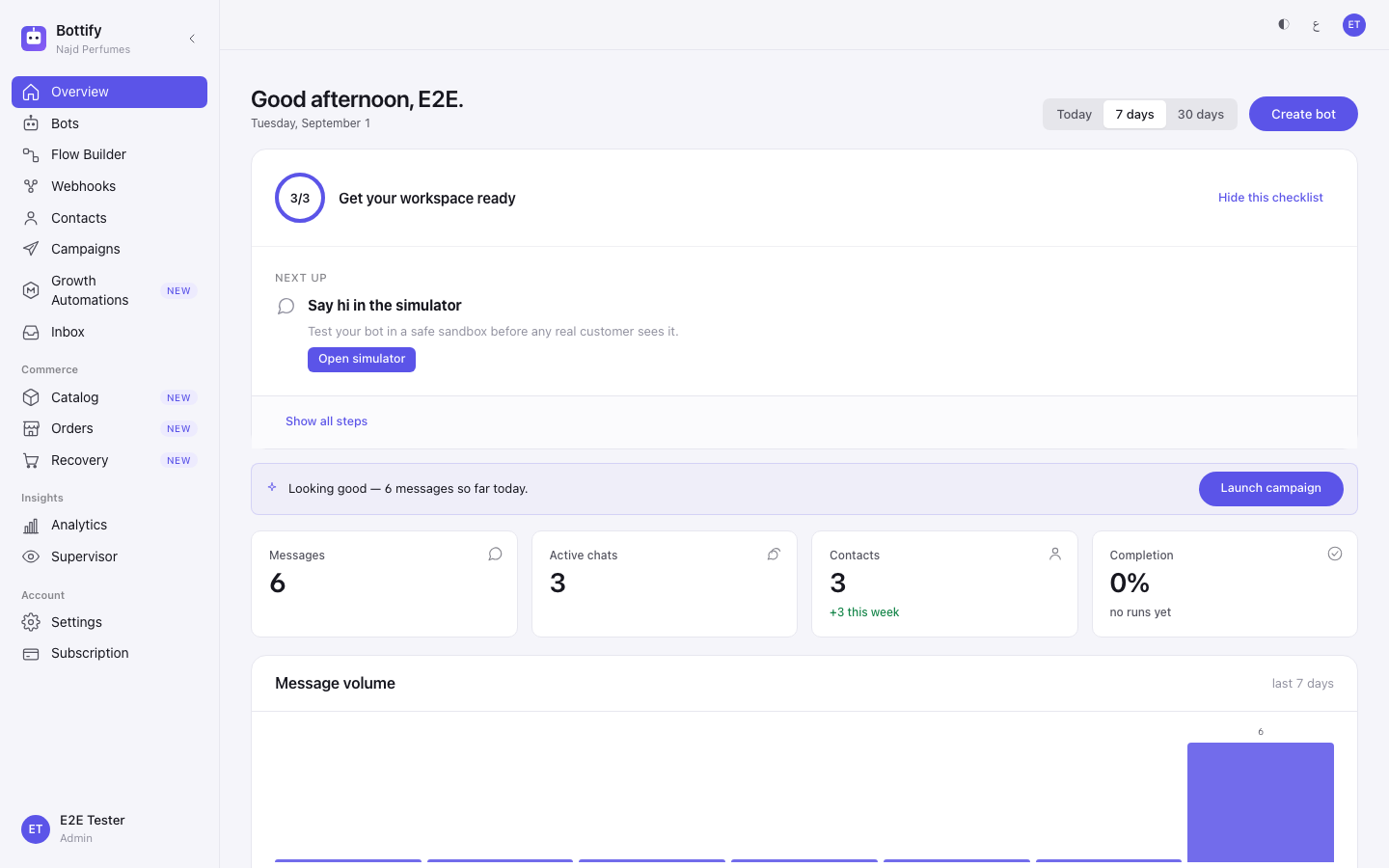
- On the Overview page, find the checklist step Create your first bot from a template.
- Click Browse templates. (Once that step is ticked the button is gone — after that, go to
/templatesdirectly.) - Click a category such as Commerce to narrow the shelf, or leave it on All.
- On a card you like, click Preview to read the sample conversation.
- Click AR or EN in the drawer to read the sample in the other language.
- Click Close.
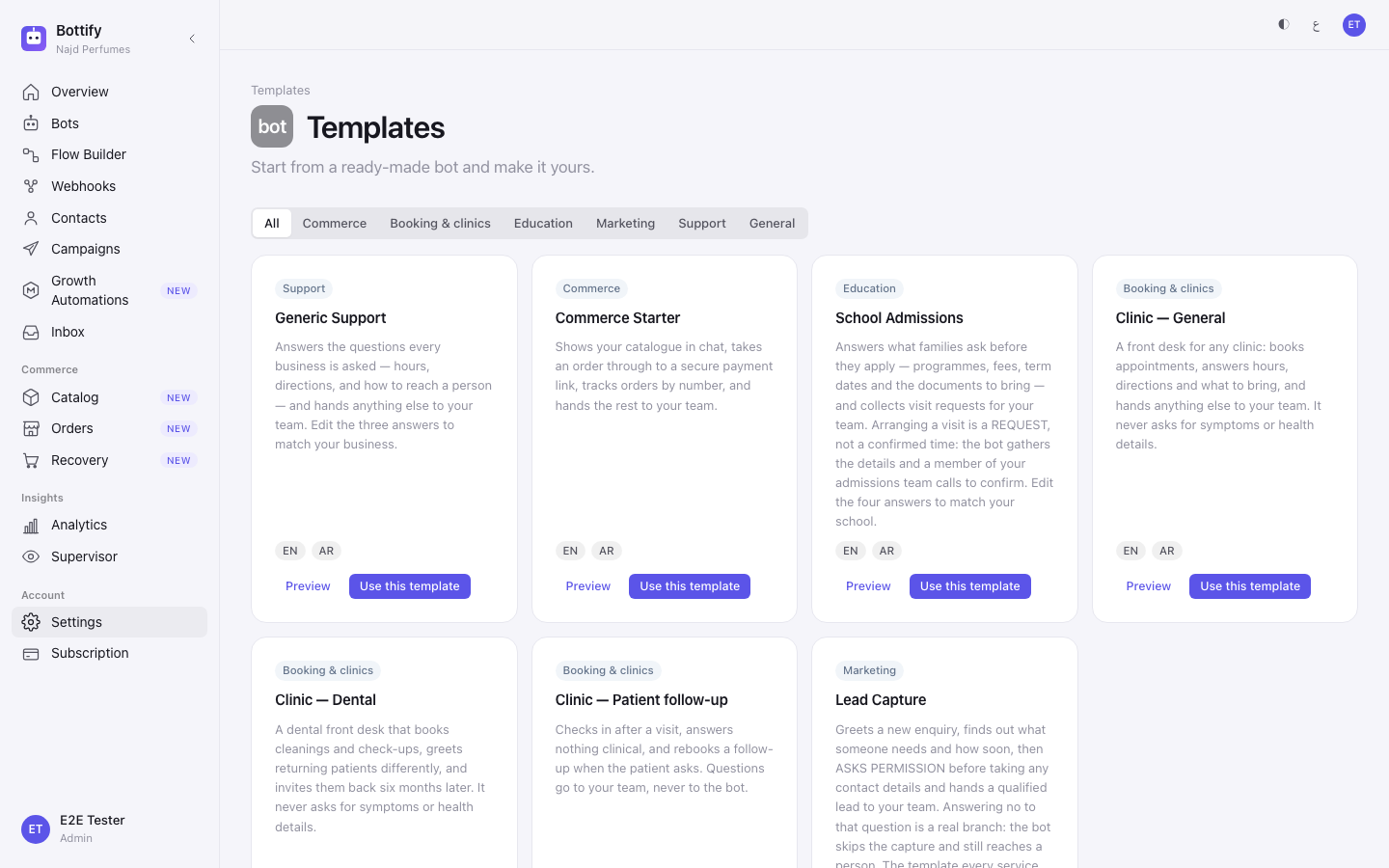
- On the card, click Use this template.
- Check the name in Bot name, and change it if you want to.
- Under Languages, tick the languages this bot should speak.
- Choose the one you want in Main language.
- Click Create bot. The button reads Creating… while it works.
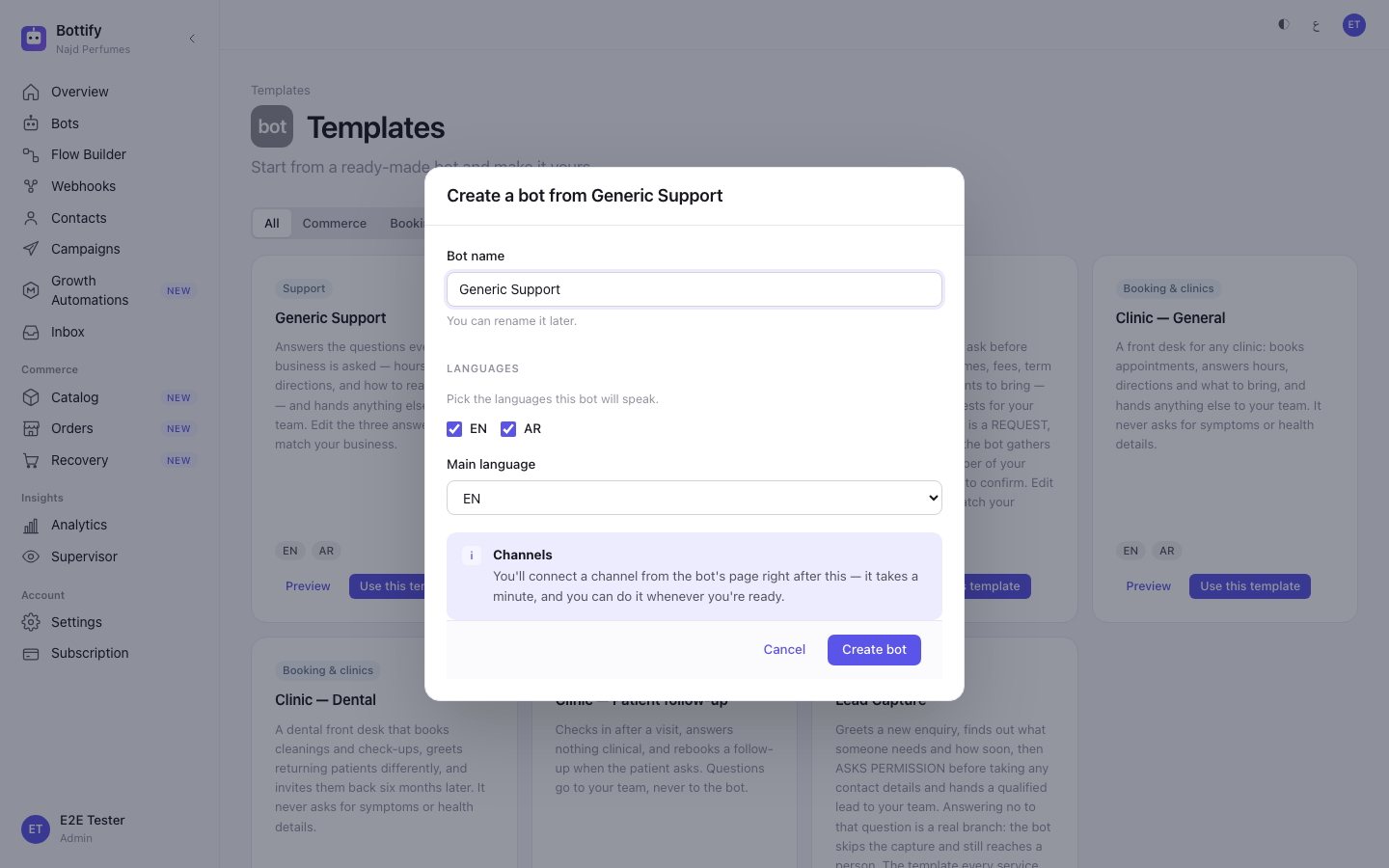
Submit a WhatsApp message template
The screen's title, steps and buttons follow the language you use Bottify in. Each step's own fields are still in English.
- Open the bot from your Bots list.
- Click the Templates tab.
- If the bot has more than one WhatsApp number, pick the right one in WhatsApp channel:.
- Click + New template.
- Type a name in Template name — lowercase letters, digits and underscores only, such as
order_ready. - Pick the message's language in Language.
- Pick Utility, Marketing or Authentication.
- Click Continue →.
- Choose a Header format, or leave it on text.
- Write the message body, using
{{1}},{{2}}where a customer's own details belong. - Fill in Sample values for variables — one real-looking example for each.
- Click Preview →.
- Read the rendered message under Review & submit.
- Click Submit to Meta. The button reads Submitting… while it sends.
View on a template row opens that template's page: its language, status and category, then its text and buttons.
How do you know your template was approved?
After creating a bot from a template
There is no confirmation message. Do not wait for one. The signals are these:
You land on your new bot's page. The bot exists, under the name you gave it, with its conversations already built — not a draft you still have to assemble. Creating a bot from a template builds the bot, its settings, its flows and its keyword triggers in one go, and if any part of that had failed, none of it would have been created.
The checklist step ticks itself. Back on the Overview page, Create your first bot from a template is now complete, without a reload. And if it was your last outstanding step, the card reads "You're all set" with the line "Your workspace is ready. Nice work."
Two things worth knowing that no screen tells you:
Your bot is a copy, not a link. Whatever happens to the template afterwards — it is updated, it is withdrawn from the gallery — your bot keeps working exactly as it is. Edits you make are yours. Nothing upstream reaches down and changes it.
Pressing create twice does not make two bots. If you submit the same template with the same name again, you get the same bot back rather than a duplicate. The flip side: if you genuinely want two bots from one template, give the second one a different name, or you will keep being handed the first.
After submitting a WhatsApp template
A message appears reading Template submitted, and you are returned to the templates list. Your new row is there with an amber Pending review badge.
Then you wait for Meta, not for Bottify. The wizard says it twice: "Approval typically lands within 24 hours." and "Once you submit, Meta typically reviews within 24 hours. You'll see the status flip in the templates list automatically."
The list really does update itself. While any row says Pending review, the screen checks with Meta every 30 seconds and stops once nothing is pending. You do not have to press anything. ↻ Sync from Meta is there for the case where Meta changed something and the news did not reach Bottify — press it if a row has been pending for more than a day, and check WhatsApp Manager too.
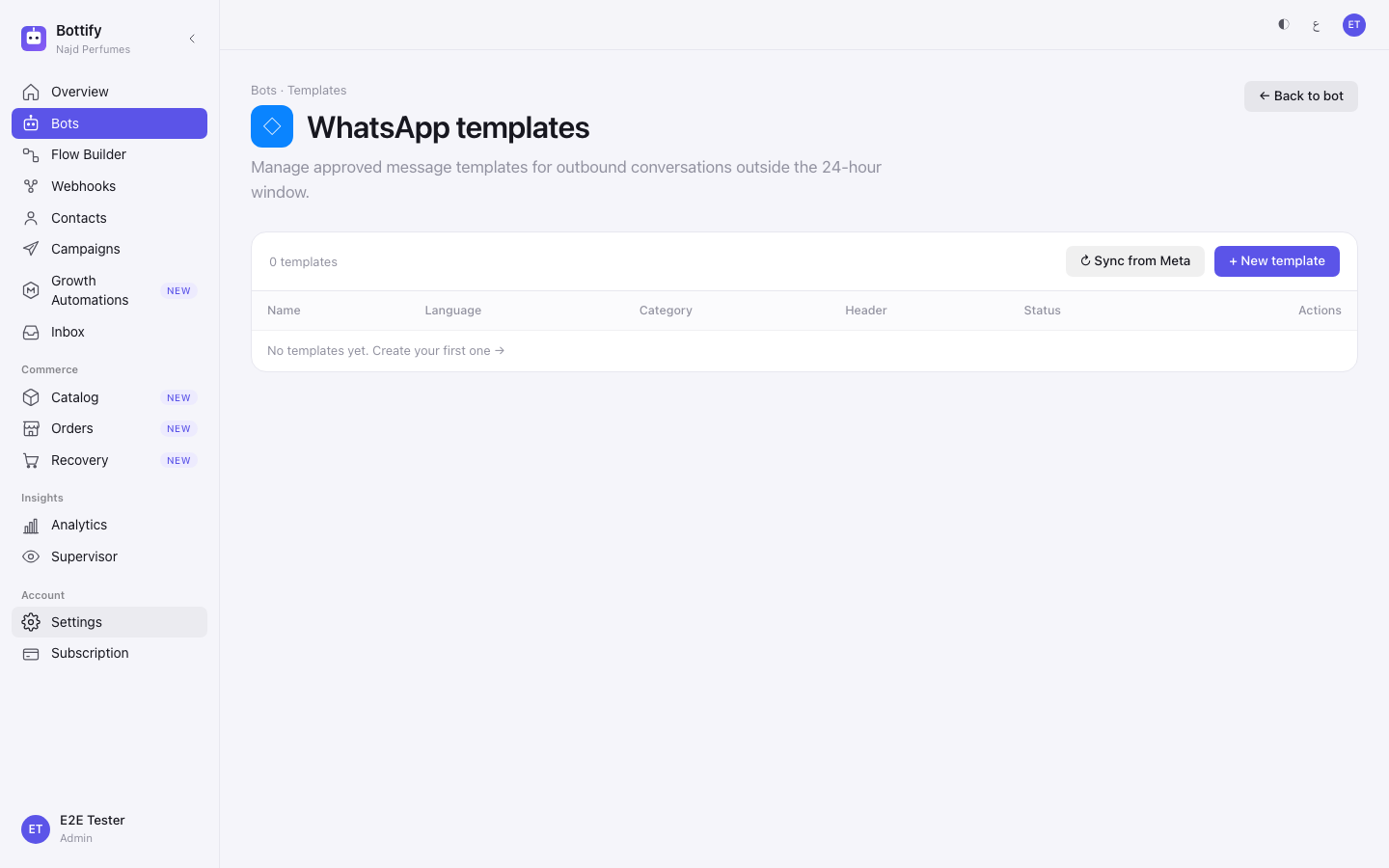
There are five badges, and they are the whole story of this screen:
| Badge | What it means |
|---|---|
| Pending review | Sent to Meta. Nothing can be sent with it yet, and it cannot be deleted while it sits here. |
| Approved | You can send it. |
| Rejected | Meta refused it. A red line under the badge reads Rejected: followed by Meta's own reason, in English. |
| Paused | Meta suspended it, usually because customers blocked or reported it. |
| Disabled | Meta switched it off. |
Why was my WhatsApp template rejected?
The template is locked
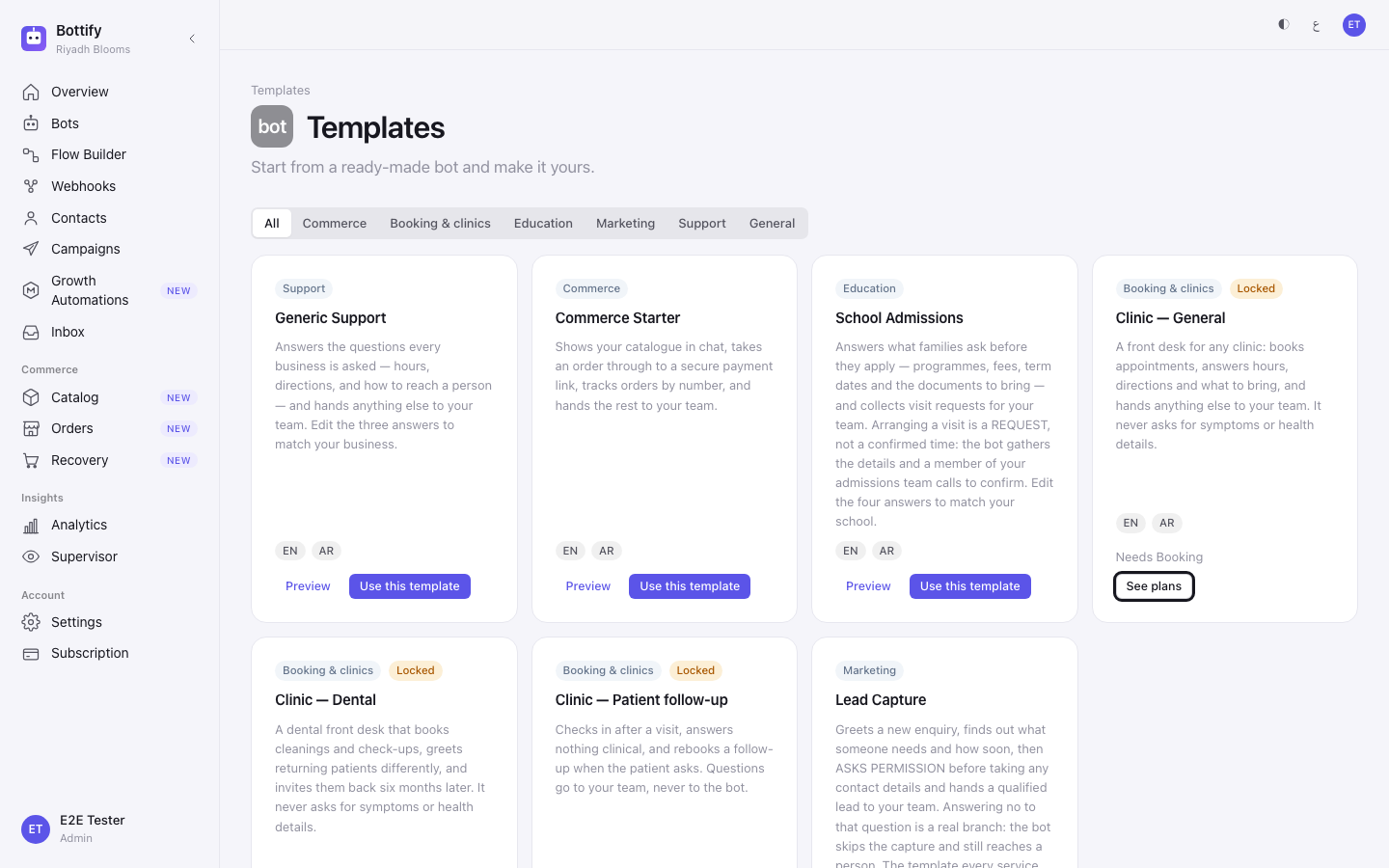
What you see: on the card itself, before you click anything — a Locked badge, a line reading Needs Commerce (or Needs Booking), and a See plans button where Use this template would be. There is no Use this template button on a locked card at all.
If you get there another way, the same block arrives inside the window as "Your plan doesn't include this template" with the body "It needs Commerce."
Why: browsing is open to everyone; using a template is gated by your plan. Commerce Starter needs Commerce. Clinic — General, Clinic — Dental and Clinic — Patient follow-up need Booking.
What to do: click See plans — it takes you to your billing page, where your own plan and the ones above it are listed. Or pick a template that is not locked: Generic Support, School Admissions and Lead Capture are open on every plan, and Generic Support is the one most shops start with anyway.
You've run out of bots
What you see: you press Create bot and the window shows "You've reached your plan's bot limit" with the body "Remove a bot or move to a bigger plan to create another."
Why: every plan allows a fixed number of bots, and the bot Bottify created for you at registration counts. On the Free plan the limit is 2, so the second template you try is the one that fails. Your Bots page says the same thing with numbers on a banner: "Free plan: 2 of 2 bots used".
What to do: go to Bots, decide whether the starter bot is still earning its place, and remove one. Or move to a larger plan. Nothing is lost while you decide — your choices in the window are still there when you come back.
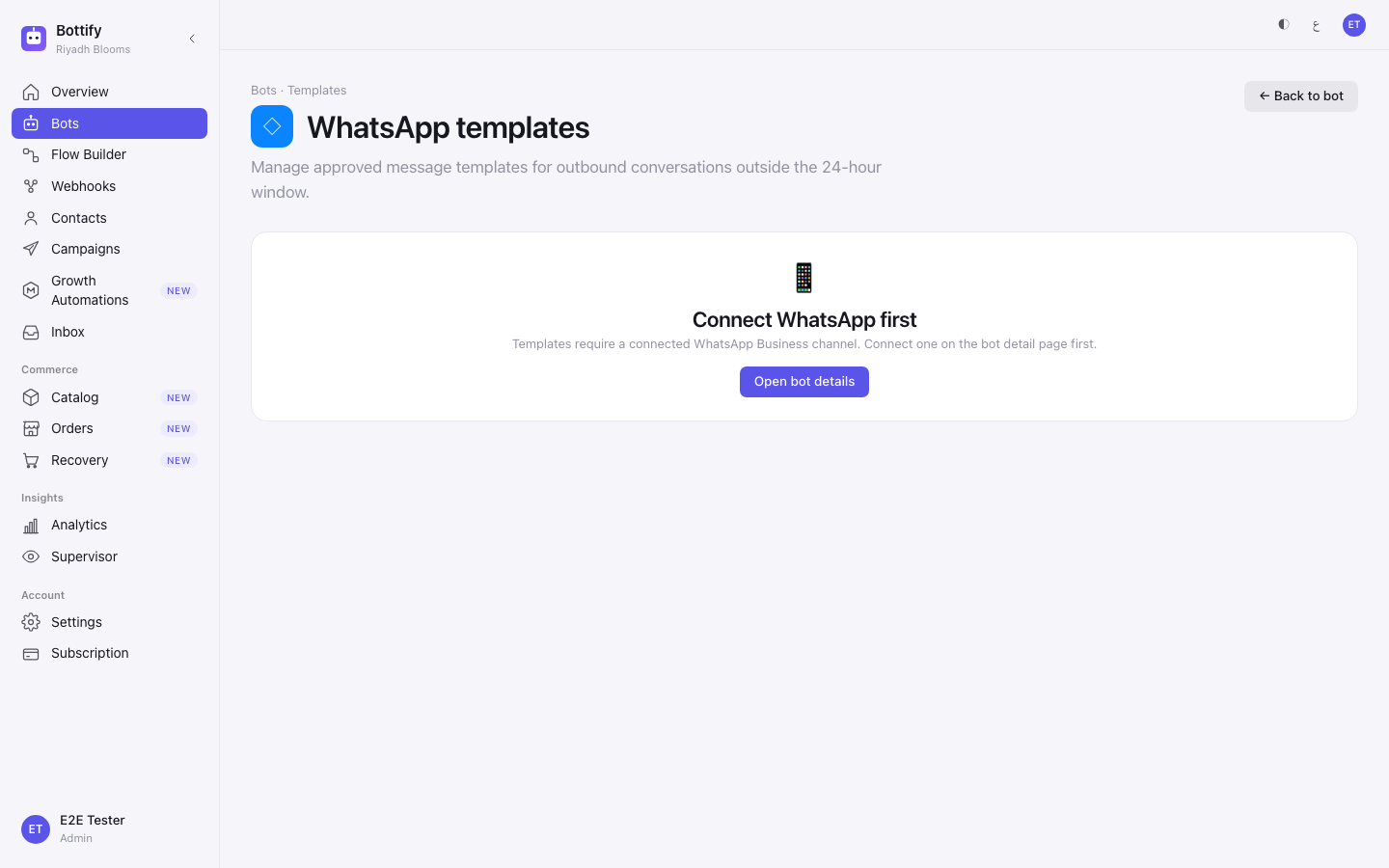
"Connect WhatsApp first"
What you see: you click the Templates tab on a bot and get a single card. Nothing else — no list, no button to write a template:
Connect WhatsApp first Templates require a connected WhatsApp Business channel. Connect one on the bot detail page first. Open bot details
Why: a WhatsApp message template is a message registered against a specific WhatsApp number. With no active WhatsApp number on this bot, there is nothing to register it against. This is the state nearly every workspace is in today, because Meta has not approved Bottify and the platform connect path is not open.
What to do: click Open bot details and connect a WhatsApp channel by bringing your own Meta app — the manual path, on its own page. Until that is done, nothing on the Templates tab can be used, and there is no partial version of it. Your bot still works everywhere else in Bottify; it only cannot start conversations on WhatsApp.
Three smaller things that will confuse you before they stop you
The General category is always empty. All seven category buttons are always drawn, but nothing ships in General. Clicking it always gives you "Nothing in this category" with "Try another category." That is the truth, not a loading failure.
"Couldn't create the bot" prints the server's own sentence underneath, in English. It does that on purpose, so the real reason is not swallowed by a message that disappears. Read the English line; it names the actual problem.
Meta's rejection reasons arrive in English too, word for word as Meta wrote them, on an Arabic screen as much as an English one. Nothing is broken. Nobody translates Meta.