Flows and automation basics
Updated 2026-09-01
How to write down one conversation your bot can hold on its own — draw it, choose the words that open it, test it in a fake chat, publish it, and understand the three separate things that have to be true before a real customer could ever reach it.
What does a Bottify flow do?
A flow is one conversation your bot knows how to have, from the customer's first message to the bot's last reply. A bot can hold many flows. Each flow has its own opener — usually a word the customer types.
The Flow Builder is where you draw that conversation. You drag pieces onto a canvas — the bot says something, the bot asks something, the conversation forks, the conversation goes to a human — and you join them with lines. Nothing is written in code. You are not building software; you are writing down a conversation you have already had a hundred times and letting the bot hold it for you.
Abdulrahman runs Dar Al-Oud, a small perfume shop in Riyadh selling oud, bakhoor and gift boxes on Salla. He answers the same question all day: do you deliver, and how long does it take? The answer is not complicated, but it depends on the city — same day inside Riyadh, 2 to 4 days everywhere else. He types it out twenty times before noon.
So he builds one flow and calls it Shipping questions. It has six pieces: the conversation starts, the bot greets the customer and says what this conversation is about, the bot asks which city to deliver to, the answer forks two ways, each side gets its own reply, and anyone who would rather talk to a person is handed to his team. It opens whenever a customer's message contains the word شحن or توصيل, or "shipping" or "delivery". He builds it in an afternoon and never types that answer again.
What do you need before a flow can run?
You must be an admin. The Flow Builder is admin-only, on every screen it has — the flow list, the canvas, the settings screen and the test chat. A supervisor, an agent or a viewer will not find Flow Builder in their sidebar at all, and if you send one of them a link to it, they now read a card saying "This page is for workspace admins." — before the roles ruling they landed back on their own home page with no message and no warning, and read it as a broken link.
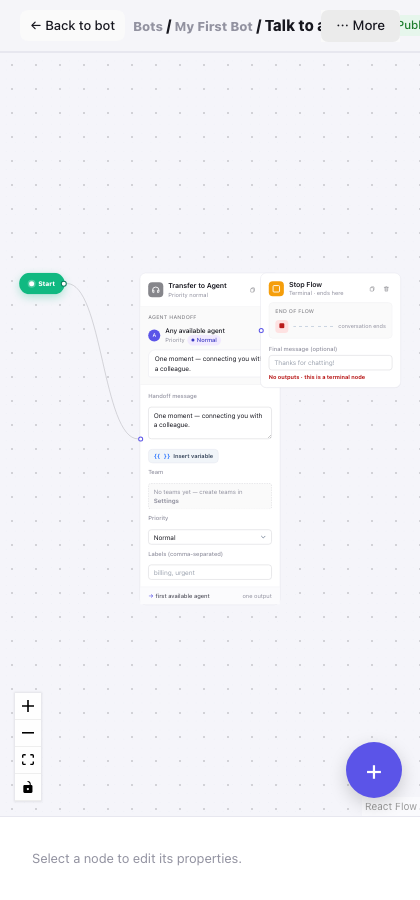
You need a laptop or a desktop computer. The canvas will not open on a phone or a narrow window. Below 1025 px of browser width it covers itself with a panel headed Flow builder needs a wider screen, reading: "The visual flow builder needs at least 1025 px of horizontal room plus a precision pointer (mouse or trackpad). Open this URL on your laptop or desktop to keep editing." You cannot dismiss it. Note that it measures the browser window, not the screen — a half-width window on a big monitor fails the same test a tablet does. Make the window full width and it lets you through.
You need a bot. With no bots, the Flow Builder reads "No bots yet. Head to Bots to create one."
You need a flow, and there is only one door that makes one. Flows are created on the bot's own page, under the Flows tab — not in the Flow Builder. With a bot but no flows, the builder reads "No flows yet. Open the bot to add a “New flow”." That link takes you where the + New flow button lives.
That one screen is in English only, whatever language you use. The Flows tab, its + New flow button, the dialog it opens and its success message have not been translated yet. If your dashboard is in Arabic, this screen will still read English. It has not broken; it has not been translated. Everything after it — the canvas, the settings, the test chat — is in your own language.
No plan is required. There is no plan gate on the Flow Builder. Every plan can build, save, publish and test a flow. A small number of the pieces you can drag onto the canvas do need a bigger plan — those carry a Pro+ badge and will not drag — but none of the pieces in this page needs one.
Nothing needs to be connected. You do not need your Salla store, and you do not need a channel. Everything on this page works today on a workspace with nothing plugged into it.
And here is the honest part. Meta has not yet approved Bottify, so WhatsApp, Instagram and Messenger cannot be connected from inside Bottify. Your onboarding checklist says so in the product's own words: WhatsApp, Instagram and Messenger — awaiting platform approval, with no button to press. Read that against what this page gives you. Building your flow works. Saving works. Publishing works. Testing it in the simulator works, today, exactly as it will on the day approval lands. What does not work today is the last link in the chain: a real customer arriving on one of those three channels, because the channel cannot be connected through Bottify yet. There is one way around it — bringing your own Meta app and connecting a channel yourself. That is a separate job with its own page; see Connecting WhatsApp, Instagram and Messenger. Everything on this page is worth doing before then, and none of it has to be redone afterwards.
What are your options for building a flow?
Where each option lives
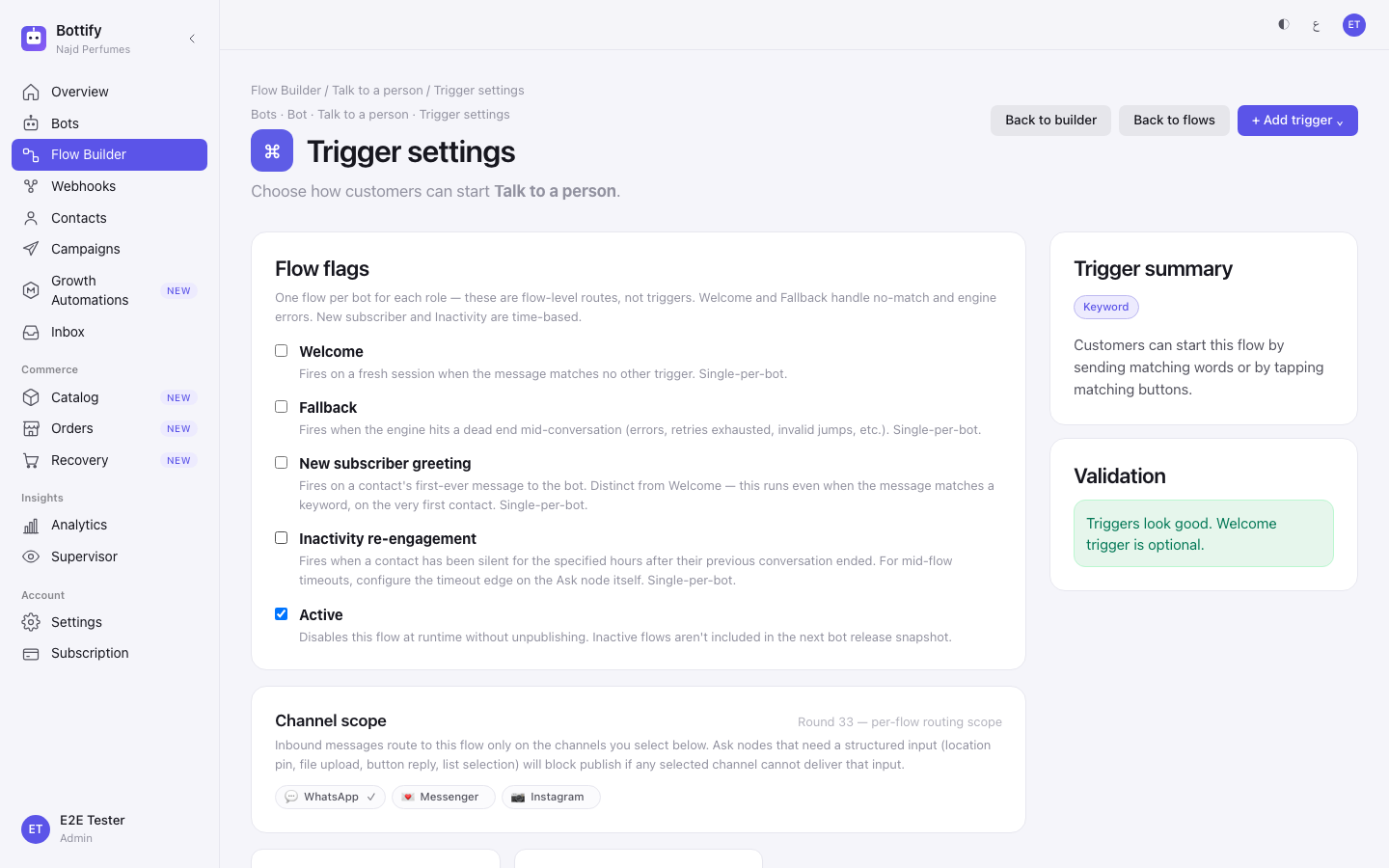
Everything below sits on one screen. You reach it from the canvas with the Flow settings button. Its own heading reads Trigger settings — same screen, two names. This page calls it Flow settings, because that is the label on the button you press.
The words that open the flow
A trigger is the record that tells the bot when to run this flow. It is not something you drag onto the canvas; it lives only on Flow settings.
| Option | What changes if you set it this way |
|---|---|
| Keyword trigger | The flow opens when the customer's message matches words you list. This is the one to use |
| Button trigger | The flow opens when a customer taps a button another flow sent them. Use it to join two flows together, not to start a first one |
| Recurring (cron) and AI intent | The + Add trigger ⌄ menu also offers these two. Do not use them yet. They save, then vanish — the list below only ever shows Keyword and Button triggers — and the part of Bottify that would fire them is not connected yet, so the flow would not run even if you could see the trigger. AI intent also needs a Pro+ plan |
Inside a keyword trigger
| Option | What changes |
|---|---|
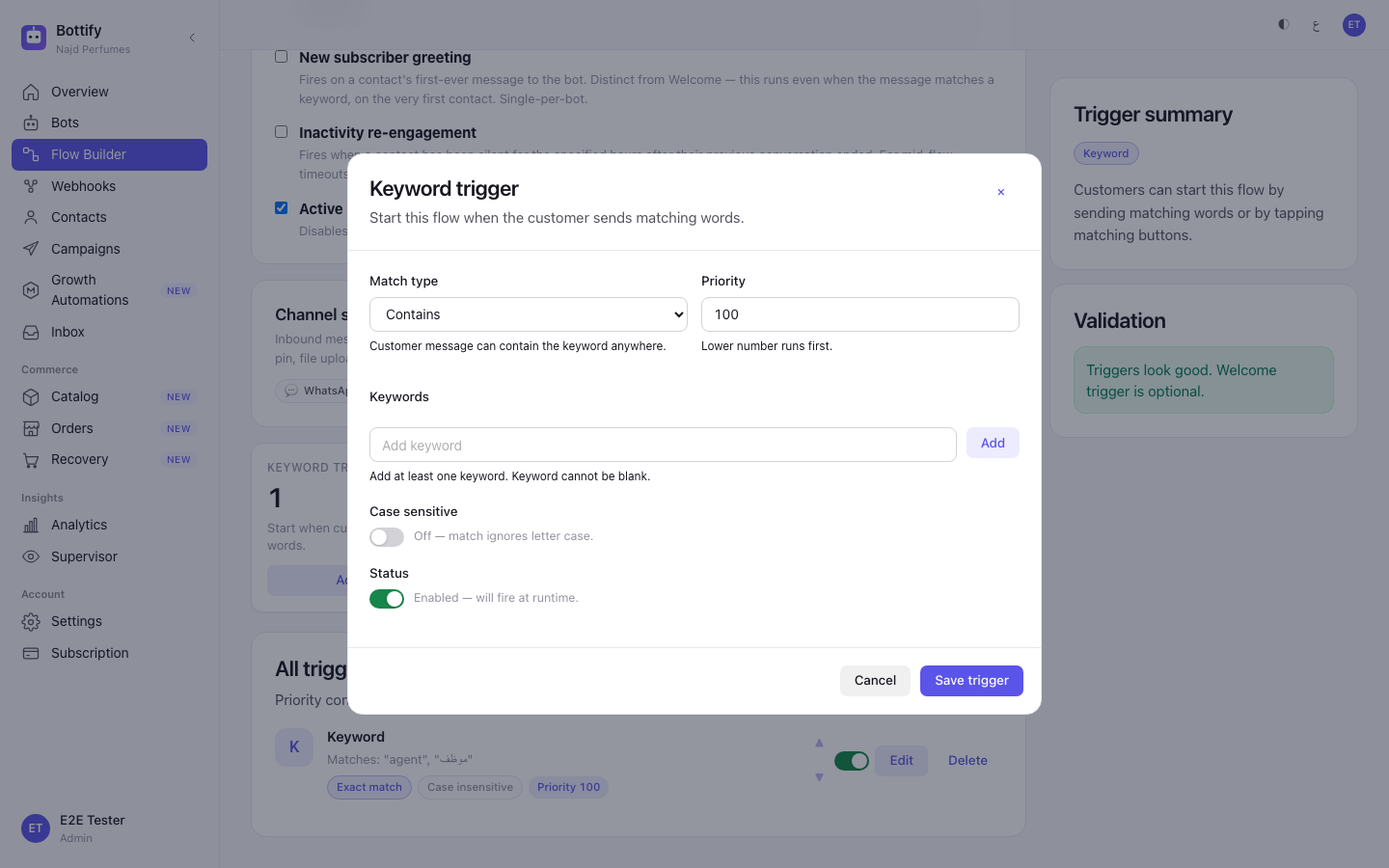
| Match type: Contains | "Customer message can contain the keyword anywhere." A customer writing "how long does shipping take?" matches your keyword shipping. Use this one |
| Match type: Exact match | "Customer message must exactly match one of these keywords." The customer has to send the word alone and nothing else. Almost nobody writes that way, and a first flow set to Exact match looks broken |
| Match type: Starts with | The message must open with one of your keywords. Anything before it, even a greeting, and the flow stays shut |
| Match type: Regular expression | "Advanced — each keyword is treated as a regex pattern." For people who already know what that sentence means |
| Case sensitive ON | "On — “Hello” and “hello” are different." Two spellings, two keywords needed |
| Case sensitive OFF | "Off — match ignores letter case." One keyword covers every spelling. Leave it off |
| Priority | "Lower number runs first." Only matters once two triggers on the same flow could both match the same message |
| Status: Enabled | "Enabled — will fire at runtime." |
| Status: Disabled | "Disabled — saved but never matches." The trigger stays in your list and stays switched off. Use it to retire a keyword without losing it |
Channel scope
Three chips: WhatsApp, Messenger and Instagram. A new flow starts with all three selected, and each one you deselect means messages arriving on that channel will not open this flow.
Two things to know before you touch them. First, deselecting all three does not warn you gently — it blocks publishing outright, and that is the single most common way a first publish fails. Second, these are exactly the three channels awaiting Meta approval, so today the chips decide where your flow would route rather than where it does. Leave all three on unless you have a reason.
Flow flags
Five switches. All five are off by default, and for a keyword-driven first flow all five should stay off.
| Flag | What changes if you turn it on |
|---|---|
| Welcome | This flow answers when a customer opens a fresh conversation and their message matches no trigger anywhere on the bot. Only one flow per bot can hold this role |
| Fallback | This flow answers when the bot gets stuck partway through a conversation. Only one flow per bot can hold this role |
| New subscriber greeting | This flow answers a contact's first-ever message to your bot — even if that message matched a keyword. Only one flow per bot |
| Inactivity re-engagement | This flow reaches out to a contact who has gone quiet. Turning it on reveals a Hours of silence box; the flow fires after that many hours. Only one flow per bot |
| Active | This is the only one that starts on. Turn it off and the flow stops running without being unpublished, and its card reads "Inactive — not included in the live release." Turn it off to mothball a flow you are not ready to delete |
Read the first four as job titles, not as volume knobs. Turning Welcome on does not make your flow more likely to run; it hands that flow one specific job and takes it away from whichever flow held it before.
Versions
Every time you publish, Bottify keeps a permanent copy of the canvas as a numbered version. The Versions drawer lists them. View puts an old version on screen read-only, and you get out with ← Back to working draft. Roll back takes an old version's drawing and publishes it again as a new, higher-numbered version, so nothing is ever lost.
Roll back has no confirmation and no undo prompt. One click publishes. Compare Discard draft, which does ask ("Discard unpublished changes?"). Check which row you are on before clicking.
How do you build a WhatsApp auto-reply?
Create the flow
- Click Bots in the sidebar.
- Click your bot's card.
- Click the Flows tab.
- Click + New flow.
- Type a name into Name — for example, Shipping questions.
- Click Create & open.
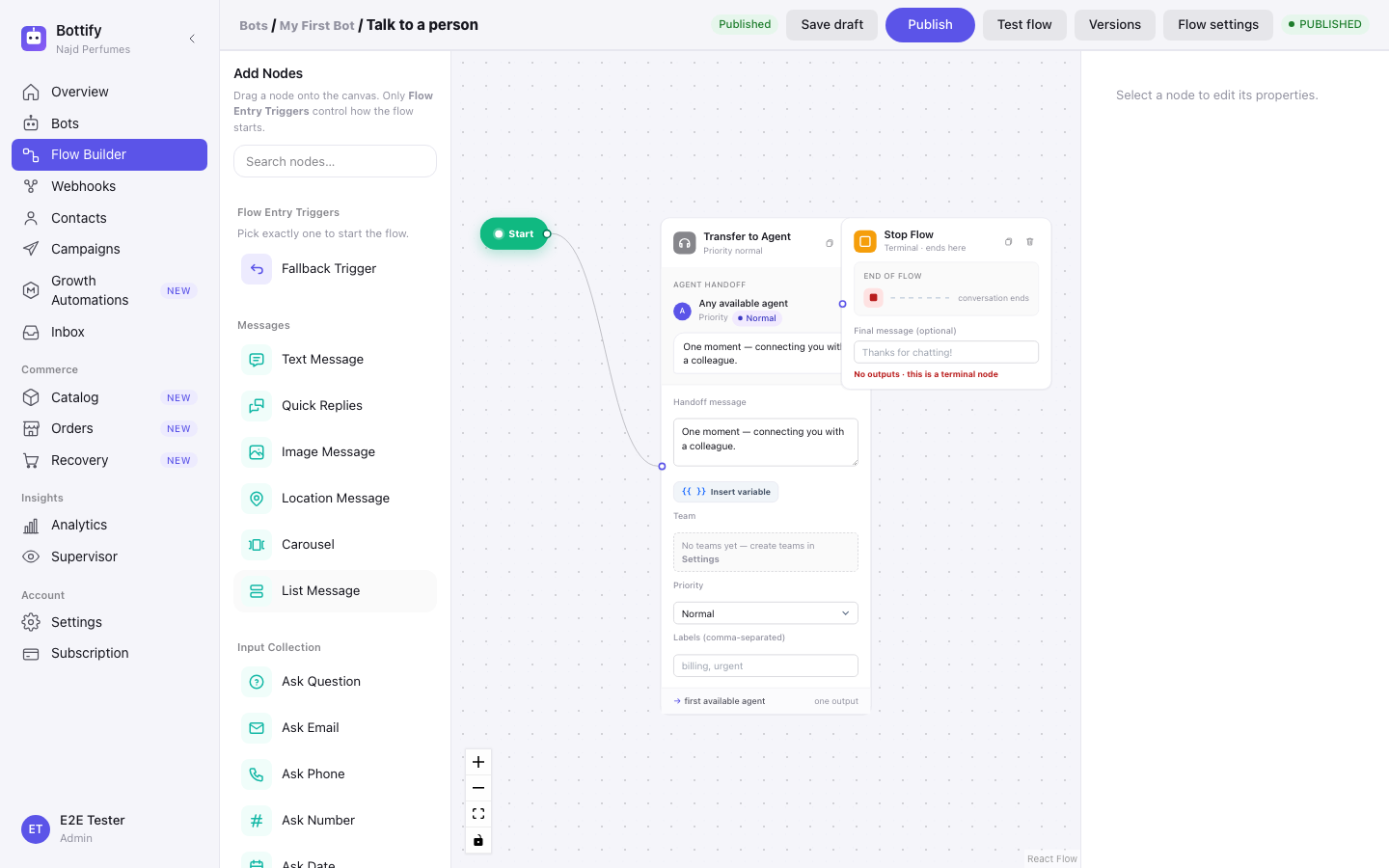
Bottify opens the canvas for you, with one piece already on it: Start. That is where the conversation begins. You cannot delete it and you do not need to configure it.
Draw the conversation
- Find Text Message in the Add Nodes panel, under Messages, and drag it onto the canvas.
- Drag a line from Start to that Text Message.
- Click the Text Message and write your greeting in the properties panel on the right.
- Drag Ask Question, under Input Collection, onto the canvas.
- Drag a line from the Text Message to the Ask Question.
- Click the Ask Question and write your question — for example, which city should we deliver to?
- Type a name into Save to variable, so later pieces can use the customer's answer — for example,
city. - Drag Condition, under Logic / Routing, onto the canvas.
- Drag a line from the Ask Question to the Condition.
- Click the Condition and write the test it should make — the customer's city being Riyadh.
- Drag a Text Message onto the canvas and connect it to the Condition's true exit. This is your same-day answer.
- Drag another Text Message onto the canvas and connect it to the Condition's false exit. This is your 2-to-4-days answer.
- Drag Transfer to Agent, under Agent, onto the canvas and connect one of your answers to it. The conversation ends there and lands in your team's Inbox.
- Click Save draft.
Saving never checks your work. Its own tooltip says so: "Save unfinished work — even with validation errors". You can leave the canvas half-drawn, go and serve a customer, and come back to it.
Tell the bot when to run it
- Click Flow settings in the topbar.
- Leave all three chips selected under Channel scope.
- Click Add keyword.
- Choose Contains under Match type.
- Type your first keyword into Add keyword and press Enter — for example, شحن.
- Add your remaining keywords the same way — توصيل, shipping, delivery.
- Leave Case sensitive switched off.
- Click Save trigger.
Test it before anyone sees it
- Click Back to builder.
- Click Test flow in the topbar.
- Click Skip on the test contact card, or fill it in first and click Start session.
- Type one of your keywords into Type a message….
- Click Send and read what the bot says back.
Two things about this screen. It tests what is on your canvas right now, saved or not — pressing Test flow does not save and does not publish. And it only does that when you arrive by pressing Test flow. If you bookmark the test chat and open it directly, it runs your last published version instead, which may be yesterday's flow.
Publish it, then make it live
- Click Back to builder if you are still in the test chat.
- Click Publish.
- Click Bots in the sidebar.
- Click your bot's card.
- Click Publish bot — or Republish, if the bot was already published before you made this flow.
Do not skip the last two steps. Publishing a flow and publishing a bot are two different acts, and only the second one puts anything in front of a customer. A published flow on an unpublished bot is finished work sitting in a drawer.
How do you know your flow is live?
When you save. A message headed Draft saved: "Your unfinished work is safe. Validation only runs on Publish." The pill in the topbar changes to Draft saved at the same time.
When you save the trigger. A message reading Trigger saved, the trigger appears as a row in All triggers with a Priority 0 badge on it, and the Validation panel on the right changes to "Triggers look good. Welcome trigger is optional."
When you publish the flow. A message reading Flow published. The topbar pill changes to Published, the draft is cleared, and a new numbered version appears in the Versions drawer. Back on the Flow Builder list, your flow's card carries a green Published badge and no orange warning under it.
When the bot is published. Go back to the bot's page. The orange callout reading "This bot is offline. Publish to receive messages." is gone, the header button now reads Republish, and your flow's row shows a green badge reading v1 published rather than Bot not published or Not in current release.
That last badge is the one that matters most, and it is the only place in Bottify that shows it. Three separate things have to be true before a customer could reach your flow: the flow is published, the flow has at least one trigger, and the bot is published with this flow's version inside the current release. The Flow Builder shows you the first two. Only the bot's page shows the third. No screen puts all three in one answer, so check both.
Why is my bot not replying?
"No channels selected"
What you see. Publishing fails with a message headed No channels selected, reading: "This flow has no target channels. Open Flow settings and pick at least one channel before publishing."
You may have seen the warning earlier without recognising it. The moment you deselect the last chip on the Channel scope card, a red line appears under it reading "Select at least one channel — publish is blocked on empty scope", followed by a code in Latin letters — (FLOW_TARGET_CHANNELS_EMPTY). That code is for support, not for you.
Why it happens. A flow has to know which channels its messages can arrive on. With every chip off, there is no channel left for a customer's message to come in on, so there is nothing to publish. It usually happens because a merchant deselects Messenger and Instagram to "keep things simple", then deselects WhatsApp too while deciding.
What to do. Open Flow settings, find Channel scope, and click at least one chip back on. Then go back to the builder and publish again. Unless you have a reason to exclude a channel, turn all three on.
"Published but unreachable"
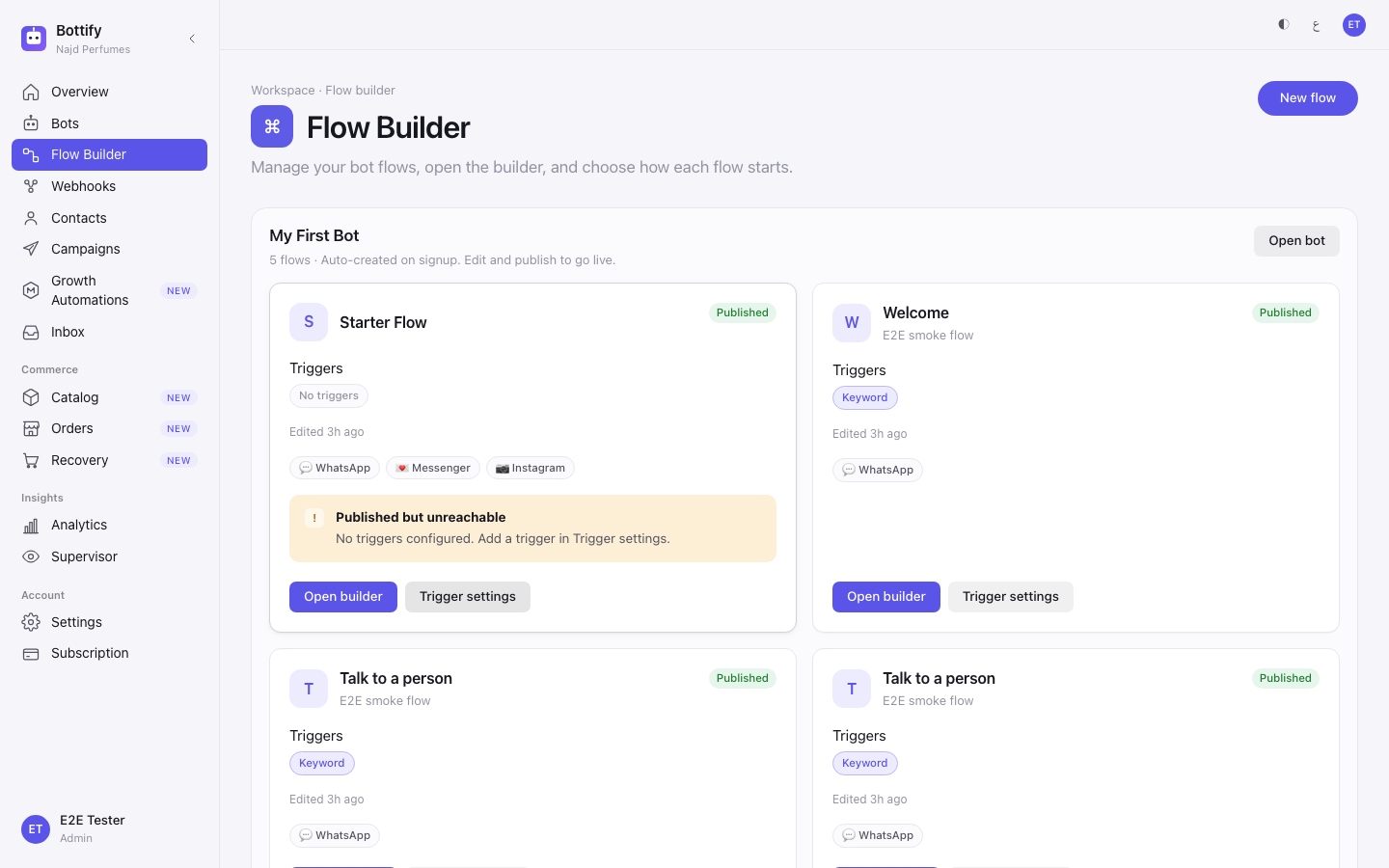
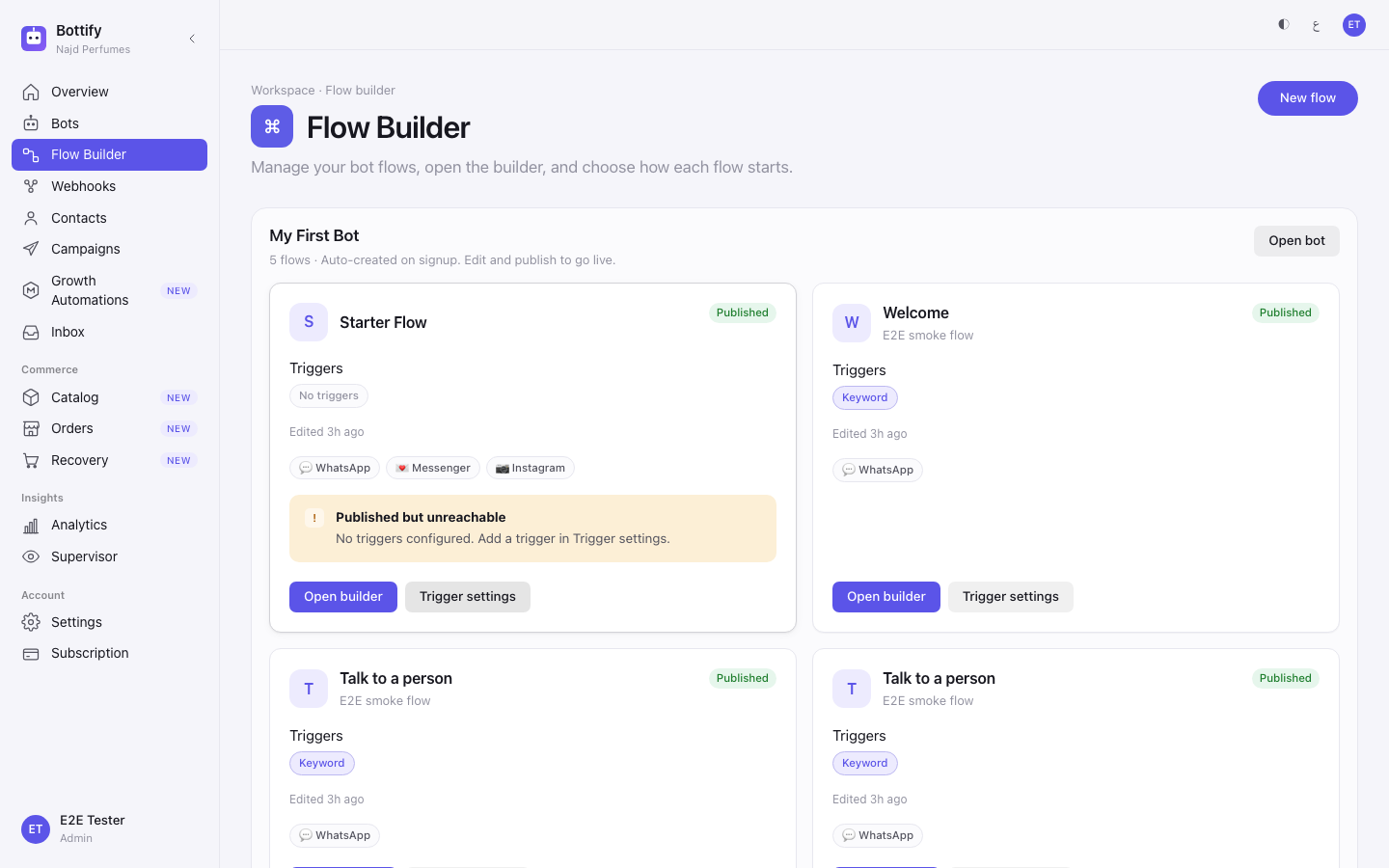
What you see. On the Flow Builder list, your flow card carries the green Published badge and, underneath it, an orange callout headed Published but unreachable, reading: "No triggers configured. Add a trigger in Trigger settings."
Why it happens. You drew the conversation and published it, but you never told the bot when to run it. Nothing on the canvas does that — the words that open a flow live on Flow settings, and this flow has none. It is a door with no handle: finished, live, and impossible to open.
What to do. Click Trigger settings on the card itself, click Add keyword, choose Contains, type the words your customers actually use, and click Save trigger. You do not need to publish again — triggers take effect on their own. The orange callout clears the next time the page loads.
"Not live yet"
What you see. On the Flow Builder list, your flow card carries an orange callout headed Not live yet, reading: "Triggers are saved, but will not run until this flow is published."
Why it happens. The opposite problem. You set up your keywords, you saved them, and the trigger list looks correct — but the flow itself has never been published, so there is nothing for those keywords to open. The Flow settings screen tells you the same thing while you are on it, with a banner reading "This flow is a draft." and "Triggers are saved here, but will not run until the flow has a published version."
What to do. Click Open builder on the card, then click Publish in the topbar. If Publish is greyed out, hover it — it will say Cannot publish. Fix 2 errors first. or similar, and the Flow checks panel at the bottom of the canvas lists what is wrong. Almost always it is a piece you dragged on and never joined with a line: "Text Message has no outgoing connection". Connect it, and Publish comes back.
These two callouts can never appear together, on the same card or otherwise. One means published without triggers; the other means triggers without publishing. If you are looking for both, you only ever have one problem.