Webhooks
Updated 2026-09-01
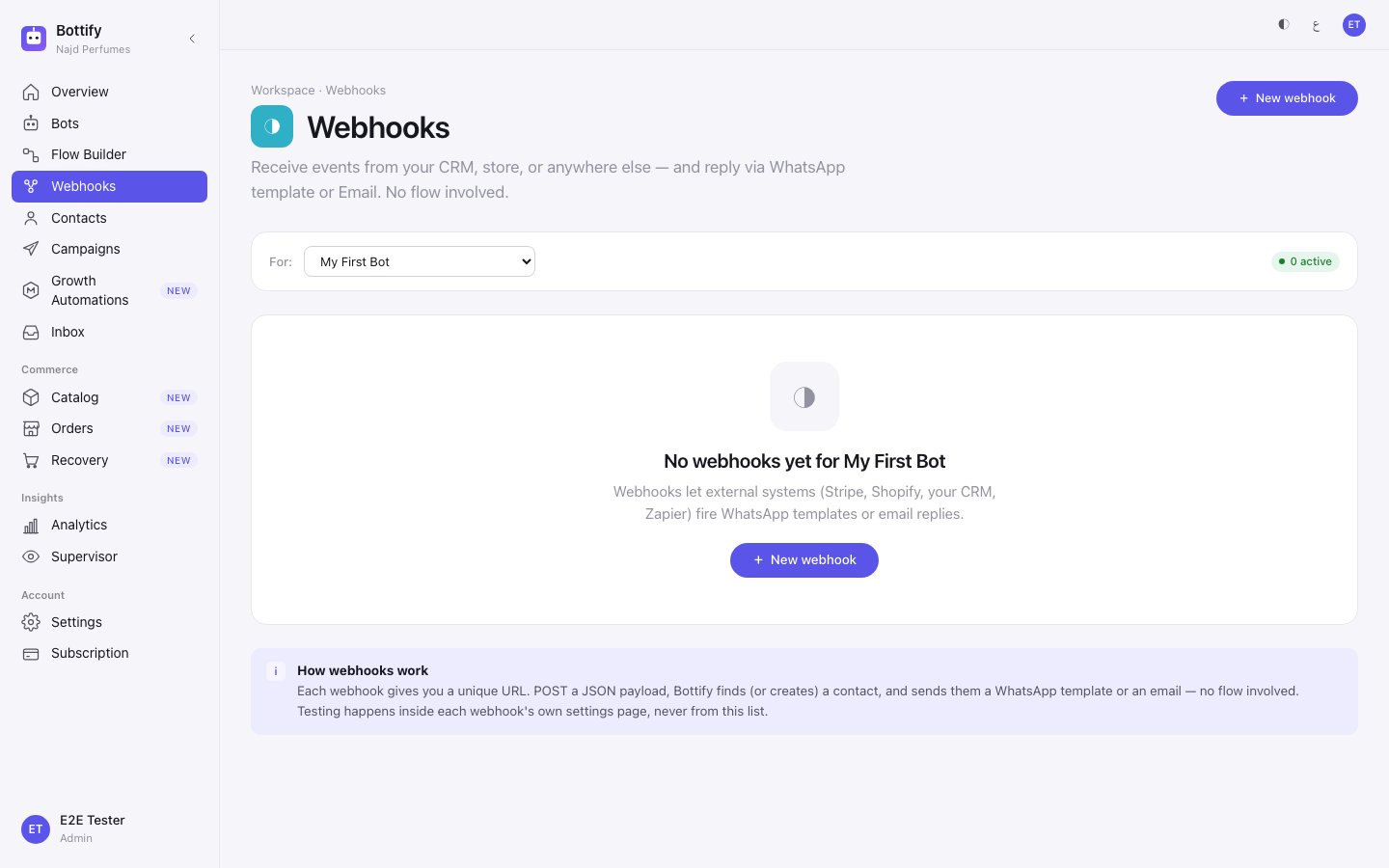
A webhook is a doorbell another system rings to make Bottify message one of your customers — it points into Bottify, not out of it, and this page tells you how to build one, how to lock it, and how to read the row when it fails.
What does a Bottify webhook do?
A webhook gives you one web address. Some other system you already own — a courier app, a kitchen screen, a booking tool, an accounting package, Zapier — sends a small piece of JSON to that address. Bottify reads the JSON, finds the customer it names (or creates them), and sends that customer a WhatsApp template or an email. Nobody opens Bottify. No flow runs.
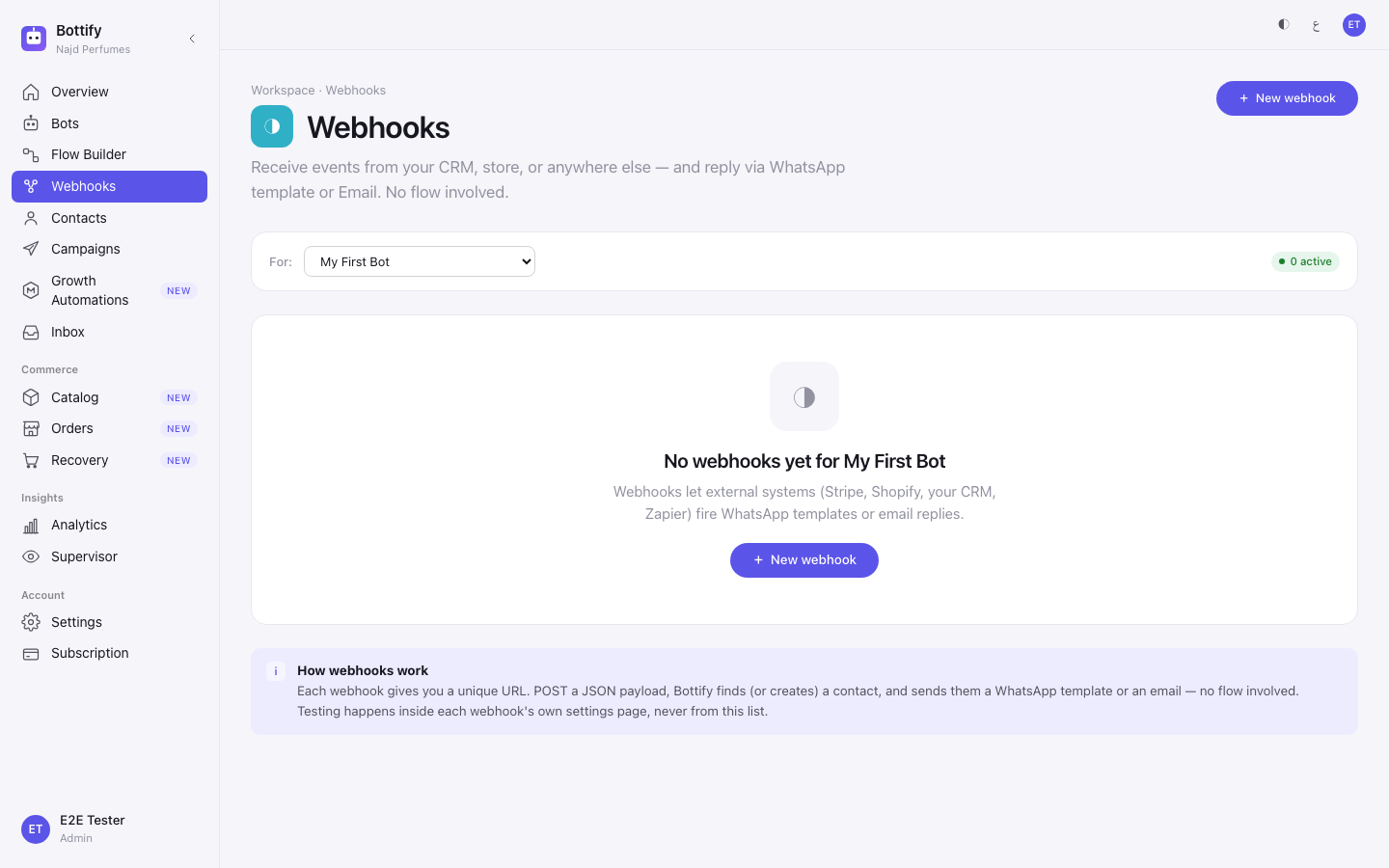
The product says this in its own words, in the How webhooks work panel at the foot of the list:
"Each webhook gives you a unique URL. POST a JSON payload, Bottify finds (or creates) a contact, and sends them a WhatsApp template or an email — no flow involved. Testing happens inside each webhook's own settings page, never from this list."
Read that sentence twice, because the page title above it can mislead you. The lead reads "Receive events from your CRM, store, or anywhere else — and reply via WhatsApp template or Email. No flow involved." The word "events" makes people expect a list of Bottify happenings they can subscribe to — an order-created feed for their own dashboard. There is no such list and no such feed. Bottify never calls your system. Your system calls Bottify.
Al-Asalah Bakery, Riyadh. They sell celebration cakes on Salla and take custom orders over WhatsApp. When a cake is finished, the baker taps "ready" on a small kitchen screen in the back — not in Salla, not in Bottify. Today somebody has to stop what they are doing and phone the customer, and on a Thursday afternoon that call happens an hour late.
So they build one webhook, called Cake ready for pickup. The kitchen screen now sends Bottify a few lines of JSON with the customer's phone number and the order reference, and the customer gets the message the moment the box is closed — on WhatsApp, that last step waits on Meta, which is still awaiting platform approval unless the bakery brought its own Meta app. One webhook. One trigger that genuinely lives outside every other Bottify feature.
Three things to know before you invest an afternoon
The setup screen is almost entirely in English. You can browse your webhooks in Arabic and create one in Arabic. From the moment you land on the settings page for that webhook, nearly every heading, label, button, warning and error is English in both languages — the page where all the real work happens was never translated. The one exception is the shared-secret block in section 5, which now speaks Arabic: «هناك مفتاح مشترك مفعّل.» and «إنشاء مفتاح جديد». Everything around it — Security, Security mode, Header name — is still English.
Meta has not approved Bottify yet. WhatsApp, Instagram and Messenger cannot be connected through the platform path today. Your onboarding checklist says so rather than offering a button: "WhatsApp, Instagram and Messenger — awaiting platform approval". WhatsApp is the default delivery for every new webhook, and a WhatsApp webhook will not activate without a connected WhatsApp number and a Meta-approved template. So today: Email delivery works end to end. WhatsApp delivery works only if you brought your own Meta app — see Connecting WhatsApp through your own Meta app.
A failed delivery is never retried. Bottify tries once. If it fails, it writes one row in the history and stops. There is no queue, no second attempt, no replay button anywhere on the screen. A failed delivery is a customer who was never messaged, permanently. Nothing in the product tells you this, which is why it is on this page three times.
What do you need before a webhook works?
Webhooks is an admin-only screen. Both the list and the settings page refuse to load for a supervisor, an agent or a viewer. If a colleague says the link does nothing for them, check their role before you check anything else.
You need at least one bot. The list is filtered by bot, and every webhook belongs to exactly one bot. With no bots the screen says "Create a bot first." and the + New webhook button is greyed out. A webhook cannot be shared between two bots — if you want the same doorbell on a second bot, you build it a second time.
For Email delivery, you need an email sender set up. That lives in Settings → Email Provider. Without one Bottify falls back to the workspace default sender, and there is no picker anywhere that shows you which address your customer will actually see in the From line.
For WhatsApp delivery, you need two things on that bot: a connected, active WhatsApp number, and a WhatsApp message template that Meta has marked Approved. Both are checked when you press Activate, and both are checked again every single time the webhook fires. This is where the Meta approval gap bites — most workspaces have neither today.
Nothing about your plan is checked. Webhooks are not sold by tier.
You need someone who can make your other system send JSON. That is usually a developer-for-hire, an hour of their time, or a Zapier step. You cannot finish this feature from inside Bottify alone.
What are your options for webhooks?
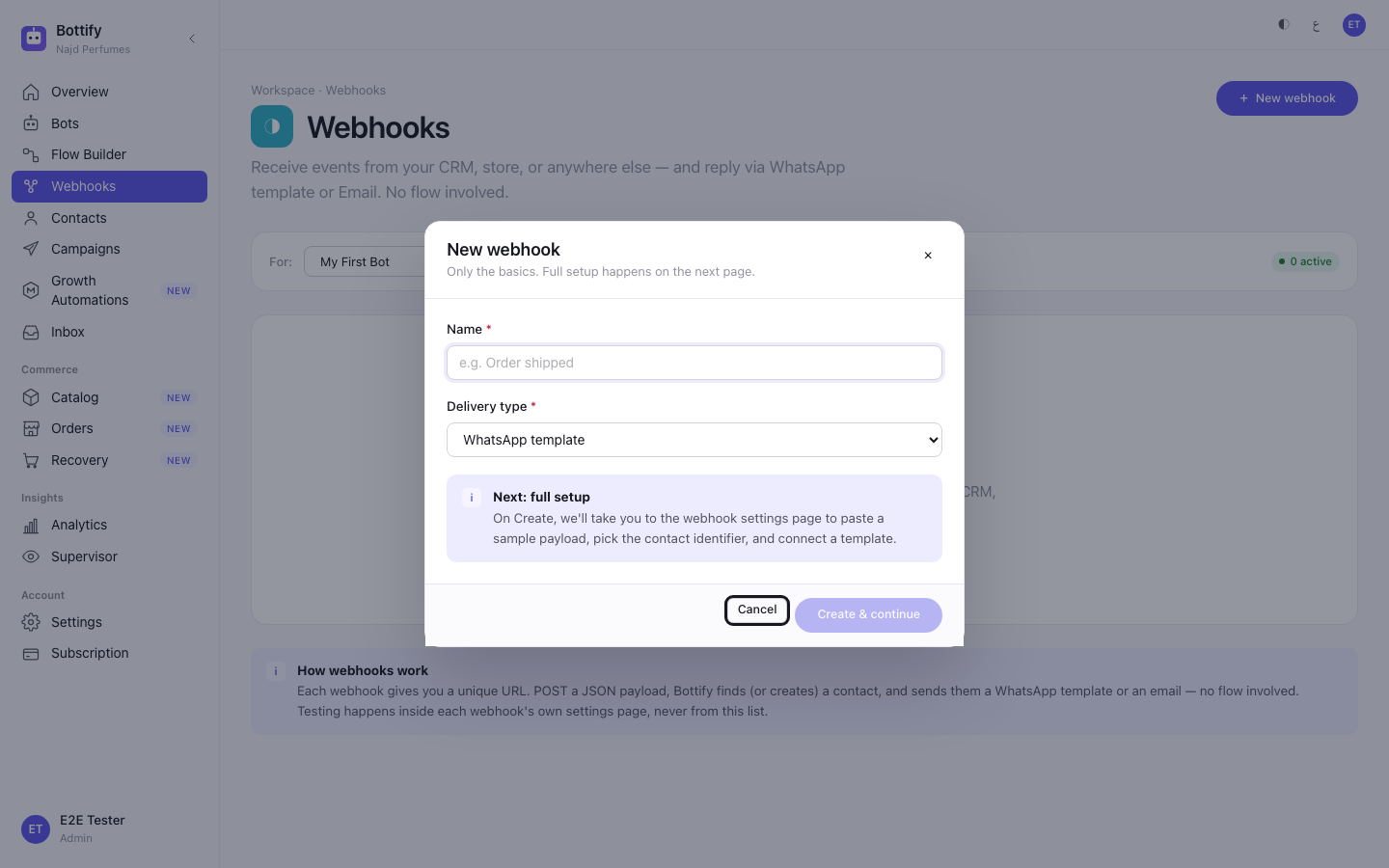
In the New webhook window
| Option | What choosing it changes | What leaving it changes |
|---|---|---|
| Name (required) | What the webhook is called everywhere, and it also seeds the web address. The hint is "e.g. Order shipped" — name it after the moment that fires it, not after the system that fires it. | You cannot leave it. The window will not create anything without a name. |
| Delivery type: WhatsApp template (the default) | Bottify sends the customer a Meta-approved WhatsApp message. Needs a connected WhatsApp number and an approved template before it will activate. | — |
| Delivery type: Email | Bottify sends an email you write yourself — a subject and a body, with values dropped in from the JSON. This is the delivery that works today without your own Meta app. | Leave it on WhatsApp and the webhook will save fine, then refuse to activate until a WhatsApp number and an approved template exist. |
| Delivery type: Instagram / Messenger | Nothing. Both read "Instagram — coming soon" and "Messenger — coming soon" and cannot be selected. Even when they ship, Meta approval still stands in front of them. | — |
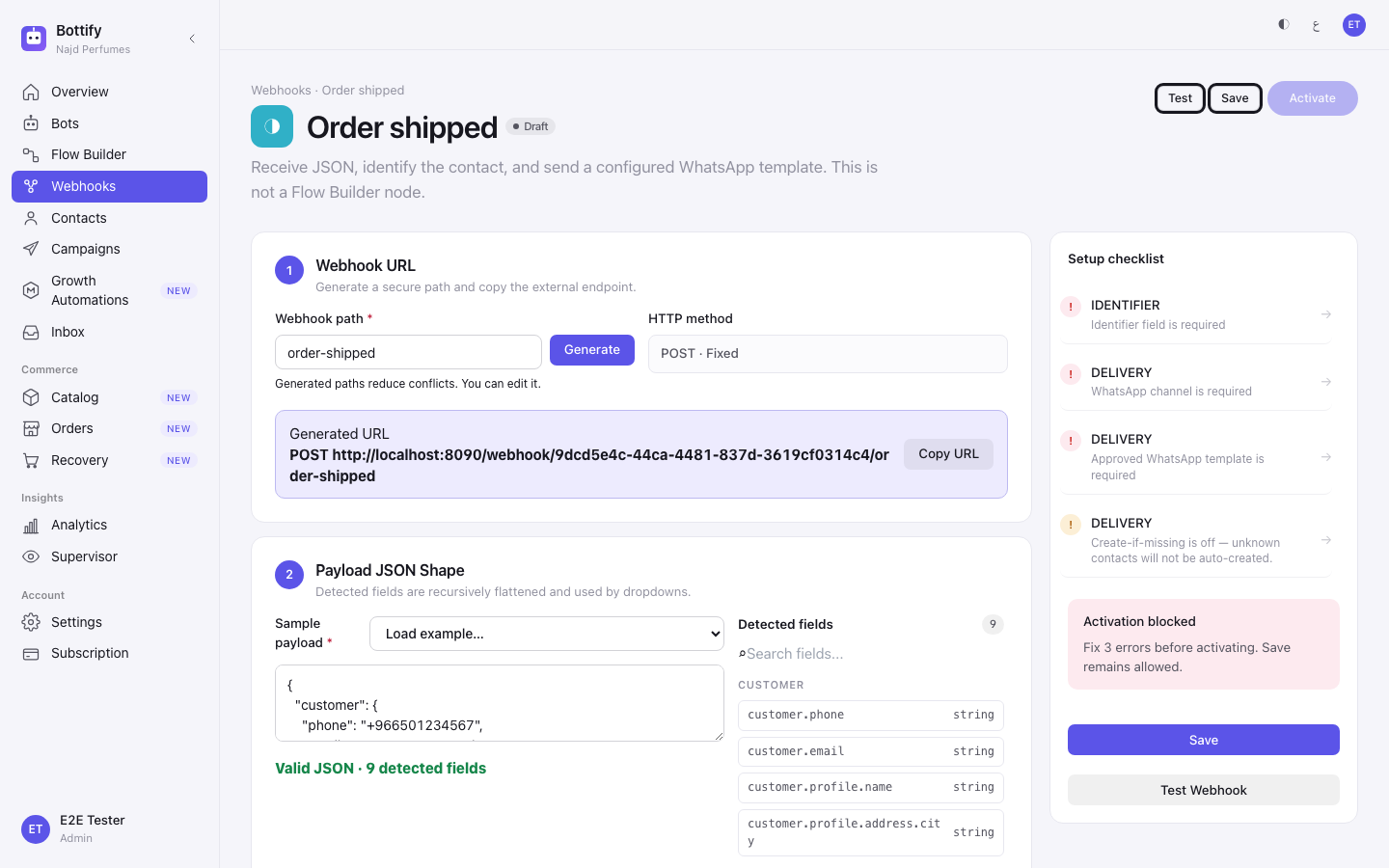
On the webhook's settings page
| Option | What choosing it changes | What leaving it changes |
|---|---|---|
| Webhook path (required) | The last part of the web address your other system calls. Generate mints one for you from the name plus four random characters; the hint reads "Generated paths reduce conflicts. You can edit it." | An empty path blocks Activate with "Webhook path is required". Editing a path on a live webhook breaks every caller still using the old one — they start getting nothing back at all. |
| Sample payload (required) | Paste one real message from your other system and Bottify lists every field it found, under Detected fields. Those fields then fill every dropdown further down the page. There is a "Load example…" picker with Shopify, Stripe, GitHub and generic samples if you want to see the shape first. | Leave it empty and you get the warning "No sample payload — detected-field validation is skipped." You can still activate — Bottify simply stops checking that the field you named exists, so the first real message is where you find out. |
| Identifier field (required) | Which field in the JSON holds your customer's phone number or email address. Picked from a list of what Bottify detected; the empty state reads "— Select detected field —". | Empty blocks Activate with "Identifier field is required". Get it wrong and every delivery fails silently — see When it doesn't work. |
| Advanced — manual JSON path | Turns Identifier field into a free-text box so you can type a path Bottify did not detect. The screen is honest about the cost: "Save still works, but the activate-time cross-check that the field exists is skipped." | Closed, you must pick from the detected list, and Bottify checks your choice before it lets you activate. Leave it closed unless you genuinely cannot find the field. |
| Security mode: None (open) — the default | Anyone who learns the address can ring your doorbell and cause real messages to go to real customers. The checklist warns you in plain words: "Shared secret is disabled — anyone with the URL can trigger this webhook." | — |
| Security mode: Shared secret header | Your other system has to send a password with every call. Anything without it is rejected and logged as failed. Turn this on. It is not the default, and it should be your first move, not your last. | Stay on None (open) and the warning above sits on your checklist forever. It does not block Activate. It is still true. |
| Header name | Nothing. The box is editable and the value is saved, but Bottify only ever reads the secret from the standard header. Changing it silently breaks every caller and no log explains why. Leave it exactly as it is. | Left alone, everything works. |
| Language (WhatsApp only) | Which language version of the template goes out. | It is overwritten by the template's own language the moment you pick a template, so in practice you never touch it. |
| Template placeholders (WhatsApp only) | Each {{1}}, {{2}} in your approved template gets pointed at a field in the JSON, with a fallback for when that field is missing. | Any placeholder you leave unmapped blocks Activate with "WhatsApp template has 1 unmapped placeholder(s)". |
| To (payload path), Subject, Body (Email only) | Who the email goes to, and what it says. Subject and body can pull values out of the JSON. | All three are required. Leaving any blank blocks Activate — "To payload path is required", "Email subject is required", "Email body is required". |
Two things you will look for and not find. HTTP method is shown as the fixed value "POST · Fixed" — there is nothing to choose. And your checklist will carry a warning reading "Create-if-missing is off — unknown contacts will not be auto-created." with no switch anywhere to turn it on. Ignore it: Bottify creates the contact anyway when the phone number or email is new, and the warning does not block activation.
How do you build a webhook in Bottify?
Building a WhatsApp webhook for Al-Asalah Bakery. From step 7 onward every screen is in English, whichever language your dashboard is set to.
- Open Settings (the last row of the sidebar), then Bot & connections, then Connect your systems.
- In the For: filter, choose the bot this webhook belongs to.
- Click + New webhook.
- In Name, type what fires it —
Cake ready for pickup. - In Delivery type, choose WhatsApp template (or Email, which is the one that works today without your own Meta app).
- Click Create & continue. The button reads Creating… while it works, then a toast says "Webhook created" and Bottify opens the settings page for you.
- In section 1, Webhook URL, click Generate to mint a path.
- Click Copy URL and paste the address somewhere safe — a toast confirms "URL copied".
- In section 2, Payload JSON Shape, paste one real message from your other system into Sample payload. The Detected fields panel fills in beside it.
- In section 3, Find or Create Contact, set Identifier field to the field holding the customer's phone number.
- In section 4, Choose What Bottify Sends, pick your number under WhatsApp channel.
- Pick your approved message under the template list.
- Point each template placeholder at a field from the JSON.
- In section 5, Security, read the line under Header name. A webhook you create today is born with a shared secret already set, and the screen says so: "A shared secret is set."
- If this is a brand-new webhook, the secret was shown to you once, at the moment you created it, under the heading "Save this secret now" — "This is the only time it will be shown." Copy it then, with Copy secret, and hand it to whoever is building the calling side.
- If you did not save it, you cannot recover it. Click Generate a new secret, save the new value, and give that one out instead — the old secret stops working immediately.
- Click Save. A toast reads "Saved as draft" — this does not take a live webhook offline, it only saves your changes.
- Click Test Webhook to run your sample message through for real.
- Click Activate.
The one thing to get right. The secret is shown once and never again. Bottify's own words: "It was shown once when it was created and cannot be shown again. Generate a new one if you have lost it — the old one stops working immediately." There is no Copy Secret button on this screen, because there is nothing left to copy. If you lose the value, your only move is Generate a new secret — and that takes effect at once, so every caller still sending the old one starts failing immediately, with no notice and no retry. Generate only when someone is ready to update the calling side in the same minute.
For your developer
Everything in this block is fixed by Bottify and is not configurable anywhere in the product.
- Your other system sends POST to the address shown in Generated URL, with a JSON body.
- If you turned on Shared secret header, the secret goes in the header
X-Bottify-Webhook-Secret. Ignore the Header name box in the Bottify screen — the value there is saved but never read. This header name is the only one that works. - Bottify answers 200 with
{"success":true,…}when it sent the message, and 422 with{"success":false,…,"error":"…"}when it did not. An unknown path answers a bare 404 with an empty body — and writes no history row at all, so a typo in the address is invisible inside Bottify. - There are no retries. One attempt, one log row, done. If you need the message to survive a transient failure, you have to retry the 422 yourself. Nothing in Bottify will do it for you.
- Fields are named by dot path into the JSON —
customer.phone,order.ref. Names in Bottify must match the live message exactly, not the sample. - The history keeps the Latest 10 attempts, with no way to page back further and no export.
How do you know your webhook fired?
The header badge beside the webhook's name flips to Active, and the sticky Setup checklist on the right replaces its error box with a green one headed Active, reading "Webhook is receiving live POSTs." Before you activate, the same box reads "All checks passed" with "Ready to activate." underneath.
Back on the list, the row's Status column shows Active, and the row's last button changes from Activate to Disable. The Last triggered column stops saying Never and starts showing a time.
Your first real message lands in section 7, Trigger History, badged Latest 10. A good one is a green Success row carrying the customer's identifier, the delivery type, and a reference. Before anything has ever fired, that section reads "No trigger attempts yet" with the nudge "Hit Test Webhook above, or fire a real POST to your webhook URL."
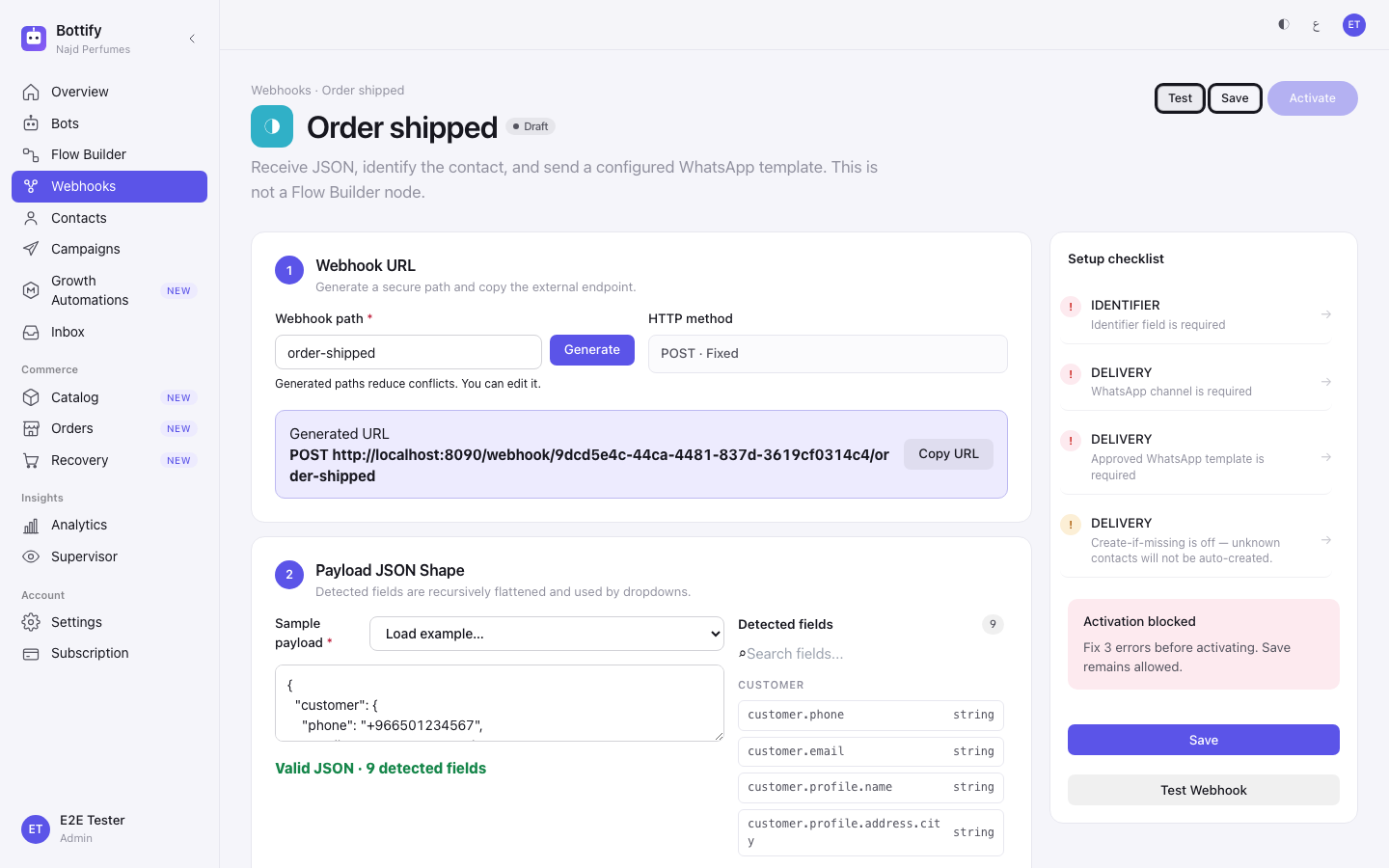
Two success signals not to trust. In the Inline Test Result, the Contact / Found row is always "Found" on an Email webhook whether or not a contact record exists — it is cosmetic there. And the green Created badge beside it is described in the code itself as best-effort, so do not read it as proof.
One thing you will go looking for and not find: a message sent by a webhook does not appear in the Inbox. It is not in that customer's conversation thread, by design. The webhook's own Trigger History is the only record that it happened.
Why is my webhook failing?
The Activate button is greyed out
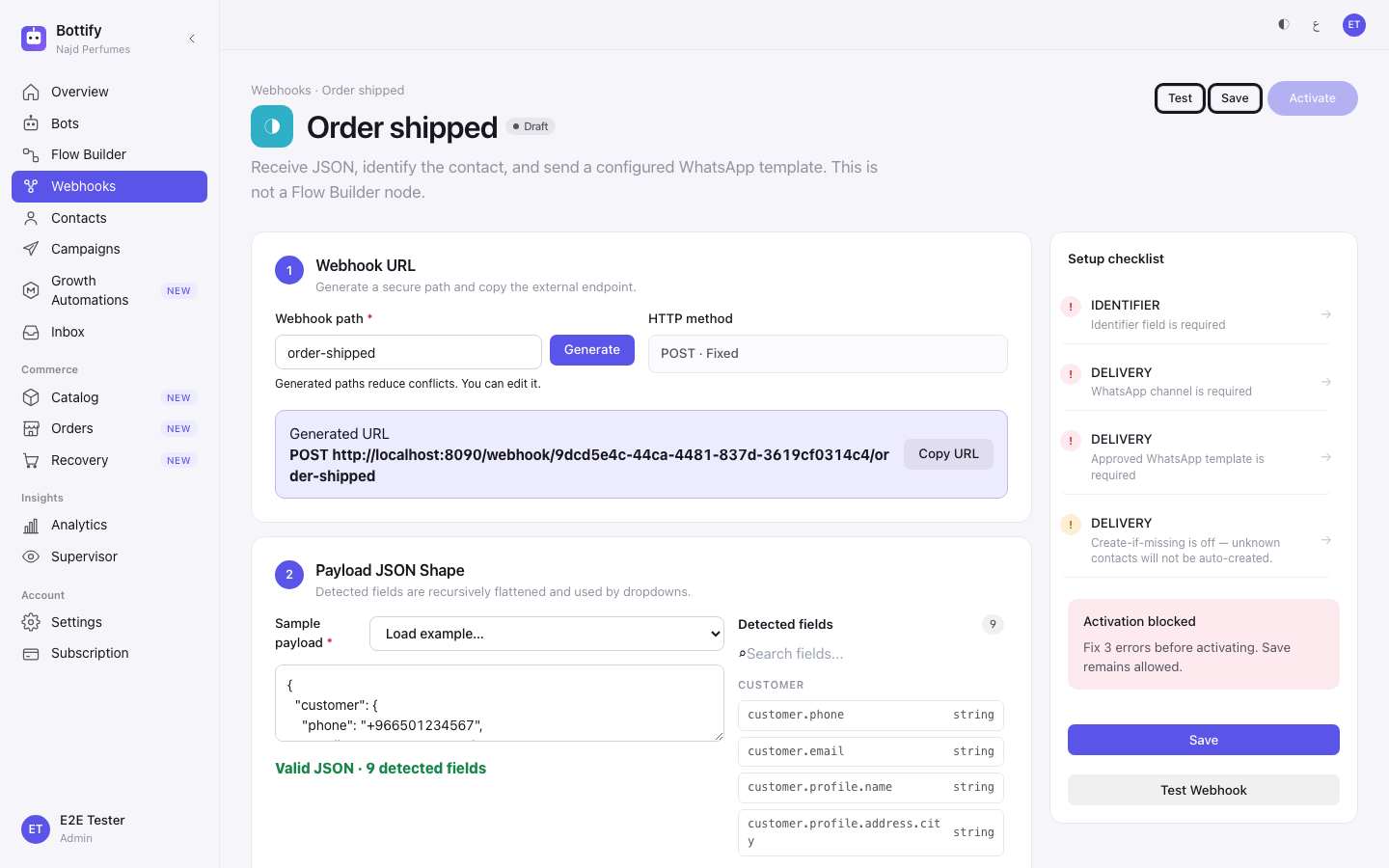
You press Activate and nothing happens, or the button will not take the click at all. Hover it and its tooltip reads "Fix 2 errors before activating". The Setup checklist on the right carries a red box headed Activation blocked with the body "Fix 2 errors before activating. Save remains allowed." and every reason listed underneath. If you got as far as the server, the toast title is the bare code ACTIVATION_BLOCKED — that is deliberate, it is a value you can paste into a support ticket.
Why: something required is still empty, and Bottify will not put a half-built webhook on a public address. The reasons are quoted exactly, one per line: "Webhook path is required" · "Identifier field is required" · "WhatsApp channel is required" · "Approved WhatsApp template is required" · "WhatsApp template has 1 unmapped placeholder(s)" · "To payload path is required" · "Email subject is required" · "Email body is required" · and, if you typed a field by hand, Identifier "customer.phone" is not in the detected fields. Pick from the list or enable Advanced.
What to do: click any line in the checklist and it scrolls you to the section that owns it. Fix them in order and the red box turns green. If the blocker is "Approved WhatsApp template is required" or "WhatsApp channel is required", that is the Meta approval gap, not a mistake you made — switch the webhook to Email delivery, or connect WhatsApp through your own Meta app.
The webhook is Active but the customer never got anything
Open section 7, Trigger History. You have a red Failed row, and its Reference / Error cell reads Identifier field "customer.phone" not found in payload.
Why: the sample you pasted said the phone number lives at customer.phone, but the live message puts it somewhere else — customer.mobile, contact.phone_number, one level deeper. Bottify looked exactly where you told it, found nothing, and stopped. This is the most common production failure on this feature and it does not announce itself: no toast, no email, nothing but a red row on a page nobody is watching.
What to do: click View on that row to read what your system actually sent, correct Identifier field in section 3 to match, and Save. Then remember the sentence that matters most on this page — that customer was never messaged and never will be. There is no retry and no replay. If it was an order that shipped or a cake that went cold, you follow up by hand.
Your developer's calls come back rejected
Their side reports 422, and the body carries "error":"Invalid or missing webhook secret". Inside Bottify the same words appear as the error on a red Failed row in Trigger History. You get no toast — you only find this by looking.
Why: you switched Security mode to Shared secret header, and their call arrived without the secret, with an old one after a Regenerate, or with the right secret in the wrong header because someone edited the Header name box.
What to do: check three things in order. That they are sending the header X-Bottify-Webhook-Secret and nothing else. That the value matches — and if nobody saved it when it was shown, you cannot look it up: click Generate a new secret in section 5 and send the new value across. And that Header name still reads X-Bottify-Webhook-Secret; if someone changed it, change it back, because Bottify never reads that box and a different name there will not save you.
If instead the calls come back as a bare 404 with an empty body, the address itself is wrong — a mistyped path, or a path that was edited after they copied it. Nothing at all is written to Trigger History in that case, because Bottify never worked out which webhook to log against. Click Copy URL in section 1 and send them the address again.