Connecting your Salla store
Updated 2026-09-01
How to link your Salla store to Bottify so your products, prices and stock arrive on their own — and what to do when the connection needs your attention.
What does connecting Salla to Bottify do?
Your Salla store already holds every product you sell: names, prices, photos, stock. Connecting it to Bottify copies that catalog across, and keeps it copied. You authorize once. After that your products appear in Bottify on their own, and your bot can answer questions about them.
Take Riyadh Blooms, a flower and gift shop in Riyadh. Noura owns it. She sells the White Rose Bouquet at SAR 180, a Luxury Chocolate Box at SAR 240, and a Glass Vase at SAR 95. When a customer messages her shop on WhatsApp asking "do you have the white roses, and how much?", she wants the bot to answer with the same price her Salla store is charging that morning — not a price she typed into a second system three weeks ago and forgot. Noura connects Salla once. She never types a product into Bottify. When she raises the bouquet to SAR 195 in Salla, the bot starts quoting SAR 195.
Her employee Saad answers WhatsApp all day. He sees the products. He cannot open this screen or change the connection.
Three things worth knowing before you read further:
There are two "Sync now" buttons in Settings, and they do opposite things. The one on Settings › Salla store — this page — pulls your catalog in from Salla. The one on Settings › WhatsApp catalog pushes your products out to WhatsApp. Same words, opposite directions. This page is only about the first one.
Cart recovery is in dry-run. Nothing is sent. The connect screen mentions Abandoned carts and recovery, and the connection really does feed it. But recovery today only plans and counts reminders — the Cart recovery screen carries the banner "Dry-run mode — no live messages are being sent". Planned, not sent. Connecting Salla does not change that.
WhatsApp, Instagram and Messenger are awaiting platform approval. Meta has not yet approved Bottify, so those channels cannot be connected through the platform path. Your onboarding journey says so plainly: "WhatsApp, Instagram and Messenger — awaiting platform approval". You can still connect by bringing your own Meta app. And connecting Salla is fully useful regardless — the catalog sync and the bot's product answers do not wait on Meta.
What do you need before you can connect Salla?
You must be an admin. Only a workspace admin can open Settings › Salla store. Supervisors, agents and viewers cannot reach the screen at all — they will see your synced products and the Salla badge on orders, but not the connection itself.
Your plan must include Salla. This is the most common thing that stops a merchant here. Salla is switched on per plan, and on a fresh installation it is on for the default starting plan only. If you are on a paid tier and it has not been switched on for you, every Salla screen shows a gate card instead of a connection (see When it doesn't work).
You need a Salla store you can sign into. The permission screen is Salla's own, not Bottify's, and you approve it with your Salla login.
You do not need anything from Meta. WhatsApp and Salla are separate connections. Salla connects on its own.
You do not paste any keys. There is no client ID, no secret, no developer step. If a guide tells you to create a Salla app, that guide is not about Bottify.
One store, one workspace. A Salla store can be authorized by one Bottify workspace at a time. If you connect a store that is already connected somewhere else, the older connection is cut off — and nobody in that other workspace is told. Worth knowing if you are moving between workspaces.
What are your options for connecting Salla?
This screen has no settings. No checkboxes, no "choose what to sync" panel. It is three buttons and a status card. Categories and products are always synced, both, together — you cannot pick one.
The Salla-dependent options live one screen over, on Settings › Store. They stay visible when they are locked, so you can see what you are missing.
| Option | What turning it ON changes | What leaving it OFF changes |
|---|---|---|
| Salla checkout | Salla checkout appears among the payment choices your customer can pick, and the bot can send a one-link Salla cart checkout. | The method is removed from what the customer sees. They pay another way, or not at all. |
| Send WhatsApp orders to Salla | Confirmed cash-on-delivery orders taken on WhatsApp are copied into your Salla dashboard, so you manage everything in one place. | Those orders live only in Bottify. Your Salla dashboard never sees them. |
| Cart recovery reminders | Bottify plans one reminder for a customer who leaves an order unfinished — and, in dry-run, counts it without sending it. Off by default. | Nothing is planned and nothing is counted. |
Both Salla options are switched off and locked unless your connection was granted order permission. The lock line reads:
🔒 Needs order permission from your Salla store — reconnect with new permissions to unlock.
Reconnecting unlocks the switch. It does not always turn the feature on. Salla checkout also needs to be armed on our side before it goes live for your store. If you have granted every permission, flipped the switch, and still see no Salla checkout, that is why — contact support rather than reconnecting again.
How do you connect your Salla store to Bottify?
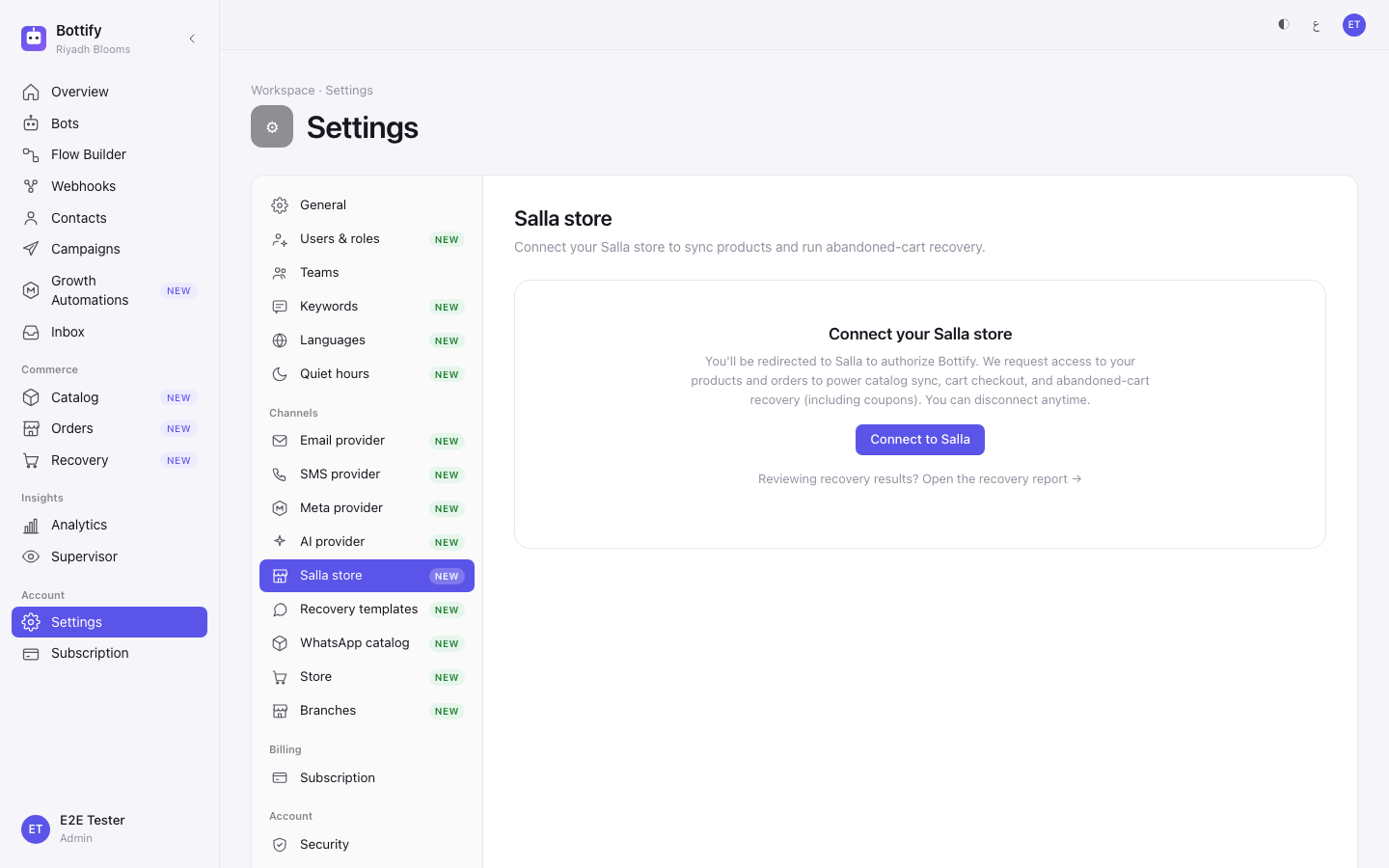
- In the sidebar, open Settings.
- Under Channels, click Salla store.
- Click Connect to Salla. The button changes to Redirecting… while it works.
- On Salla's permission screen, sign in if you are asked to, and approve the access Bottify requests.
- Wait to be sent back to Bottify. You land on Overview, not back on this screen.
- Open Settings › Salla store again to see your connected card.
Do not press anything else. The first catalog sync starts by itself the moment you return.
To force a sync later
- Open Settings › Salla store.
- Click Sync now.
You would do this after a bulk price change you do not want to wait for. Between syncs, single changes in Salla usually reach Bottify within moments on their own, and a full catalog check runs once a night at your store's local midnight.
To disconnect
- Click Disconnect.
- Read the confirmation, then click Disconnect again.
The confirmation tells you: "Product sync and abandoned-cart recovery will stop. You can reconnect anytime — your synced products remain in the catalog." That is true, and here is the part it does not say: the products stay, but they stay owned by Salla. You still cannot edit or delete them in Bottify, and they stop updating — your bot keeps quoting whatever price was current on the day you disconnected. Nothing is deleted or changed inside Salla itself.
How do you know the Salla connection worked?
A pop-up appears on Overview reading Salla store connected. Two honest notes about it: it disappears in a few seconds, and it is in English even when you are using Bottify in Arabic. Do not treat that pop-up as your proof.
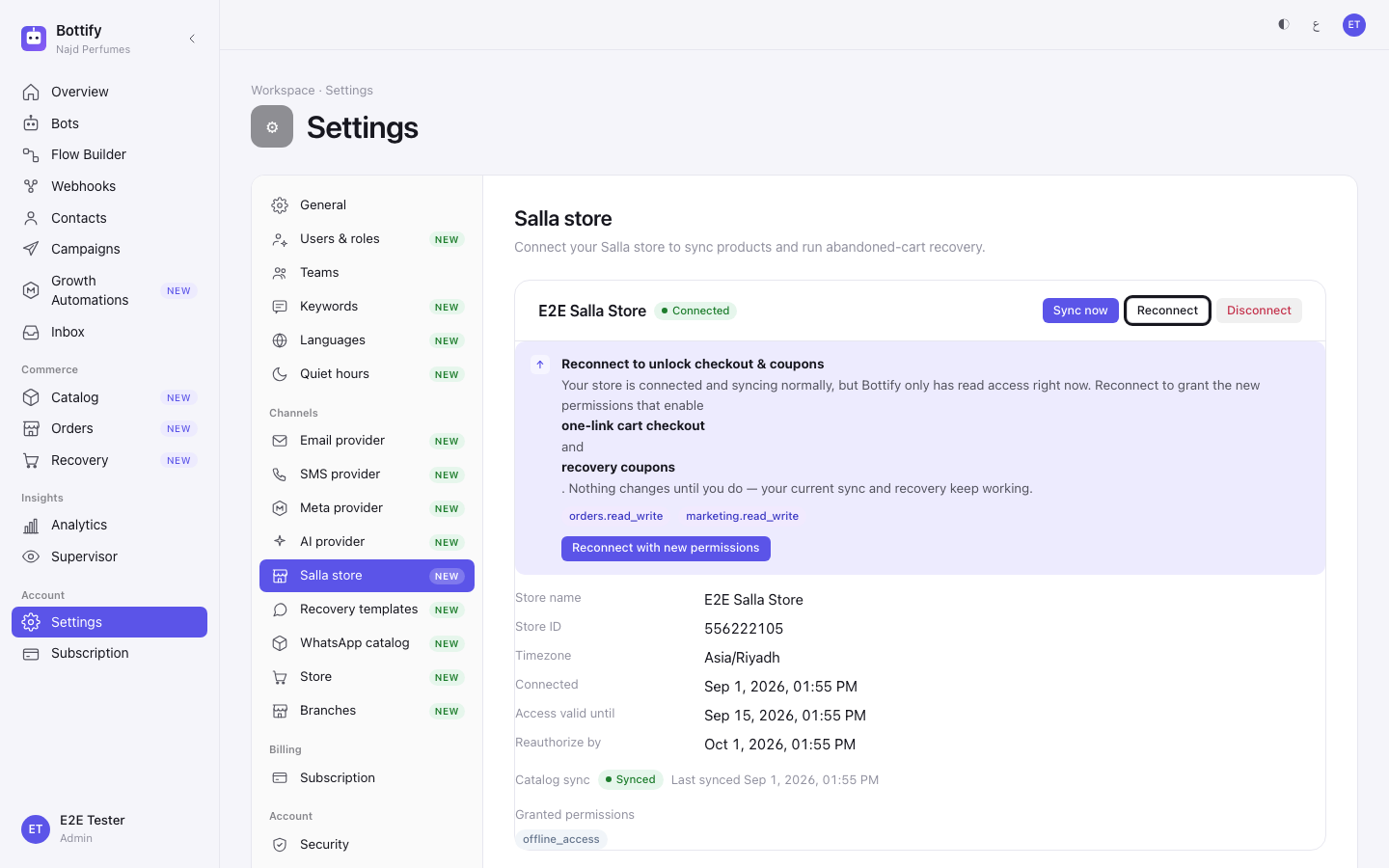
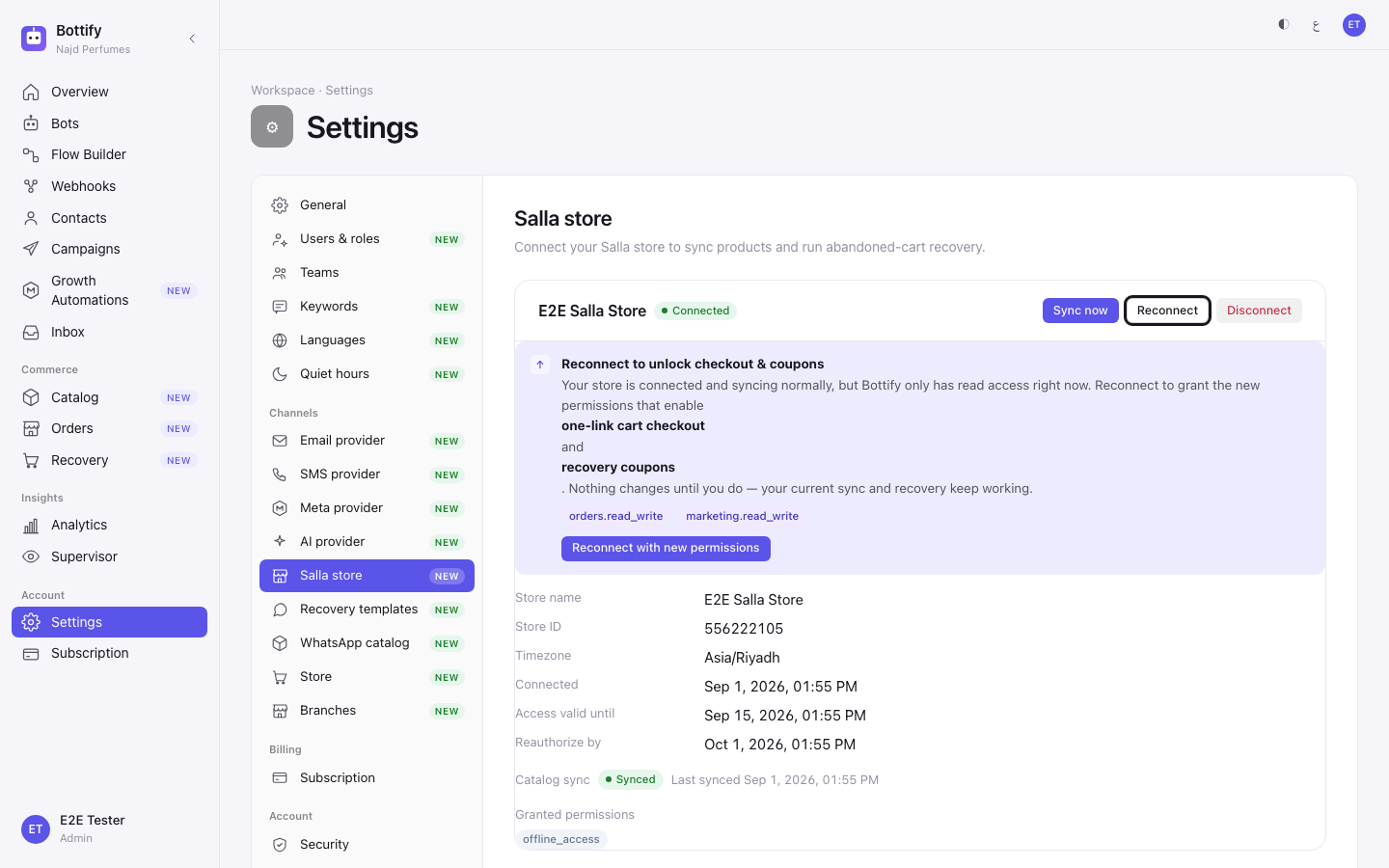
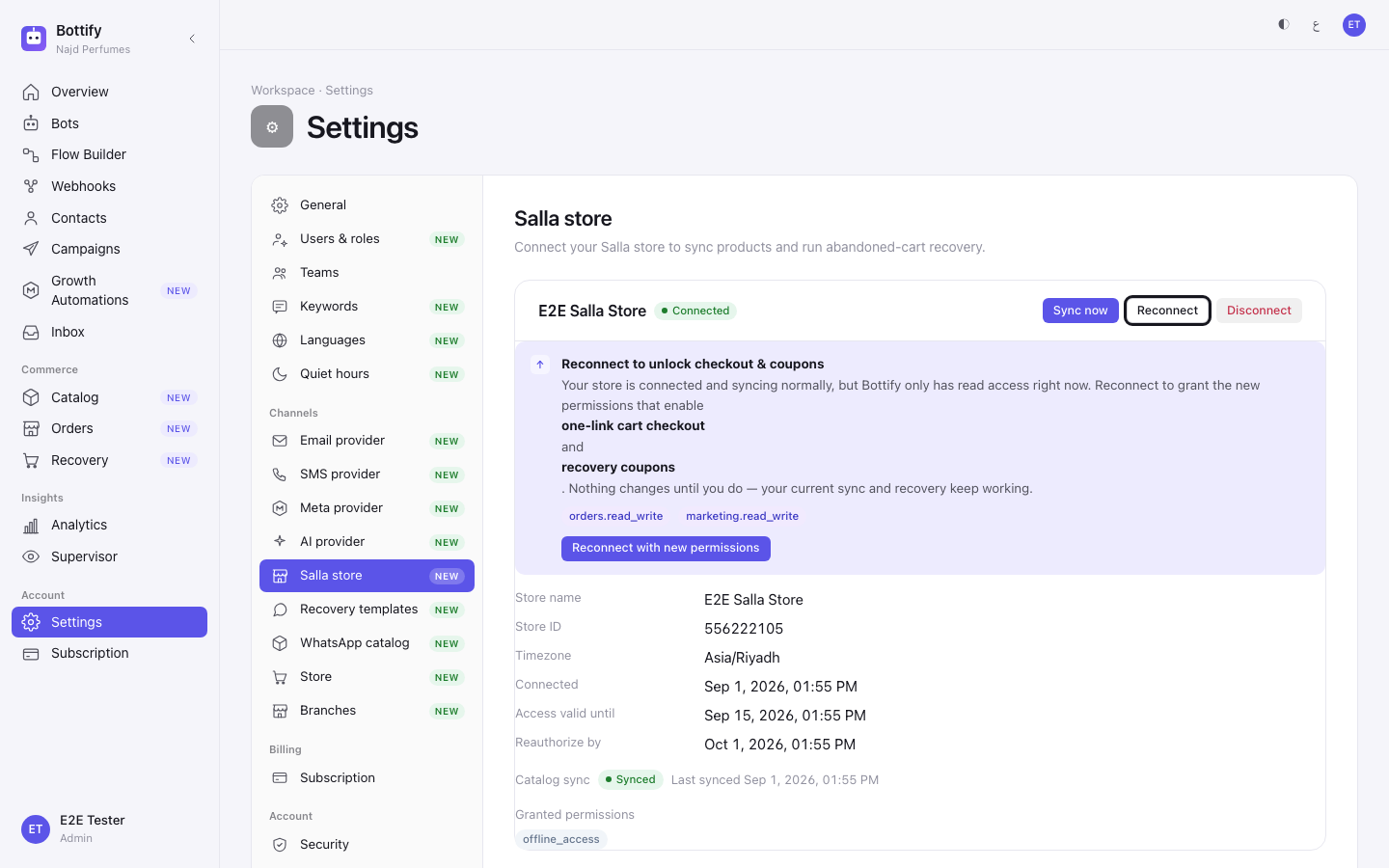
The signal to trust is the card. Go back to Settings › Salla store and look for these, in order:
- Your store's name at the top of the card, with the badge Connected beside it.
- A filled-in field list: Store name, Store ID, Timezone, Connected (the date you connected on), Access valid until, and Reauthorize by.
- Granted permissions — a row of small tags like
products.readandorders.read. These stay in English on every screen. They are the exact permissions you approved on Salla. - On the row labelled Catalog sync: first Syncing… with a spinner, then Synced, then Last synced with a date.
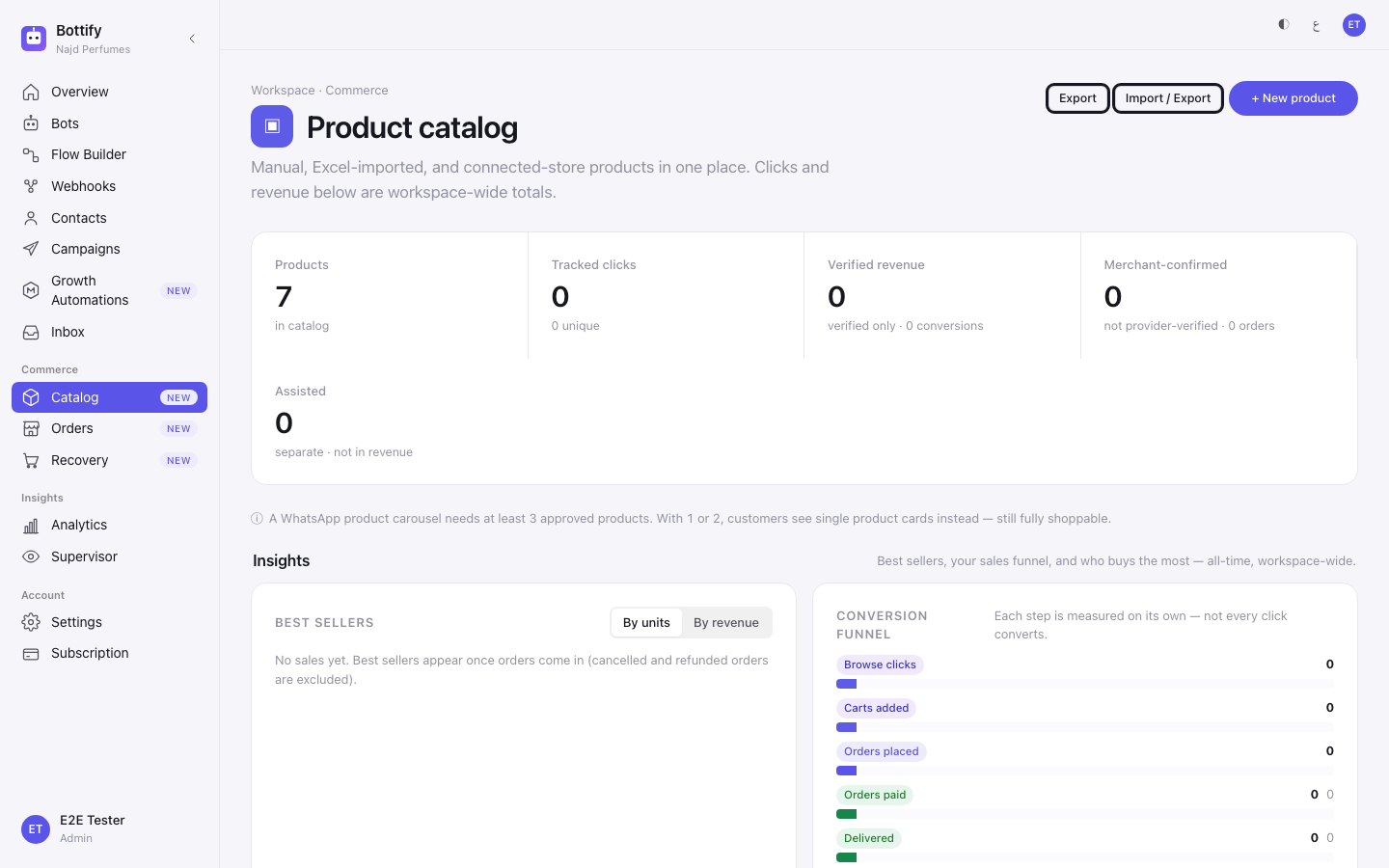
The real success, though, is one screen away. Open Product catalog. Your Salla products are there. Each one shows Managed by Salla and offers Open in Salla where an Edit button would normally be — because Salla owns them and Bottify will not let you change them here.
Your onboarding checklist also ticks two steps: Connect your Salla store, and then See your products in Bottify.
One thing that looks like a bug and is not: if your Salla store has no products in it yet, your card will show a healthy Synced badge while the "See your products in Bottify" step stays unticked. That step is deliberately about having products to look at, not about the sync finishing. Add products in Salla and the step ticks on the next sync.
Why is my Salla connection not working?
"Salla isn't on your plan"
What you see: the whole card is replaced by a gate reading "Salla isn't on your plan" with the line "Your current plan doesn't include the Salla integration. Upgrade to connect your store." and the code SALLA_NOT_ENTITLED underneath.
Why: Salla is switched on per plan, and it is off for most plans until someone switches it on for yours. This is the most common thing merchants hit here, and it stops you before you start.
What to do: contact support and ask for Salla to be enabled on your plan. Do not assume an upgrade alone will clear it — a merchant can upgrade and still see this card, because the switch is set per plan by our team rather than by the checkout.
Be warned: this gate card is in English on Arabic screens too. If you are working in Arabic and the screen suddenly turns English, this is usually what you are looking at.
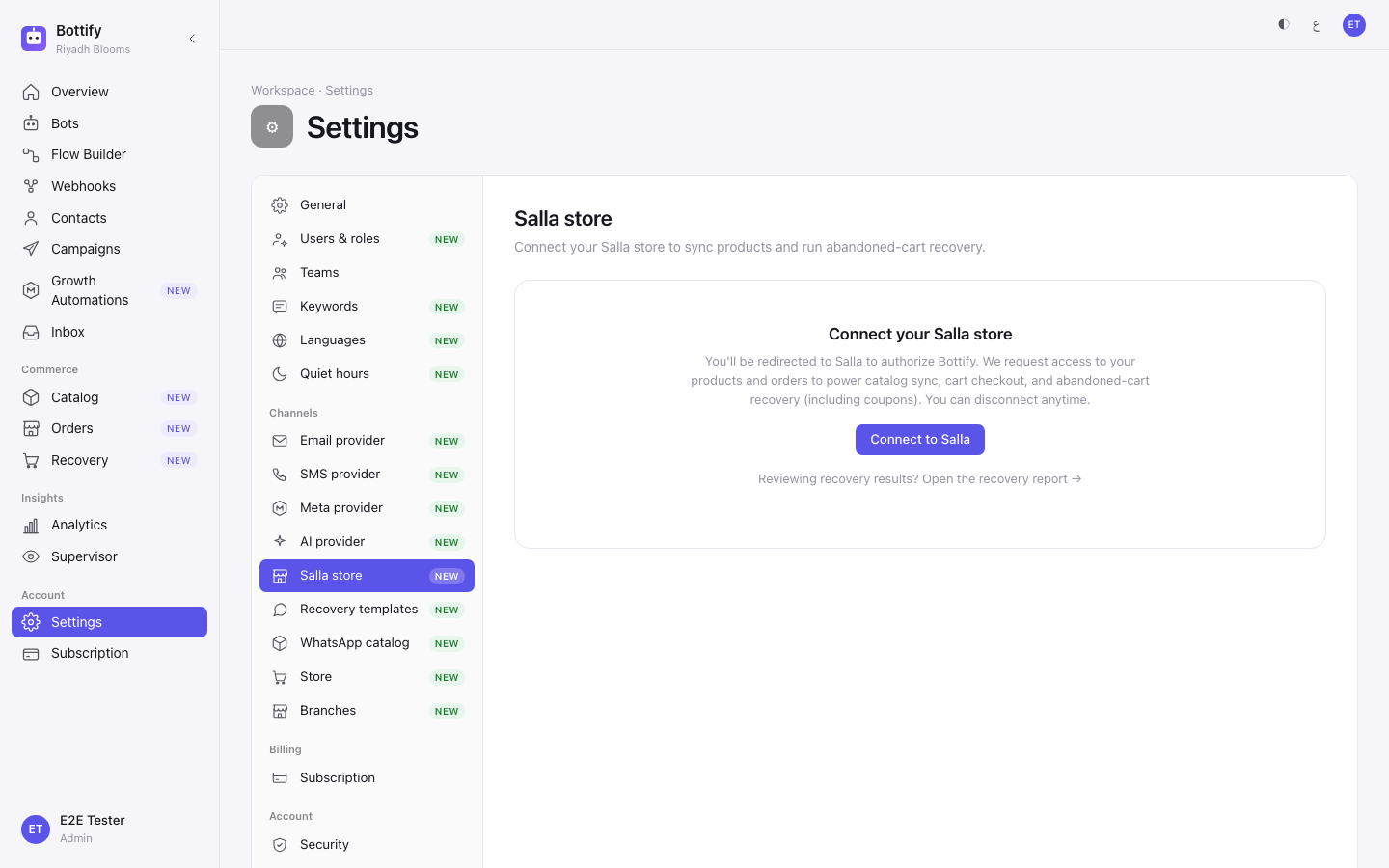
"Last sync didn't finish"
What you see: the Catalog sync row shows the badge Last sync failed, and a red callout appears below titled "Last sync didn't finish" with the body "We couldn't complete the catalog sync at Mar 12, 2026, 03:04 AM. Click "Sync now" to try again." In brackets after it sits a short technical word in English.
Why: something interrupted the sync — a network drop, a slow response from Salla, an expired moment mid-run. It can happen during the nightly check with nobody watching, so you may find it in the morning without having touched anything.
What to do: click Sync now. Most of the time the next run succeeds and the callout disappears. That technical word in brackets is a diagnostic code, not an instruction — do not try to act on it, but do copy it into your message if you contact support. If Sync now answers with Sync already running, a sync is genuinely in progress; wait for it. If the spinner has been stuck for a long while, wait 15 minutes and press Sync now again — a crashed run is released after that.
"Reconnect required"
What you see: the badge on the card reads Reconnect required, an orange callout sits above the field list titled "Reconnect required" with the body "Your authorization expired or was revoked. Reconnect to resume sync and recovery.", and Sync now is greyed out. If the card is in its empty form instead, the heading reads Reconnect your Salla store with a Reconnect to Salla button.
Why: the permission you granted Salla has run out, or someone removed Bottify's access from the Salla side. Permissions expire on a schedule, so every long-lived store meets this eventually. It is not a fault.
What to do: click Reconnect to Salla and approve on Salla's screen again — the same screen as the first time. Do not try Sync now; it is disabled on purpose, because there is no working permission for it to use. Your products stay in the catalog throughout, frozen at their last prices until you reconnect.
A note on the three words. Connect, Reconnect and Reauthorize are all the same single action: you go back to Salla and approve again. The button just changes its wording to suit the moment. If you have ever connected before, nothing is lost by pressing it — reconnecting is safe, and your synced products are untouched.