Products and your catalog
Updated 2026-09-01
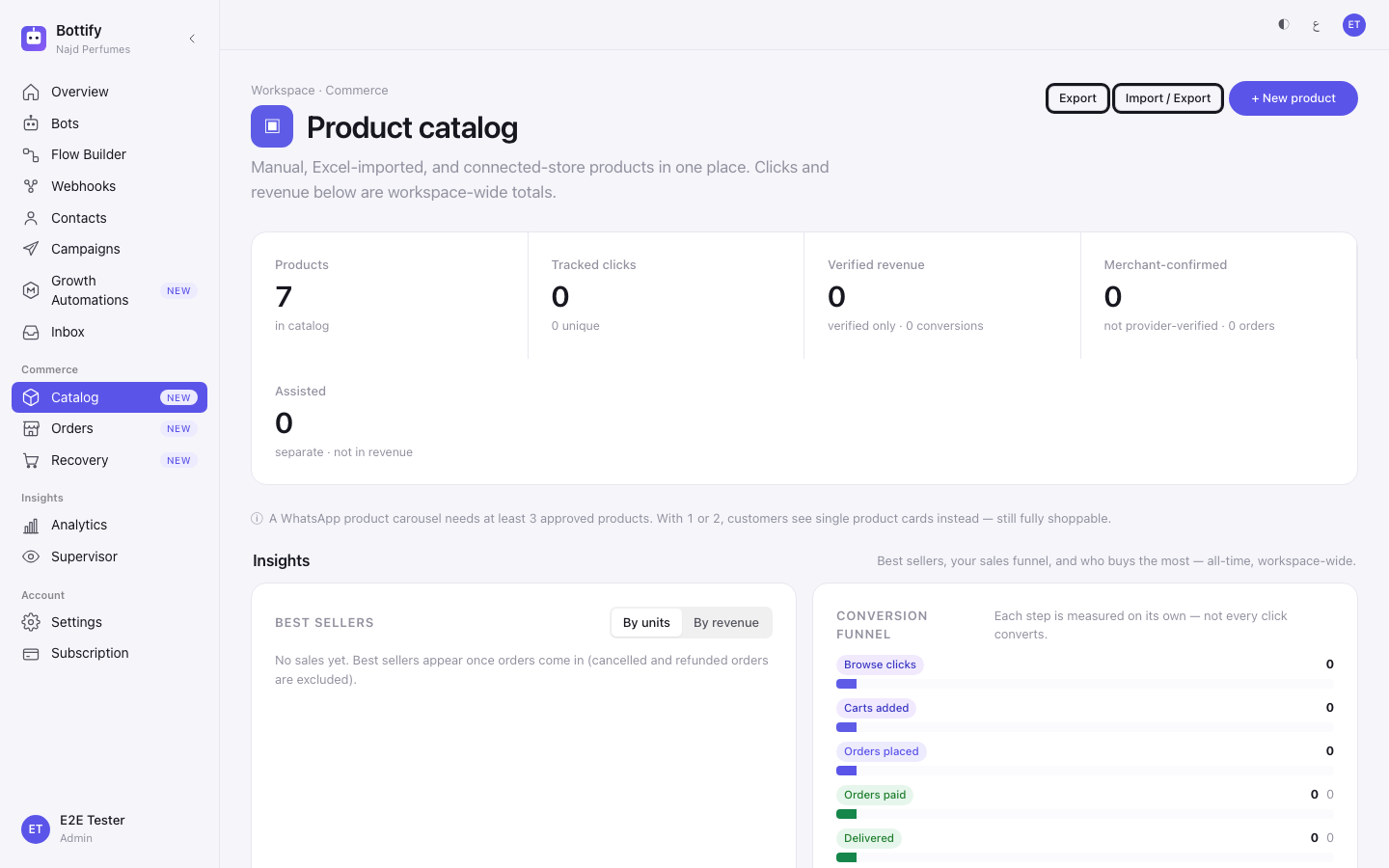
Everything your bot can talk about lives on one screen: products you type in yourself, products you import from a spreadsheet, and products your connected store sends across — plus how to remove one and get it back.
What does the Bottify product catalog do?
Product catalog is the list of things you sell, as Bottify knows them. Your bot answers customer questions from this list. Prices, photos, stock and descriptions all come from here.
Three kinds of product sit side by side on the same screen. Products you add by hand. Products you bring in from an Excel or CSV sheet. Products that arrive on their own from a connected Salla store. The page says so at the top: "Manual, Excel-imported, and connected-store products in one place. Clicks and revenue below are workspace-wide totals."
Take Nada Perfumes, a small perfume shop in Riyadh. Nada has a Salla store with about 60 items in it, and a short shelf of gift sets she makes up herself. Her Salla products — Rose Oud at SAR 320, Amber Musk at SAR 260 — sync in on their own. She cannot edit those in Bottify, and she does not want to; she edits them in Salla. But her Gift Box at SAR 180 exists nowhere except in her own head, so she types it into Bottify by hand. Before the Eid season she imports a 40-row sheet of seasonal bundles. And when she stops making Rose Oud in the old bottle, she removes it — then changes her mind two days later and gets it back.
That last part is the thing most merchants get wrong, so it goes first.
"Delete" here does not erase anything. The button on a product row says Delete. What it does is archive. The product stops appearing in your catalog and stops being shown to customers, and it moves to a tab called Archived where you can bring it back with one click. Its name, description, price, category, photos and history are all still there. The product tells you this itself, in the confirmation box, and the confirmation box is telling the truth.
A product you added yourself is not shown to customers until it has both a description and a photo. This is the second thing to know. A half-filled product does not sit quietly in your catalog waiting — it is held back, and the page marks it Incomplete. Products synced from your Salla store are exempt from this and appear without either.
Two honest notes about WhatsApp
Meta has not approved Bottify yet. WhatsApp, Instagram and Messenger cannot be connected through the platform path today. Your onboarding journey says so in plain words rather than offering you a button: "WhatsApp, Instagram and Messenger — awaiting platform approval". You can still connect by bringing your own Meta app. Until a WhatsApp catalog is linked to your workspace, the WhatsApp catalog card described further down this page does not appear at all — not empty, not greyed out, absent. If you go looking for it and find nothing, that is why.
Cart recovery is in dry-run. It plans and counts reminders; it does not send them. The Cart recovery screen carries the banner "Dry-run mode — no live messages are being sent", and every figure on it reads planned — not sent. Nothing you do in your catalog changes that. Recovery has its own page; this one does not touch it.
What do you need before your catalog fills up?
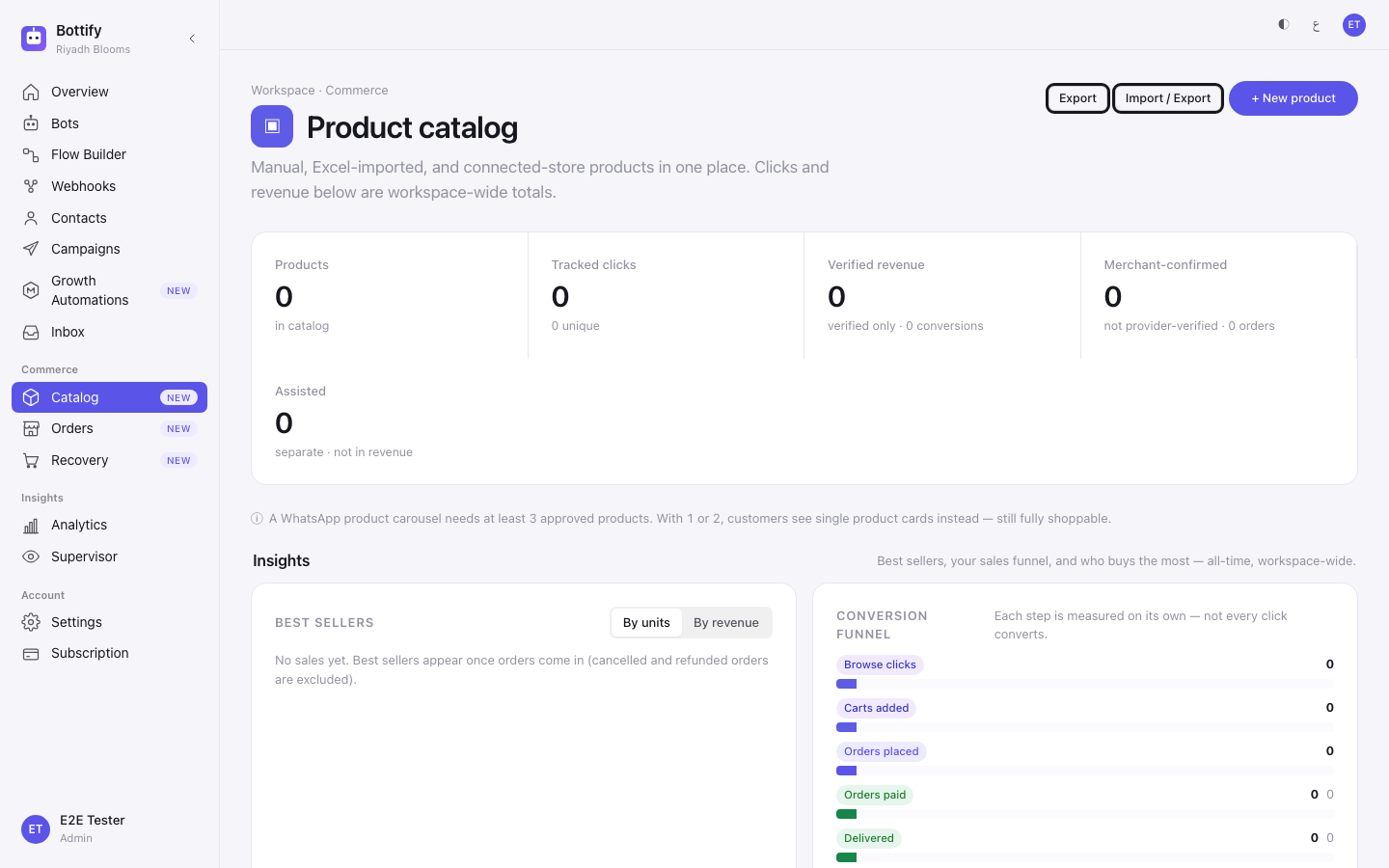
Your plan must include Commerce. The catalog is not sold on its own — it comes with Commerce. If your plan does not include it, the whole screen is replaced by an upgrade card. Nothing is greyed out and nothing is half-usable; the page is not there at all. See When it doesn't work.
To look at the catalog, you must be an admin, a supervisor, or an agent. All three see the products, the totals, the badges and the filters.
To change anything, you must be an admin. Adding, editing, removing, restoring, setting stock, adding photos and the whole import wizard are admin-only. This is worth saying carefully, because of how it looks on screen: the buttons are not disabled for a supervisor or an agent — they are not there. No message explains their absence. If you are a supervisor reading this page and cannot find + New product, you are not missing a setting; your role does not have it.
Only an admin sees the Archived tab. For everyone else that tab is absent from the row of tabs. A supervisor cannot undo a removal — they have to ask an admin.
A viewer cannot open this screen at all. They are sent back to the dashboard with no message of any kind — no toast, no "you don't have access" page. If you send a colleague a link to the catalog and they tell you it takes them to the home page instead, check their role first.
You do not need any connection to start. Manual products and spreadsheet imports work with nothing connected.
Salla products need a connected Salla store, and Salla on your plan. Salla is switched on per plan, separately from Commerce. See Connecting your Salla store.
The branch filter needs at least two active branches. With one branch, or none, the whole filter row is absent — there is nothing to choose between.
What are your options for adding products?
Almost nothing on this screen is a setting you turn on once. The options are per product, and they are all in the product window.
| Option | What turning it ON changes | What leaving it OFF changes |
|---|---|---|
| Available for purchase (toggle) | The product can be ordered, and it counts as available in the Available tab and on the row badge. | The product stays in your catalog and stays visible to you, but customers cannot order it. |
| Stock quantity — a number | Customers see how many are left, and the product goes out of stock on its own when it reaches 0. | Left empty, stock is untracked: the product is treated as unlimited. The hint on the field says it: "Leave empty for unlimited stock. 0 marks the product out of stock." |
| Sale price | The regular price shows struck through and the sale price beside it. A sale price must be lower than the regular price or the window refuses to save. | No sale. On an existing product, typing 0 ends a running sale — the placeholder says "0 ends the sale". |
| Category | The product joins that bucket, and the bucket's capacity chip counts it. | With no category chosen, the product lands in Others (default), which is capped exactly like a named category. |
| Photos | The first accepted photo becomes your Main image. Extra photos appear on your Meta catalog card. A product with no accepted photo is not shown to customers. | The product stays Incomplete and no customer ever sees it. |
| Branch availability (only with two or more branches) | The product is sold at the branches you pick. | Sold everywhere. A product sold everywhere appears under every branch when the branch filter is used. |
Two switches, one word. Turning Available for purchase on is not enough on its own. A product with a stock quantity of 0 still shows as Out of stock, switch or no switch. The switch is your intention; the badge is the result.
Filters, and what they actually do
The row of tabs — All, Manual, Excel, Salla, Shopify, Available, Out of stock, Archived, Sync errors — narrows what you are looking at. Every tab except one filters the products already on screen, so their counts move as you search.
Archived is different. It is a separate list, fetched separately, and it carries no number. That is deliberate: the archive does not report a total, so the tab does not claim one. Do not read the absence of a count as "nothing in there".
Both lists show up to 100 products at a time. The live list says so — "Showing the first 100 products. Refine with search or category to narrow the list." The Archived tab says it differently — "Newest-archived first. This is a page of the archive, not a total — refine with search or category to narrow it." Same rule, two wordings: narrow with Search products by name or with the category list.
The category list splits into two groups on purpose: Your categories and Synced from your store. A category you made and a Salla category with the same name are two different buckets.
Category capacity — not a plan limit
Above the list sits a strip of chips labelled Category capacity, each reading something like Gift sets 24/30.
This is not a plan limit. Every plan allows 30 of your own products per category — upgrading does not raise it. And it counts only products you own: manual ones and imported ones. Products synced from your Salla store are never counted, which is why a Salla-only category gets no chip at all.
When a category fills, its chip turns red and gains · full, with the tooltip "Full (30 max) — move or remove a product to add more." Nothing on the page is disabled at that point — the wall arrives when you press Create. See When it doesn't work.
The rest of the screen
The four numbers across the top — Products, Tracked clicks, Verified revenue, Merchant-confirmed — are workspace-wide, all-time totals. They are not per product, and Merchant-confirmed and Assisted are shown beside verified revenue rather than added into it. The footnote under the list says the same: "Per-product clicks and revenue aren't tracked — see the workspace totals above."
Grid and Table show the same products two ways. Table adds the columns Source, Availability, Sync and Status.
Export downloads your whole catalog as an .xlsx file, in the same column order as the import template.
How do you add products to your Bottify catalog?
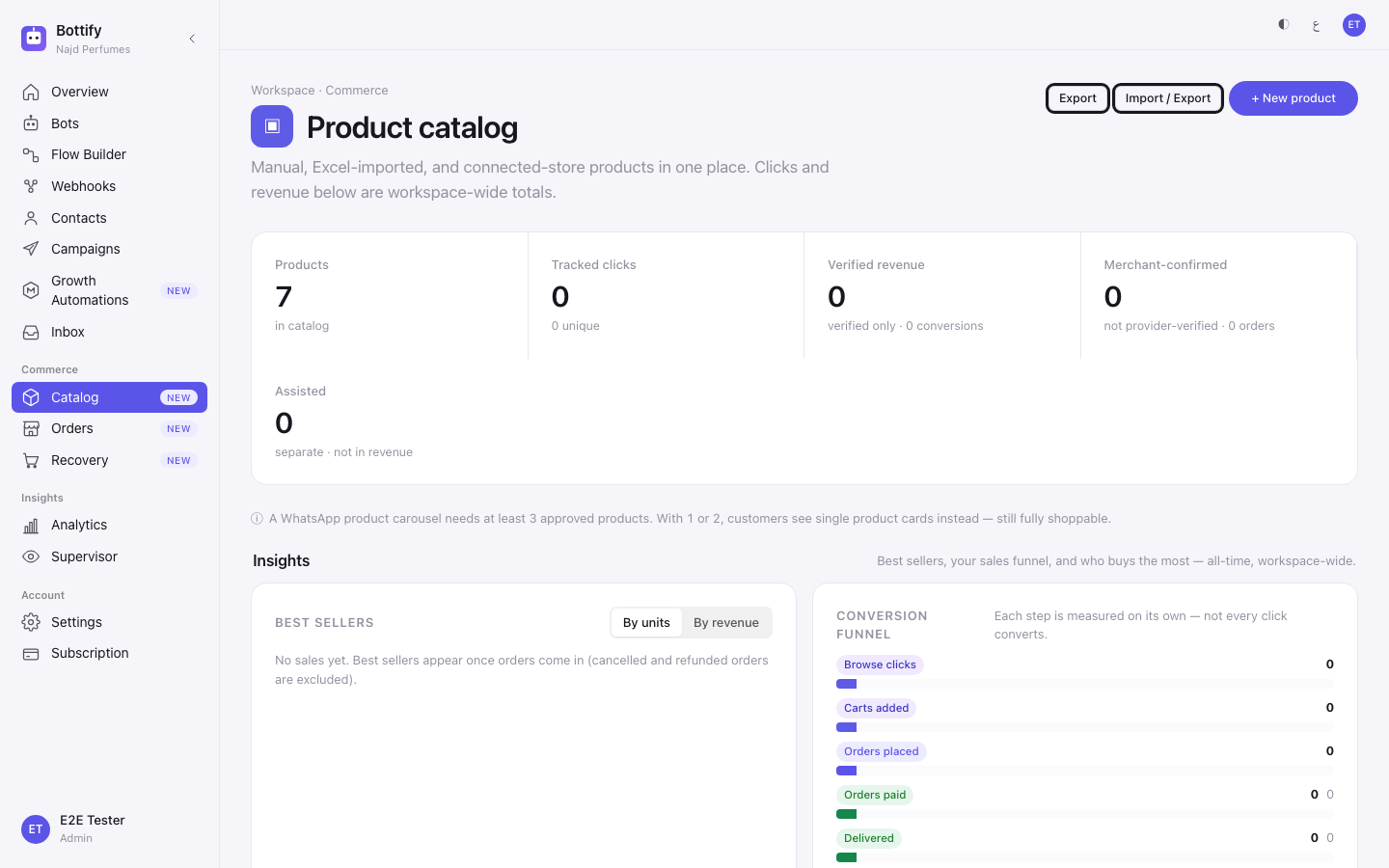
Add a product by hand
- In the sidebar, under Commerce, click Catalog.
- Click + New product.
- Type the product's name in Name *.
- Type a description in Description *. It is required, and it is shown to your customers.
- Fill in Price, Currency, Stock quantity, Brand and Category if you want them. All five are optional.
- Click Create.
- The window closes and reopens on your new product — this is expected. Photos can only attach to a product that exists, and the window tells you so: "Create the product first, then add a photo — a product isn't shown to customers until it has one."
- Under Photos, click + Add photos and choose an image. JPEG or PNG, at least 500×500, up to 8 MB.
- Click Cancel to close the window. Your product is already saved.
Remove a product
- On the product's row or card, click Delete.
- Read the confirmation. It is titled Remove this product? and it tells you where the undo lives: "“Rose Oud” stops appearing in your catalog and to your customers. It is archived rather than erased — you can restore it from the Archived tab."
- Click Remove.
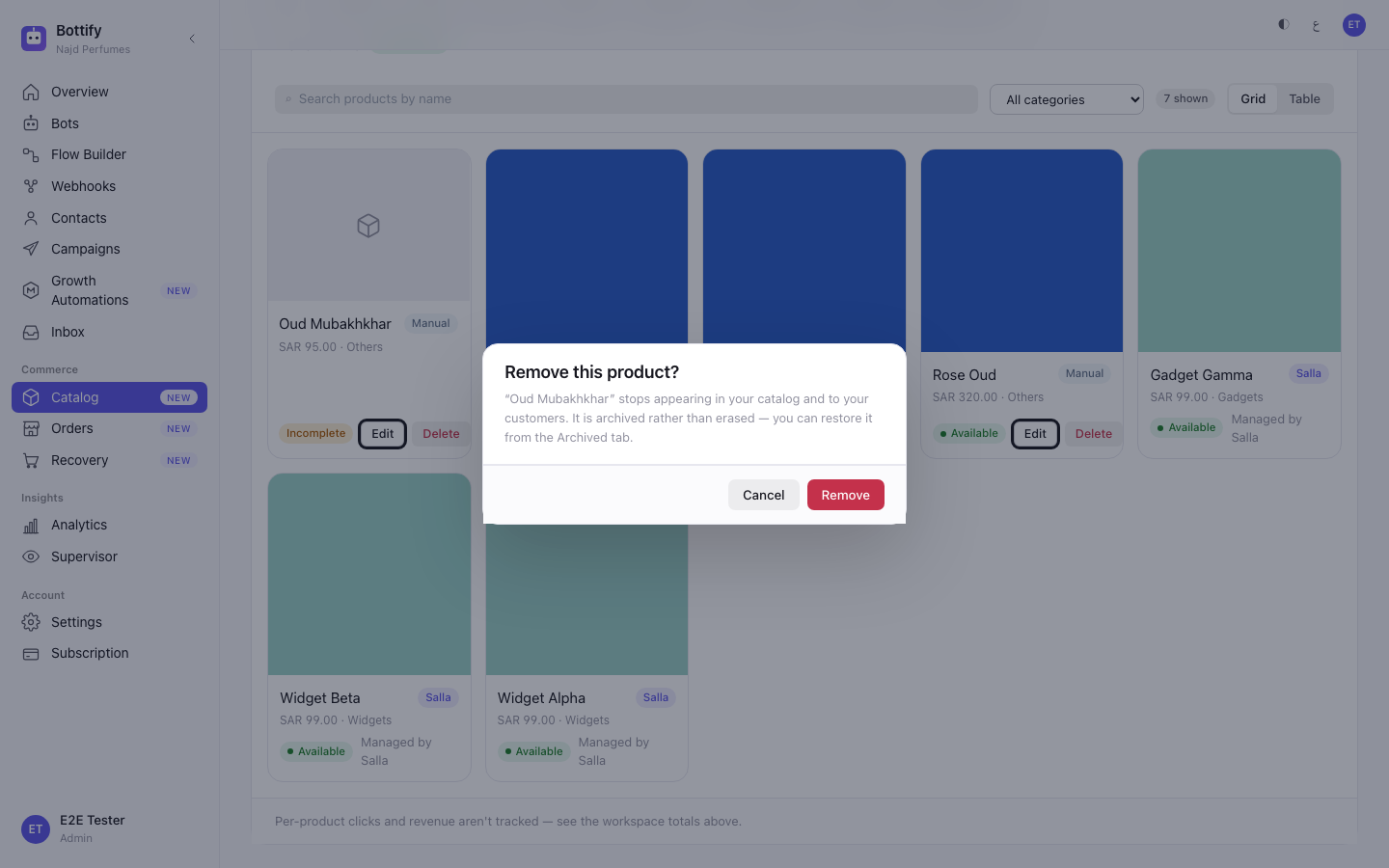
Get it back
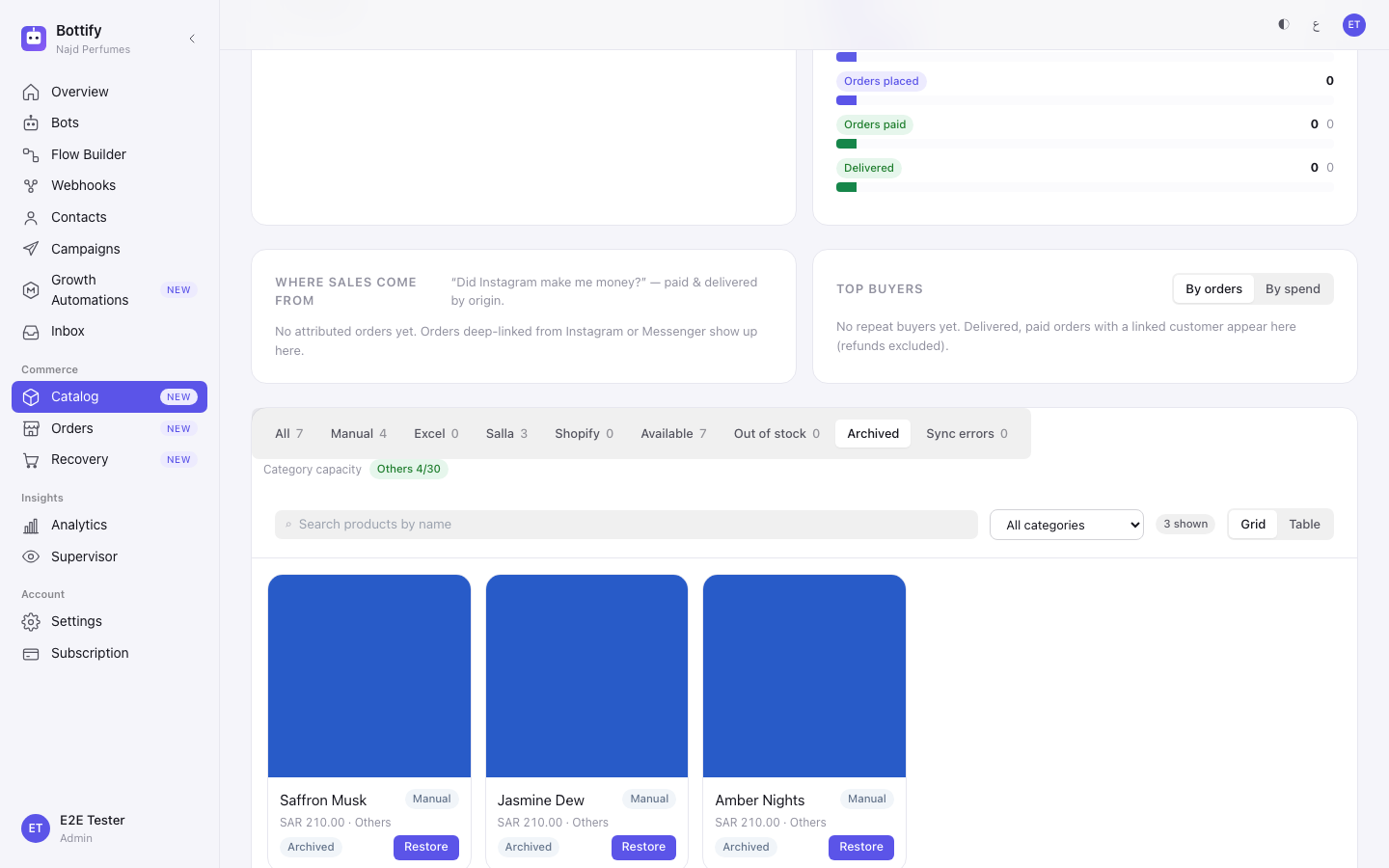
- Click the Archived tab.
- Find the product in the list.
- Click Restore.
There is no confirmation on Restore, on purpose. It is the undo — putting a second "are you sure" in front of a recovery is the wrong place for friction. Clicking it twice is harmless.
Import a spreadsheet
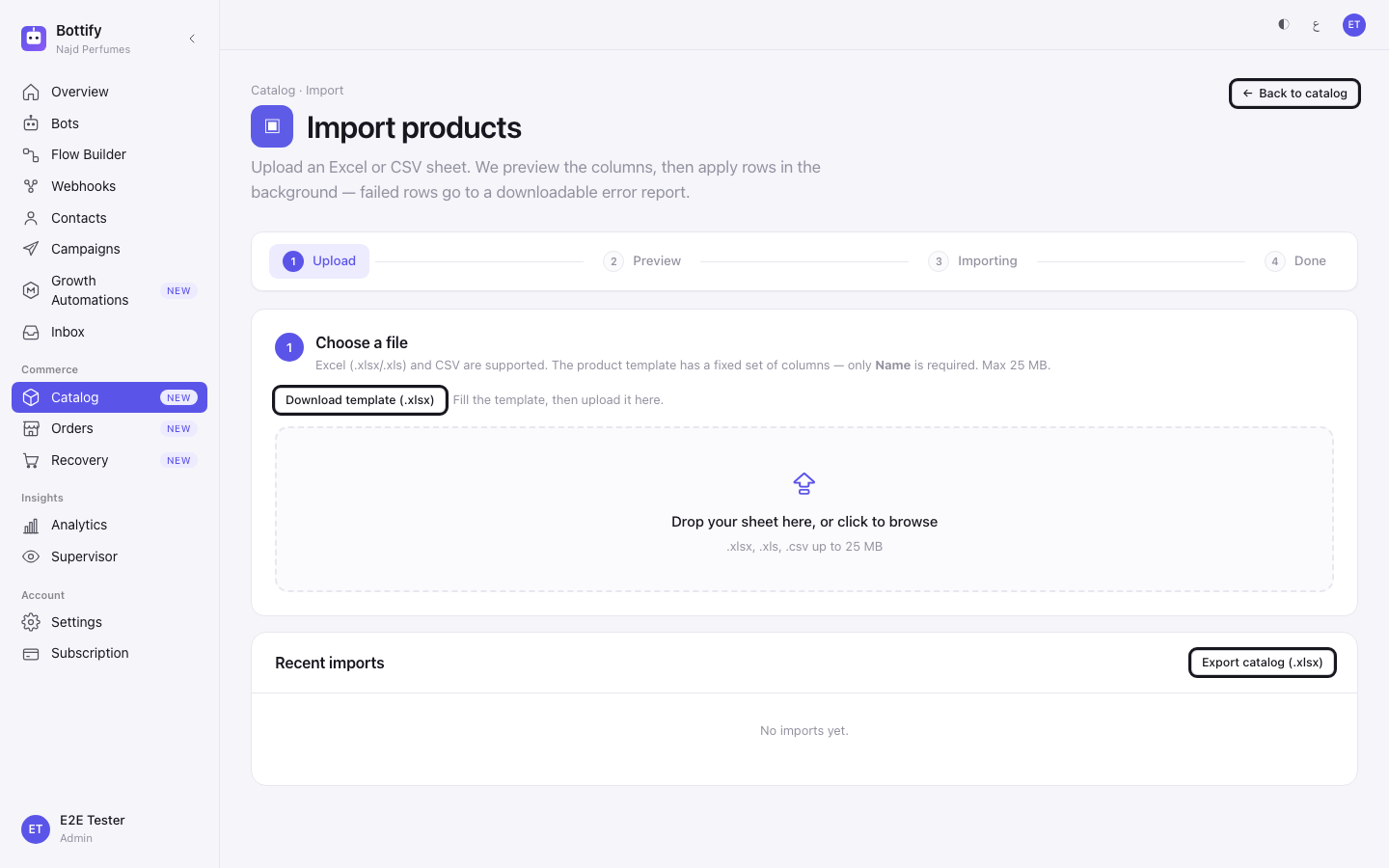
- On the catalog screen, click Import / Export.
- Click Download template (.xlsx).
- Fill the template in Excel. The columns are
Product Key,Name,Description,Price,Currency,Available,CategoryandImage URL— leave the column headings exactly as they come. OnlyNameis required. - Leave
Product Keyblank on new products. Bottify generates one for you. - Save the file and drag it onto Drop your sheet here, or click to browse.
- Check the preview. Bottify matches your column headings for you, so there is nothing to line up by hand — a heading it does not recognise is ignored, and a missing required heading is called out.
- Click Import 40 rows (the button names your own sheet's row count — 40 for Nada's seasonal sheet).
- Wait on the Importing step. You can click Cancel import while it runs; rows already applied stay applied.
Two things about the preview worth expecting. The sample table is shown left-to-right even on an Arabic screen, because it is showing your own spreadsheet's headings and cells, which are yours to lay out and not Bottify's. And an empty Image URL cell does nothing — it never clears photos a product already has.
The trap in every import. The sheet only requires Name. But a product with no Description and no photo lands Incomplete and is not shown to customers. A 200-row import with an empty Description column produces 200 invisible products and zero errors. Fill the Description column.
How do you know your catalog synced?
When you create a product, a message appears reading Product created, with the line "Add photos below, or close when you're done." Adding the photo gives you a second one: Photo added, or Image added if you pasted a link. The first accepted photo is flagged Main.
The signal that actually matters is the badge going away. While a product is missing a description or a photo, its row carries Incomplete, and hovering it says which is missing — "Not shown to customers yet — add a description and a photo to publish." The moment that badge disappears, the product can be shown to a customer. That is the finish line, not the Product created message.
When you remove a product, you get Product archived — not "deleted". The row leaves the list you were looking at and appears at the top of the Archived tab, newest first, with a Restore button on it. If your workspace has a linked WhatsApp catalog, the product also leaves that catalog.
When you restore it, you get Product restored, and the row returns to your live list at its original price, description, category and photos. It goes back into your WhatsApp catalog too.
When an import finishes, the wizard reaches Done and reports "40 rows processed." with a line reading 40 created · 0 updated · 0 skipped · 0 errors, and four counters underneath: Created, Updated, Skipped, Errors. Your import also appears in the Recent imports table with the status COMPLETED.
One dead end to know about before you meet it. Products managed by your connected store do appear in the Archived tab — the Salla sync archives its own products routinely as part of keeping in step with your store — but they have no Restore button. There is no way to bring one back from inside Bottify. The way back is on the Salla side.
Why are my products missing from the catalog?
"Commerce isn't on your plan"
What you see: the entire catalog is replaced by a card titled "Commerce isn't on your plan", with the body "Your current plan doesn't include the product catalog. Upgrade to unlock manual products, Excel import, and Salla sync." and the code COMMERCE_NOT_ENTITLED printed beneath it.
Why: the catalog comes with Commerce, and Commerce is switched on per plan. Bottify does not find this out until it asks — which is why you get a full-page card rather than a locked-looking menu item.
What to do: contact support and ask for Commerce to be enabled on your plan. Nothing on the page will work in the meantime; there is no reduced version of it.
If instead the card reads "Commerce isn't enabled here", that is a different thing — commerce is switched off for the whole installation, not for your plan. You cannot fix that one yourself; your administrator can.
The category is full
What you see: you press Create or Save changes, and a red message appears whose heading is the machine code COMMERCE_CATEGORY_FULL and whose body is "This category already holds the maximum of 30 products. Move or remove one, or choose another category."
Two honest warnings about this one. The heading really is that code — a machine word where a sentence should be. And both the heading and the body are in English even when you are using Bottify in Arabic. Nothing is broken; that is what the screen shows.
Why: you can hold 30 of your own products in any one category. The capacity chip was already warning you — it turns red and gains · full — but nothing on the page is disabled, so the block only lands when you save. It also lands when you move an existing product into a full category, which surprises people.
What to do: choose a different category in the Category list, or make a new one with + New category…, or move a product out of the full category first. Do not upgrade your plan for this — 30 per category is the same on every plan, and products synced from your store never count toward it.
The same code turns up as a per-row error inside an import, with the same sentence.
Some rows in your import failed
What you see: the wizard reaches Done with a non-zero number beside Errors, and a line reading "Download the per-row error report below to fix and re-upload only the failed rows." Click View errors and you get a table with the columns Row #, Error, Message and Raw values.
Why: this is the normal shape of a real import, not a breakdown. Valid rows are applied even while other rows fail — so most of your sheet is already in. The three you will meet most often:
| What the Error column shows | What the Message column says | What it means |
|---|---|---|
INVALID_PRICE | Price is not a valid number | A price cell has a currency symbol, a space, a comma or text in it. Numbers only. |
COMMERCE_PRODUCT_NAME_REQUIRED | Product name is required | The Name cell is empty. It is the one column that cannot be blank. |
COMMERCE_IMPORT_IMAGE_INVALID | Product was saved, but its image was rejected: … | The product is in your catalog. Only the photo was refused — usually too small, too large, or a link Bottify could not reach. |
The Error column shows machine codes and the Message column is in English, in both languages. The table around them is translated; what is inside them is not.
What to do: click Download error rows. You get a file containing only the rows that failed, each carrying its generated Product Key. Fix those rows and upload that file with Import another — because the Product Key travels with them, the retry updates the products rather than creating a second copy of everything.
A last word on the three words. The button says Delete. The confirmation says Remove. The message afterwards says archived, and so does the tab. They are one action, and the action is archiving. Nothing on this screen erases a product permanently, and there is no button anywhere that does.