Settings
Updated 2026-09-01
The workspace-wide screens: the words your bots obey, the language they answer in, the hours reminders are held back, your store profile, your branches, and your own email and SMS accounts.
What do Bottify workspace settings do?
Settings is one screen with a list down the side. Every entry in that list changes something for your whole workspace — every bot, every channel, every teammate — not for one conversation and not for one bot.
The page header always reads Settings, and the line above it always reads Workspace · Settings. What changes is the panel on the right.
Nouf owns Rawaa Perfumes, a two-branch shop in Riyadh. She sells Royal Oud, White Musk and Aged Oud Oil through her Salla store, and she takes bookings for a bespoke blending session. Her customers write to her in Arabic. Her suppliers write to her in English. She does not open Settings to browse it. She opens it with an errand, and there are five errands worth naming:
| What went wrong in her day | Where she goes |
|---|---|
| "A customer typed something and my bot went silent, or dropped her off my list." | Keywords |
| "My bot answered an Arabic customer in English." | Languages |
| "Stop messaging my customers at 2am." | Quiet hours |
| "I opened a second shop." | Branches, then Store |
| "My order confirmation emails and my verification codes are not going out." | Email provider / SMS provider |
The one that costs her real money is the first. Her Arabic customers type «إلغاء» when they want to cancel an order. If that word is sitting in her STOP keyword list, every customer who cancels an order also stops hearing from her shop forever. That is the errand this page exists for.
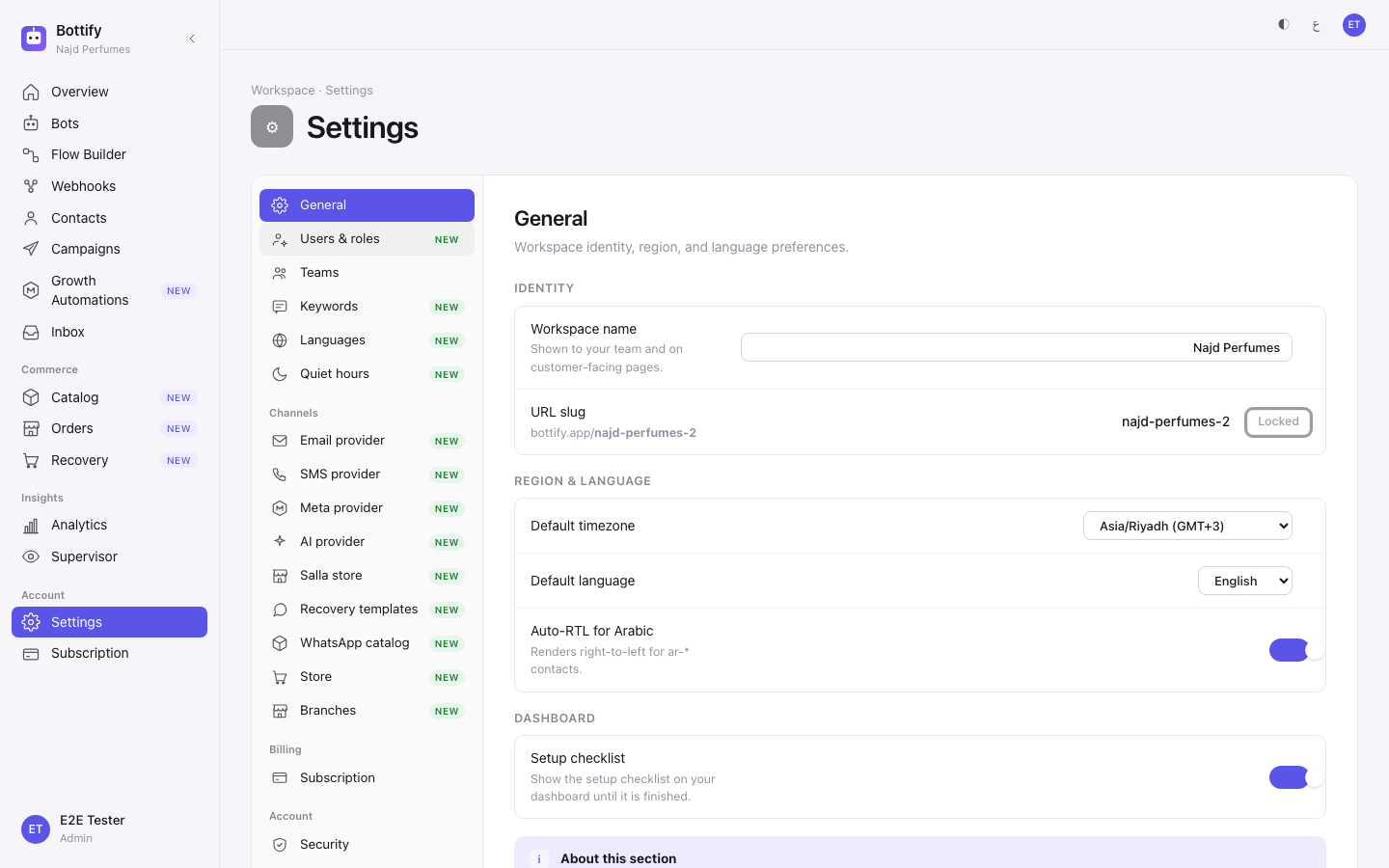
Here is the whole list, in the order it renders, and where each one is explained.
| Entry | What lives there |
|---|---|
| General | Your workspace name, its address, a default timezone and language. Read-only in practice today — see the warning below. |
| Users & roles | Invite teammates, change a role, switch someone off. → Your team and what each role can do |
| Teams | Named groups you route conversations to. → Your team and what each role can do |
| Keywords | The STOP, START and Escape words every bot in your workspace obeys, and the reply each one sends. |
| Languages | Which languages a bot speaks to customers, which one it falls back to, and when it switches mid-chat. |
| Quiet hours | The nightly window in which cart-recovery reminders are held back. |
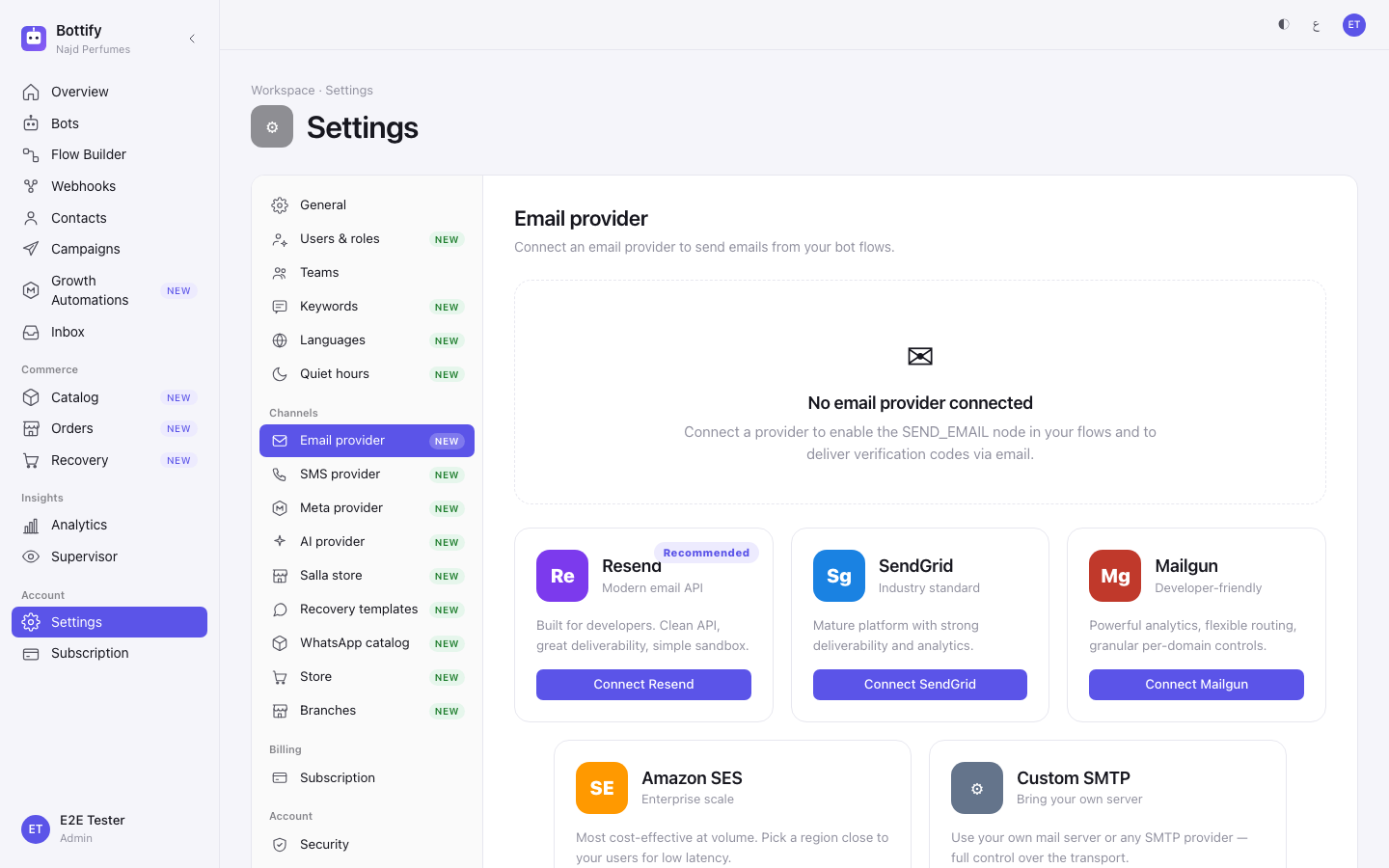
| Email provider | Connect your own Resend, SendGrid, Mailgun, Amazon SES or SMTP account. |
| SMS provider | Connect your own Twilio, MessageBird, Unifonic or Infobip account. |
| Meta provider | Run your whole workspace on your own Meta app instead of Bottify's shared one. Bottify must switch this on for you — there is no button to request it — and it is not how you connect WhatsApp. That is Paste access token on the bot's own Channels tab. → Connecting WhatsApp, Instagram and Messenger |
| AI provider | Answer on Bottify's AI key (the default) or on your own. |
| Salla store | Authorize Salla, see what you granted, disconnect. → Connecting your Salla store |
| Recovery templates | The reminder texts cart recovery would send. → Abandoned carts and recovery |
| WhatsApp catalog | Link your Meta catalog so a bot can send product carousels. → Products and your catalog |
| Store | Payment methods, delivery and pickup, review requests, the cart-recovery switch, your payment gateway. |
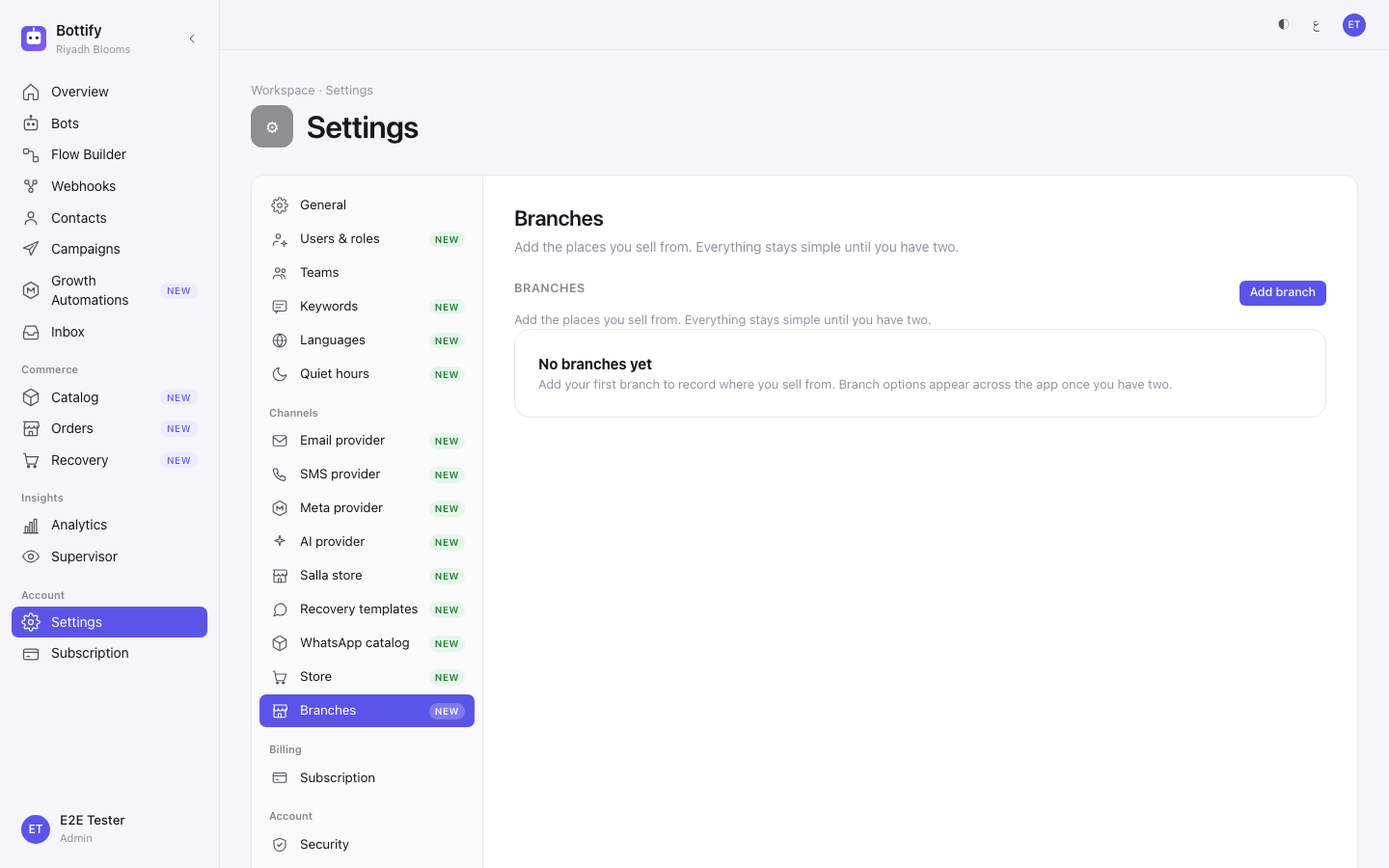
| Branches | The places you sell from. |
| Subscription | Your plan, your usage, your invoices. → Your plan and billing |
| Security | 2FA, session length, single sign-on, audit retention — all display-only today. |
| Notifications | All three switches read Coming soon. → Notifications |
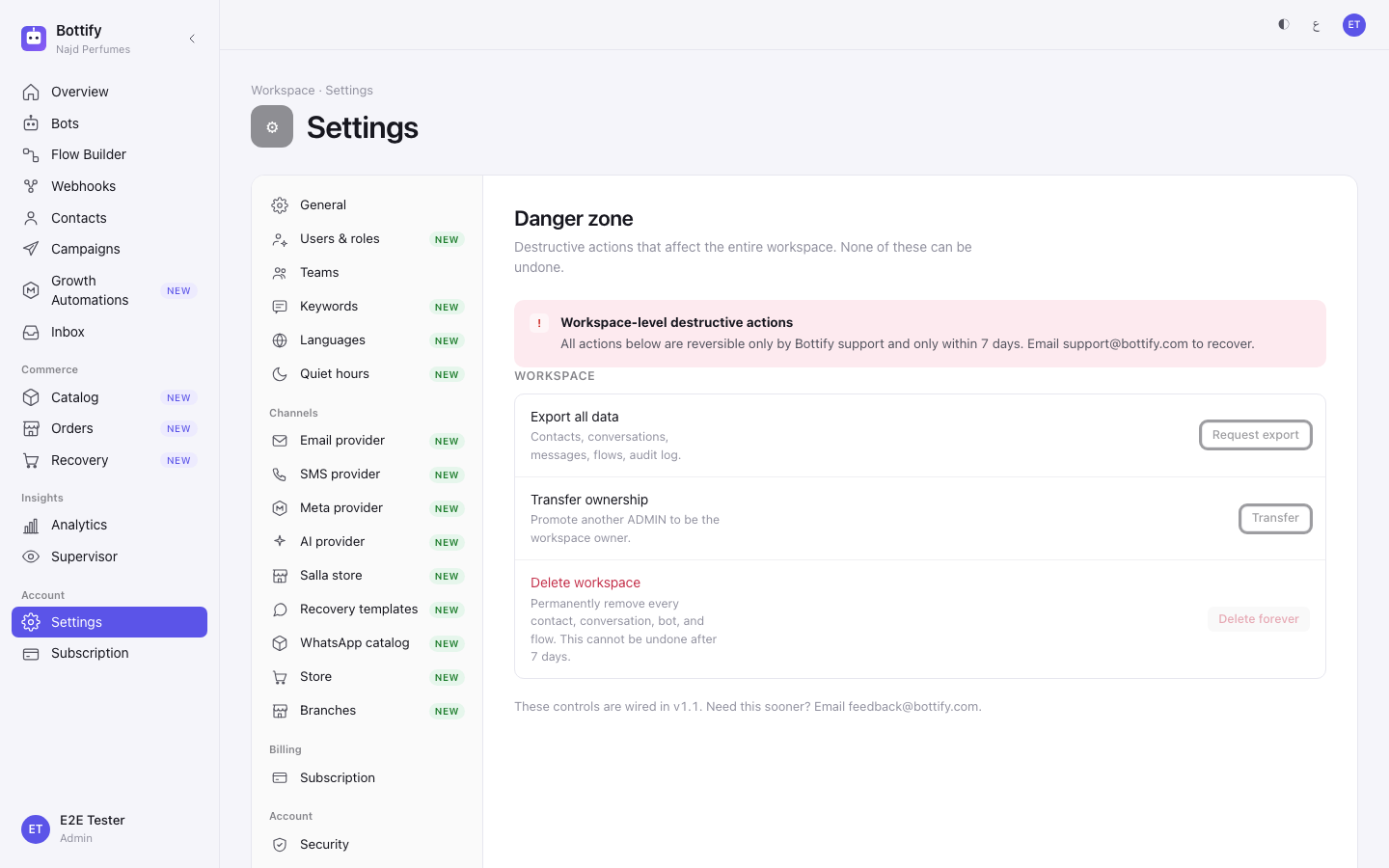
| Danger zone | Export, transfer ownership, delete workspace — all three buttons switched off today. |
Two things about WhatsApp, said once here and repeated wherever they matter. Meta has not yet approved Bottify, so nothing in this list connects WhatsApp, Instagram or Messenger through Bottify. Your setup checklist says so in the product's own words: WhatsApp, Instagram and Messenger — awaiting platform approval. The route that works is your own Meta credentials, pasted on the bot itself — Bots → your bot → Channels → Paste access token — and it has its own guide. Meta provider in this list is not that route: it is a workspace-wide switch to your own Meta app that only Bottify can turn on for you, you do not need it to connect a channel, and a channel connected by pasting a token runs through Bottify's shared Meta app either way. And cart recovery is in dry-run: reminders are planned and counted, never sent. Every reminder is marked Planned — not sent, and the recovery report carries the banner Dry-run mode — no live messages are being sent.
What do you need before you change a setting?
You must be an admin. Not a supervisor. A supervisor is not a smaller admin here — a supervisor cannot open Settings at all: all nineteen entries refuse them, /settings itself included. Since the roles ruling each of those refusals says so, on a card reading "This page is for workspace admins."; before it, she was put back on her own dashboard without a word. For everyone else, seventeen of the nineteen refuse anyone who is not an admin. The two that do stay open — General and Branches — open for an agent and a viewer but hand them nothing: on General every field is greyed out and the Save changes button is not drawn at all, and Branches draws the page but never the list, because the branch list is admin-only on the server and comes back as Couldn't load your branches.
Your teammates cannot even find this screen. The Settings item only appears in the sidebar for admins. A supervisor, an agent or a viewer has no Settings entry. If you send one of them a Settings link, read the first failure state below before you do — what happens next is confusing enough to generate a support message.
Most of these screens need no plan and no connection. Keywords, Languages, Quiet hours, General, Security and Danger zone work on any plan, with nothing connected. You can set your keywords on your first day.
Two entries need the store features on your plan. Branches and Store are both switched on per account. If they are not on yours, the screens still appear in the list with a NEW pill and then fail to load. There is no badge and no upgrade button anywhere to tell you that first — see the second failure state.
Two switches on the Store screen need a permission from Salla you may not have granted. Salla checkout and Send WhatsApp orders to Salla stay locked, showing 🔒 Needs order permission from your Salla store — reconnect with new permissions to unlock. Reconnecting Salla with the new permissions unlocks both.
Quiet hours only affects cart recovery. Nothing else on the platform reads the setting — not campaigns, not sequences, not your bots' replies, not anything a teammate types by hand. And because cart recovery is in dry-run, quiet hours today changes when a reminder would have been sent, not what any customer receives.
Read this before you change anything on General. Today, the workspace name, the URL address, the default timezone, the default language and the Auto-RTL switch do not save. The Cancel and Save changes buttons at the bottom of that screen are switched off, and the button beside the address reads Locked. Type a new workspace name, leave the screen, come back — it is gone. The only control on General that keeps its value is the Setup checklist switch. Treat General as a read-out until a release says otherwise.
What are your options in settings?
Keywords — the three lists, and what each does to a live chat
Everything here applies to every bot in your workspace. A single bot can be given its own list on that bot's own Keywords tab, which then reads Override for this bot instead of Inherited from tenant.
| Group | What turning a word on does | What leaving it out does |
|---|---|---|
| STOP keywords | A customer who sends exactly that word is unsubscribed on the spot, gets your Stop reply, and your bot does not run for that message at all. | Nothing stops the customer's message reaching the bot as an ordinary message. |
| START keywords | An unsubscribed customer who sends exactly that word is put back on your list and gets your Start reply. | An unsubscribed customer has no way back in by message. |
| Escape keywords | The customer is let out of whatever question your bot was waiting on, and the message is re-checked against your flows. If a flow matches, that flow runs. If none matches, they get your Escape reply. Everything the bot already learned about them in that chat is kept. | A customer stuck in a long flow can only get out by waiting it out or asking for a person. |
Four matching rules that decide whether a word ever fires.
- The whole message must be the keyword. "please stop" does not match
stop. There is no partial matching here. - Only typed text counts. A button tap or a photo caption never triggers a keyword.
- While one of your team has the conversation, keywords are skipped entirely. A customer typing "stop" to an agent usually means "stop sending me options", not "remove me from the business". They can still opt out once the conversation is closed.
- Whatever you type is saved in lowercase, trimmed, with duplicates removed.
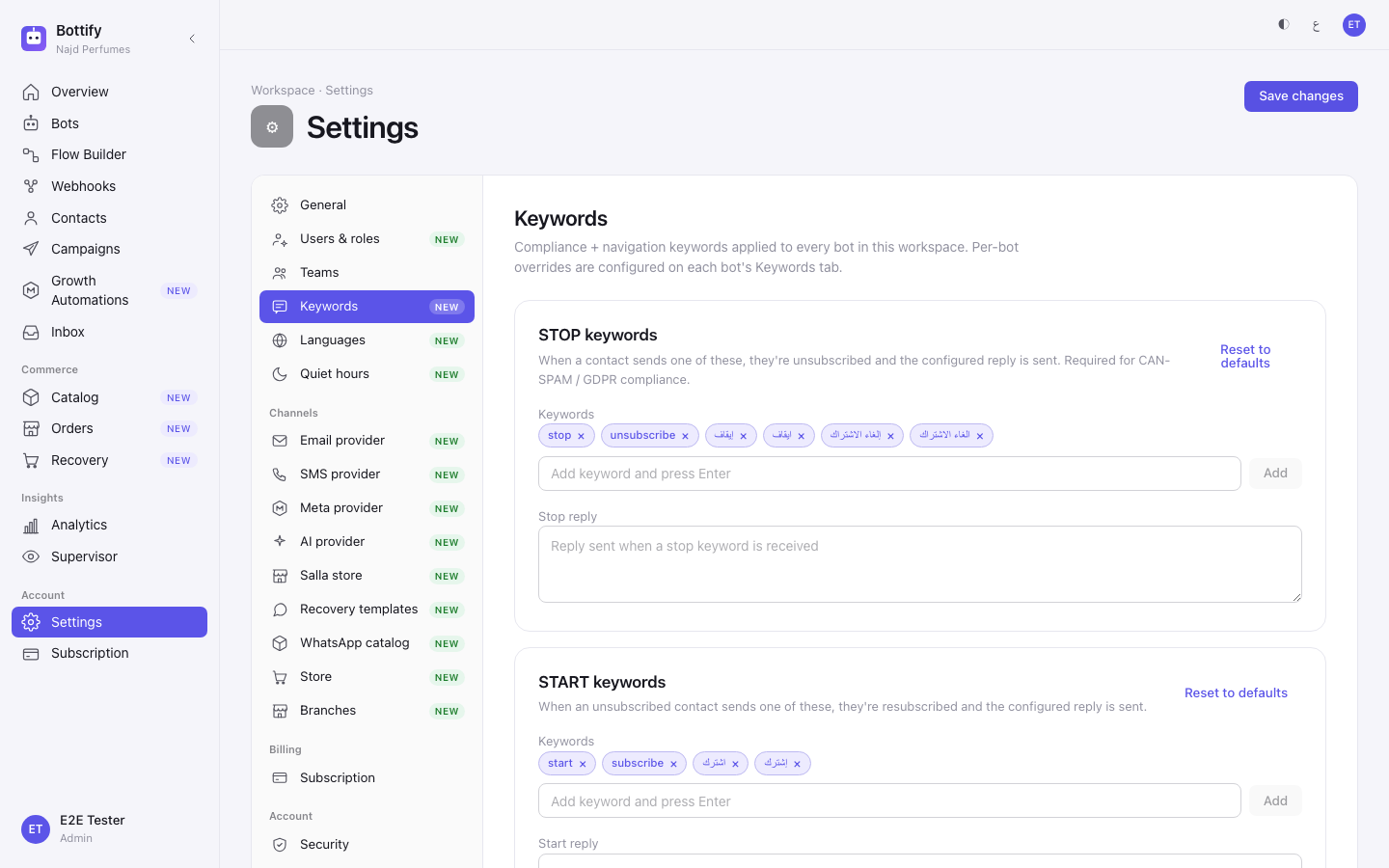
⚠ Do not put a bare «إلغاء» in the STOP list. In Arabic it means cancel, not unsubscribe. A customer cancelling one order would be dropped from your shop entirely. The Arabic opt-out words that belong there are إيقاف, ايقاف, إلغاء الاشتراك and الغاء الاشتراك — both spellings of each, because people type both.
⚠ "Reset to defaults" is not a safe button. Each of the three cards has one, and it writes an older list than the one a new workspace is created with: it adds a bare إلغاء back into your STOP list and drops the hamza-less spellings ايقاف and الغاء الاشتراك. If you have already clicked it, remove the bare إلغاء chip and add إيقاف before you save.
⚠ Leave the reply boxes alone unless you want one language forever. Out of the box, a customer who typed an Arabic keyword gets an Arabic acknowledgement and a customer who typed an English one gets English. The moment you type a single character into Stop reply, Start reply or Escape reply, every customer gets that exact sentence — Arabic speakers included. Clicking Reset to defaults on that card restores the two-language behaviour.
Languages — your bot's language, not your dashboard's
This screen changes what language a bot speaks to your customers. It does not change the language of your Bottify dashboard — that follows the /en/ or /ar/ in your address bar — and it is unrelated to the "Default language" on the General screen.
Pick a bot at the top with Bot, then:
| Option | What changes if you set it |
|---|---|
| Supported languages | The languages this bot may deliver in. Pick one and the language switcher disappears from the Flow Builder for that bot; pick two or more and it appears. |
| Default language | The bot's fallback when it cannot deliver in the customer's language. Must be one of the supported ones. |
| Ask before switching | Mid-chat, when the customer changes language, the bot asks them to confirm before switching. This is the recommended setting. |
| Auto-switch silently | The bot follows every language change with no question asked. |
| Never switch | The customer is locked to the language they opened with, whatever they type later. |
| Switch-confirmation messages | The wording of that confirm question and its Yes / No buttons, per language. |
| Detect on first message | On a brand-new contact, the bot picks the language from what they wrote. Recommended. |
| Start in default language | The first reply is always in the default language, whatever they wrote. |
| Detection sensitivity | Lower reacts faster to a language change; higher avoids flipping on a two-word message. It reliably improves short-message switching only between languages in different scripts, like Arabic and English. |
| Language switch keywords | Words that switch the language with no question and no detection, whatever the policy above says. Set per language to Defaults, Custom or Off. |
| Exact match / Contains substring | Exact is the safe default. Contains matches anywhere in a message: the screen's own warning says "CONTAINS matches anywhere in the message. "I speak arabic" will flip the conversation to Arabic. Use EXACT (the safe default) unless you genuinely need substring matching." |
Quiet hours
| Option | What changes |
|---|---|
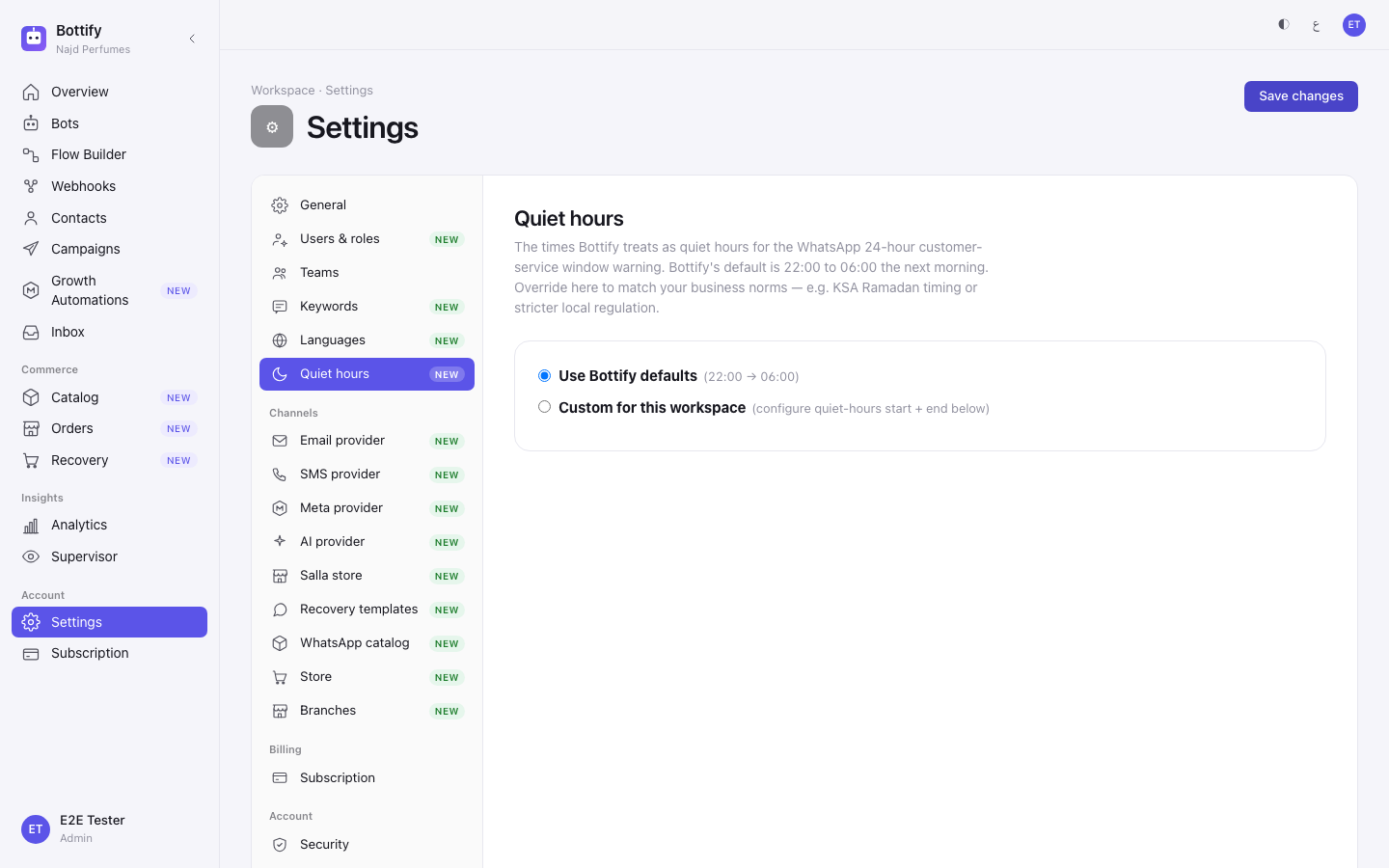
Use Bottify defaults (22:00 → 06:00) | Cart-recovery reminders that come due between 22:00 and 06:00 wait until 06:00 — and they are planned, not sent, so what moves is when one would go out. |
| Custom for this workspace | You set Quiet starts and Quiet ends yourself. Nouf sets 02:00 → 11:00 in Ramadan, because her trading day has moved. |
Two things the screen does not tell you. A reminder caught in the window is not thrown away and not repeated through the night — the same reminder comes due once, at the end of the window, and there it is planned, not sent. And the clock is Bottify's server clock, set to Riyadh time, not the timezone on your General screen. If you trade from Dubai, your 22:00 is being read as 22:00 Riyadh.
Store
The promise at the top of this screen is worth trusting: change something here and your bots follow, with nothing to republish.
| Switch | What changes when it is on | What changes when it is off |
|---|---|---|
| Cash on delivery | The bot offers pay-on-arrival. Nothing to set up. | That option disappears from checkout. |
| Card payments | The customer pays by card and the order is marked paid on its own. The switch only appears once Bottify has verified your payment gateway. | Card is not offered. Until a gateway is verified you see: "Card payments aren't available for your store yet. Configure a payment gateway below — the switch appears once it's verified." |
| Pay online — payment link | Your own payment page link is sent at checkout. | No link is sent. |
| Salla checkout | Checkout happens in Salla. Locked until you reconnect Salla with the order permission. | Not offered. |
| Send WhatsApp orders to Salla | Confirmed cash-on-delivery orders are copied into your Salla dashboard. Same lock. | Orders stay in Bottify only. |
| Delivery | The bot asks for a location pin and applies your Delivery fee (SAR) and Minimum order (SAR). | No delivery option. |
| Pickup | The bot sends your shop address as a map pin. | No pickup option. |
| Show catalog on WhatsApp profile | Your storefront icon appears on your WhatsApp profile. | It does not. |
| Ask for a review after delivery | A rating request goes out after the hours you set. Appears only once review requests are on for your account. | No review request. |
| Cart recovery reminders | The reminder is planned and counted, not sent. The hint beside this switch says it "Sends one automatic WhatsApp reminder" — that is not true yet, because cart recovery is in dry-run. Turning it on today prepares the reminder; it does not message anyone. | Nothing is planned at all. |
Turn every payment method off and the screen warns you: Every payment method is off. "Store bots keep working — checkout routes to a human agent instead. Re-enable a method to close sales automatically." Under each block, a Customer sees strip shows exactly what a shopper will be offered.
The Verified / Pending badge on your payment gateway is not yours to change. Only Bottify marks a gateway verified, after its own check passes.
Branches
A branch is a place you sell from. Nouf's Al Olaya shop and her Al Nakheel shop. Nothing more.
One branch changes nothing anywhere. The screen says so: "You have one active branch, so nothing changes elsewhere in the app. Add a second to start routing products and orders." Add the second and four things wake up: a Branch filter on your catalog, a Branch availability block on each product, a Fulfilling branch on each order, and the bot starts asking your customer which branch they want. That last one is why the form asks for the name twice — Name (English) and Name (Arabic) — because the customer reads it.
There is no delete. A branch you no longer use is Deactivated, and it stays in the list so you can Reactivate it. This is deliberate: old orders point at it.
Products synced from Salla cannot have their branch availability edited here. That block reads Managed by Salla.
Email provider and SMS provider
These are your own sending accounts. Nothing on either screen touches WhatsApp. Email lets your flows send email and delivers verification codes by email; SMS does the same by text message. For a Saudi shop, the product itself pins Unifonic as Popular in KSA; for email it pins Resend as Recommended.
| Action | What changes |
|---|---|
| Disconnect | The account stops sending. Your sender addresses are kept, so Reconnect later needs no rebuilding. |
| Remove | Your credentials and every sender identity are deleted for good. The confirm says "This permanently deletes your credentials and ALL sender identities. This cannot be undone." |
| Adding a second sender | You get a choice of "from" identity in your flows; one is marked the default and is used when a flow does not name one. |
| An unverified sender | It still sends, but the screen warns "⚠ Unverified senders may have lower deliverability. Verify your domain in your Resend dashboard." — the message names whichever provider you connected. |
The screens that only look like options
Security is a statement of policy, not a control panel. Every switch and every button on it is switched off. "15 min · default" and "90 days · default" are printed text, not values read from your workspace, so they cannot be verified from that screen. Two-factor authentication is marked Coming soon. The footnote adds "The configurable fields above land in v1.1." Ignore the "platform settings" link in that footnote — it goes to a Bottify staff screen you cannot open, and clicking it will bounce you.
There is no way to change your password inside the product. Sign out and use the "forgot password" link on the sign-in screen.
Notifications is entirely Coming soon — all three switches are off and cannot be turned on.
Danger zone does nothing today. All three buttons — Request export, Transfer and Delete forever — are switched off, and the footnote says "These controls are wired in v1.1." If you need a data export, an ownership transfer, or your workspace deleted, email support@bottify.app — that is the only path that works.
The Danger zone screen contradicts itself about undoing things: the line at the top says nothing can be undone, and the red box three lines below says everything can be undone by support within 7 days. The accurate version is the narrow one: a deleted workspace can be recovered by emailing support@bottify.app within 7 days and not after. And "Export all data" destroys nothing at all — it only asks for a copy.
How do you change your workspace settings?
A · Make sure «إلغاء» never unsubscribes a customer
- Click Settings in the sidebar. The rail opens on General.
- Click Keywords in the rail.
- Find the STOP keywords card and read its chips.
- If a chip reads exactly إلغاء on its own, click the small remove control on that chip.
- Click into the keyword box — it reads Add keyword and press Enter — type إيقاف, and press Enter.
- Type ايقاف and press Enter.
- Type إلغاء الاشتراك and press Enter.
- Type الغاء الاشتراك and press Enter.
- Leave the Stop reply box exactly as you found it.
- Click Save changes at the top of the panel. It reads Saving… while it works.
B · Move your quiet hours for Ramadan
- Click Quiet hours in the rail.
- Select Custom for this workspace.
- Set Quiet starts to
02:00. - Set Quiet ends to
11:00. - Read the line that appears under the fields and check it describes what you meant — with these times it reads "Sends suppressed during this interval each day."
- Click Save changes.
To go back afterwards: select Use Bottify defaults (22:00 → 06:00) and click Save changes again.
C · Connect an SMS account and prove it sends
- Click SMS provider in the rail.
- Click the provider you use — for a Saudi shop that is usually Unifonic, badged Popular in KSA.
- Fill in the credentials from that provider's own dashboard.
- Click Save credentials.
- Click + Add sender ID.
- Enter your Sender ID — a phone number in international format, or a brand name of up to 11 characters.
- Click Add.
- Click Test connection. This opens the test panel; it does not send anything by itself.
- Type your own mobile number into Phone number, in international format with a
+. - Click 📤 Send test SMS. A real message is sent to that number — this is not a rehearsal.
How do you know a setting was saved?
Keywords. A toast reading Settings saved. It says "Settings saved" and not "Keywords saved" — that is the right screen, do not go looking for another one. Your chips stay as you left them when you reload the page.
Quiet hours. A toast reading Quiet hours saved. If you went back to the defaults instead, the toast reads Reset to Bottify defaults and the two time fields disappear.
Languages. A toast reading Languages saved. On a bot's own tab the same save reads Override saved, and undoing it reads Reset to inherit.
Store. A toast reading Store settings saved, and the Customer sees strip under each block updates to match what you just switched.
Branches. The new branch appears in the list with an Active badge. Once there are two, a Branch filter appears on your catalog and a Fulfilling branch row appears on your orders.
Email or SMS provider. The header strip flips from ○ Not connected to a green ● Connected badge with the provider's name, and the line beneath dates the connection — "Connected on Mar 12, 2026 · Credentials saved (encrypted at rest)." Adding a sender shows Sender added.
The test send. The panel turns green with a ✅ and Test email sent successfully (or Test SMS sent successfully), then Delivered to and the address you typed, then Message ID: and a short code. Then check the inbox or the phone — the panel tells you the provider accepted it, and the inbox tells you it arrived.
Why is a settings screen missing or locked?
1 · A teammate followed a Settings link and landed back where they started — with no message at all
What they see: nothing. No error, no toast, no explanation. The screen simply becomes their own home page. A supervisor lands back on their team overview, an agent on their inbox, a viewer on the dashboard. Seventeen of the nineteen Settings screens do this to an agent or a viewer — and all nineteen do it to a supervisor.
It happens because Settings is admin-only, and the list of entries in the rail is not filtered by role. Which of the nineteen bounce you depends on who you are. An agent or a viewer does reach /settings, sees all nineteen links, and is bounced by seventeen of them; only General and Branches open. A supervisor is bounced by all nineteen — /settings itself does not open for a supervisor, so they never see the rail at all and land on the supervisor dashboard instead. And the two that do open for an agent or a viewer give them little: General greys out every field and draws no Save changes button, and Branches shows the page but not the list — the branch list is admin-only on the server, so it fails as Couldn't load your branches (failure 2 below).
What to do: don't send Settings links to your team. Make the change yourself, or make that person an admin, knowing that an admin can change everything including your plan and your team. If they tell you the page "flickered and went back", this is what happened — nothing is broken and nothing was saved.
For contrast, one thing that does explain itself: if your own sign-in has expired mid-edit you get a proper message, Session expired, "Your session has expired. Please sign in again." If you saw that message, sign in again and redo the change. If you saw no message at all, it is this failure.
2 · "Couldn't load your branches"
What you see: a card reading Couldn't load your branches with a Try again button. Pressing Try again gives you the same card.
Three unrelated things produce this one card, and the screen never tells you which:
- you are not an admin;
- the store features are switched off for this environment;
- your plan does not include the store features.
The Add branch button is visible the whole time, because the screen itself loads for anyone. That button will not save anything either.
What to do, in this order. First check you are signed in as the admin — if you are not, that is the answer. If you are the admin and the card is still there, the store features are not on your account: email support and ask whether your plan includes branches and the store profile. There is no upgrade button on this screen and no plan badge anywhere in the rail to warn you first. The Store entry fails the same way, for the same three reasons.
3 · Your test email or test SMS came back red
Your credentials were saved, and the provider still refused. The panel turns red, tells you which of these it was, and prints a short code you can paste to support.
| What the panel says | What it means | What to do |
|---|---|---|
| Email send failed or SMS send failed — "The provider rejected the send. Check the provider settings and run Test connection." | The provider took your request and said no. Usually an account that is not funded, not out of its trial, or restricted for the destination country. | Sign in to that provider's own dashboard and check the account status, then send another test message from here. |
| Credentials missing — "Required credentials are missing for this provider. Re-save the provider config." | One of the fields you pasted is empty or was not saved. | Open the credentials panel again, re-enter every field including the secret, and click Save credentials. |
| No email sender configured or No SMS sender configured — "Add at least one sender before sending." | The account is connected but you have no "from" identity yet. | Click + Add sender (or + Add sender ID), add one, then test again. |
| Provider rejected the request — "The provider responded with HTTP 403. Run Test connection for details." (the number is whatever the provider returned) | The provider answered with an error of its own. | Note the number in the message and the code chip in the panel, then send both to that provider's support — the fault is on their side of the line. |
| Twilio response missing id — "Twilio did not return a message id — check your Twilio account status." | Twilio accepted the call but gave nothing back, which usually means a suspended or unfunded account. | Check your Twilio account, then test again. |
Two notes on that panel. Test connection is the name of the panel, not of a test — clicking it only opens the box. The thing that actually sends is 📤 Send test email / 📤 Send test SMS, so wherever an error above tells you to "run Test connection", it means send another test message. And the short code printed in the red panel stays in English on an Arabic screen. That is deliberate — it is there for you to paste to support.